Windows Autopatch deferral, deadline and grace period explained
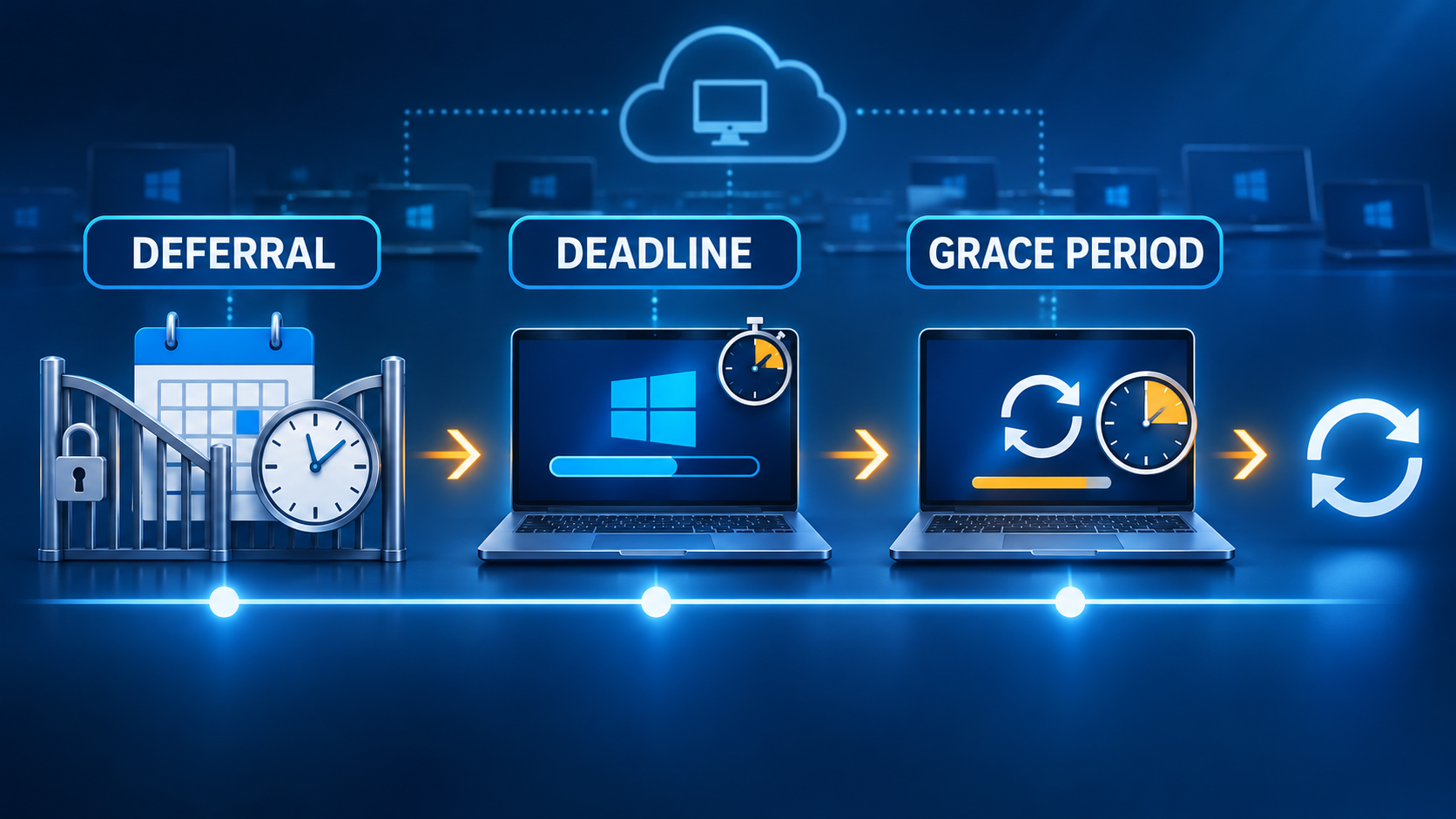
Deferral decides when the update is offered, the deadline decides when it must be installed, and the grace period decides how long a pending restart can wait. With Microsoft’s recommended Windows Autopatch values, the grace period is often the number that matters most to the end user.
Table of Contents
The Three Lines Everyone Is Staring At
You open the Windows Autopatch report in Intune and half of your update rings are flagged. The recommendation next to them reads:
- Quality update deferral of less than three days
- Quality update deadline of 0 or 1 day
- Grace period of 1 or 2 days
If your rings still run the classic “9 days deferral, 5 days deadline” pattern, your first reaction is probably the same as everyone else’s: a deadline of zero? Are my users going to be rebooted in the middle of a Teams call?
Short answer: not necessarily. The reason is the grace period and how Windows calculates the effective deadline.
To understand why, you need to know exactly what the Windows Autopatch deferral, the deadline and the grace period each control, because they do not start counting from the same moment.
Microsoft documents the following recommended rollout for quality updates in Windows Autopatch:
| Ring | Deferral (days) | Deadline (days) | Grace period (days) | Auto restart before deadline |
|---|---|---|---|---|
| Test | 0 | 0 | 0 | Yes |
| Ring 1 | 1 | 0 | 1 | Yes |
| Last | 2 | 1 | 2 | Yes |
The same Microsoft documentation explains the risk labels used in the Autopatch quality update risk assessment:
- Current: The update is delivered within three days of its availability.
- Exposed: The update rollout falls between three and seven days.
- Critical: The rollout takes more than seven days.
In practice, these values balance rapid security update deployment with a reasonable opportunity for users to restart their devices without unnecessary disruption.
Deferral, Deadline, Grace Period – What Each One Does
Let’s break down the three settings.
| Setting | What it controls | The clock starts when… | Allowed range |
|---|---|---|---|
| Deferral | When the update becomes available to the device | Microsoft releases the update | 0-30 days for quality updates |
| Deadline | The time allowed before the update must be installed | The device’s update scan first discovers the update | 0-30 days |
| Grace period | How long a pending restart can wait before it is forced | Installation finishes and the device enters a pending-restart state | 0-7 days |
The deferral is the only one of the three measured directly from the update’s release date.
Take a look at the infographic below to get a first understanding and then read below to see the details.
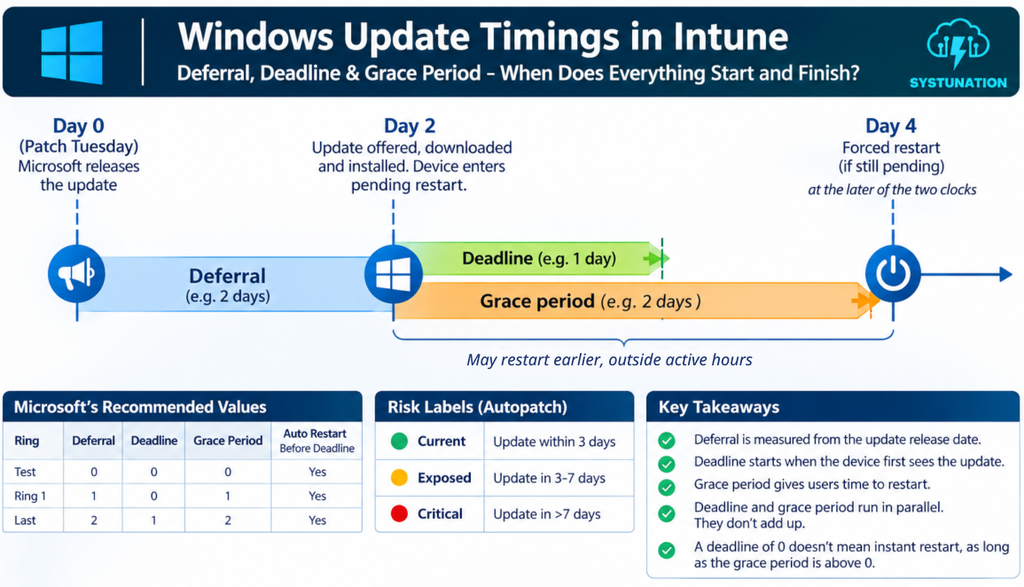
A few more details are worth spelling out.
Deferral: When does Windows see the update?
Deferral is invisible to the user.
During the deferral period, the update is not offered to the device through the applicable Windows Update for Business deployment policy. There is no update notification asking the user to install that particular update.
As described in the Windows Update client policies walkthrough, the offer date is essentially:
Release date + deferral period
For example, if Microsoft releases a quality update on Patch Tuesday and the device has a two-day deferral, the update becomes available after those two days.
This applies to automatically approved updates. For manually approved quality updates, the administrator controls when the update is offered through the approval process.
One important detail: a cloud-based Windows quality update policy can override the client-side deferral configured in an update ring. We’ll look at that in the Intune configuration section.
Deadline: How long does Windows have to install the update?
The deadline is counted from the first update scan that discovers the available update, not directly from Patch Tuesday.
This distinction is important.
The deadline determines how long Windows has before it must install the update if it has not already done so.
With a configured deadline, Windows attempts to download and install the update as soon as it is offered. The deadline is the latest point by which installation must be completed, not the point when installation is scheduled to begin.
For example:
- Deferral: 2 days
- Deadline: 1 day
- Grace period: 2 days
If the update becomes available on Day 2 and the device discovers it at 10:00, Windows attempts to download and install it immediately.
Per the Update Policy CSP, a deadline of zero means that Windows does not have an additional deadline period to wait before requiring installation. It does not mean that installation will necessarily finish instantly. Download, installation, connectivity and other device conditions still matter.
Microsoft documents this behavior in Enforce compliance deadlines with policies.
Grace period: How long can the restart wait?
This is the setting that has the biggest impact on the user’s experience.
The grace period starts when the update installation finishes and Windows enters a pending-restart state.
It defines how long Windows can wait before forcing the restart required to complete the update.
During this period, Windows can attempt to restart the device automatically outside active hours, provided the applicable policies and settings allow it.
The user can also restart the device manually or schedule a restart, depending on the Windows experience.
The important distinction is that the grace period is not an additional installation period. It is a restart period.
The One Formula to Remember
Microsoft defines the effective deadline using whichever of the following two times is later:
(Scan discovery time + deadline) OR (Restart pending time + grace period)
In mathematical terms:
Effective deadline = MAX(Discovery time + Deadline, Restart pending time + Grace period)
Let’s make this practical.
Assume:
- The device discovers the update on Day 2 at 10:00.
- The deadline is 1 day.
- Installation finishes on Day 2 at 11:00.
- The grace period is 2 days.
The two calculations are:
Deadline calculation
Day 2, 10:00 + 1 day = Day 3, 10:00.
Grace period calculation
Day 2, 11:00 + 2 days = Day 4, 11:00.
Windows uses whichever deadline is later.
In this example, the effective deadline is Day 4 at 11:00.
Before the effective deadline, Windows can attempt to restart automatically outside active hours if automatic restarts are permitted.
Once the effective deadline is reached, Windows must enforce the required restart, regardless of active hours.
This is why the grace period often becomes the deciding factor when Microsoft’s recommended values are used.
With the recommended configurations, the grace period is equal to or longer than the deadline:
- Test: 0 / 0 / 0
- Ring 1: 1 / 0 / 1
- Last: 2 / 1 / 2
The grace period therefore generally determines the forced-restart boundary, assuming installation completes normally.
Where Each Number Lives in Intune
This is the part that confuses people, because the three numbers can be configured through different policy layers.
| Setting | Where you configure it |
|---|---|
| Deferral | Windows Update ring or Windows quality update policy |
| Deadline | Windows Update ring |
| Grace period | Windows Update ring |
| Auto reboot before deadline | Windows Update ring |
There is an important distinction between the Windows Update ring and the cloud-based Windows quality update policy.
Windows Update rings
Windows Update rings are configured in:
Microsoft Intune admin center → Devices → Manage updates → Windows updates → Update rings tab
They provide the client-side update configuration, including:
- Quality update deferral period
- Quality update deadline
- Quality update grace period
- Automatic restart behavior before the deadline
- Active hours and other update experience settings
Windows quality update policies
Cloud-based Windows quality update policies are configured in:
Microsoft Intune admin center → Devices → Manage updates → Windows updates → Quality updates tab
These policies allow administrators to control the deployment and approval of quality updates.
For automatically approved updates, the Make updates available after setting determines how many days after Microsoft’s release the update becomes available to targeted devices.
Here is the important part:
A deferral configured in a cloud-based quality update policy overrides the client-side deferral configured in an update ring.
It does not add to it.
For example:
- Update ring deferral: 5 days
- Quality update policy deferral: 2 days
The cloud-based policy’s two-day deferral takes precedence. The device does not wait five additional days.
The deadlines and grace periods configured in the update ring still apply.
For manually approved updates, there is no automatic deferral period. The administrator controls when the update is offered by approving it.
How is the compliance date calculated?
Microsoft also documents how Windows Autopatch calculates the target compliance date.
For automatically approved quality updates:
Release date + quality update policy deferral + client deadline
For manually approved quality updates:
Approval date + client deadline
If a device is managed only through an update ring, the ring’s deferral and deadline are used.
Notice that the compliance date calculation does not simply add the grace period. The compliance date and the effective forced-restart deadline are related concepts, but they are not interchangeable.
When tightening your Autopatch deferrals, always check both policy layers. Lowering the ring deferral does nothing if a quality update policy with a longer deferral is controlling the device.
What the User Actually Sees
Let’s take the Last ring:
- Deferral: 2 days
- Deadline: 1 day
- Grace period: 2 days
And assume a laptop that is online every working day.
| When | What happens | What the user sees |
|---|---|---|
| Day 0 (Patch Tuesday) | Update released | Nothing |
| Day 2, 10:00 | Deferral ends, scan discovers the update, download and installation start | Nothing, or the Windows Update icon |
| Day 2, 11:00 | Installation finishes, restart becomes pending | Depends on notification settings |
| Night of Day 2 and Day 3 | Windows can attempt to restart outside active hours | The user may simply find the device restarted |
| Day 3, 11:00 | Deadline calculation has passed, but the grace period is still active | Restart experience depends on notification settings |
| Day 4, 10:45 | Effective deadline is 15 minutes away | Final restart warning |
| Day 4, 11:00 | Effective deadline reached | Forced restart |
The important point is that Windows does not necessarily wait until Day 4 to restart.
If the device is idle and outside active hours, it may restart earlier.
If the user manually restarts the device, the update is completed without waiting for the effective deadline.
The worst-case timeline in this example is approximately four days after release, assuming the update is offered promptly after deferral and installs successfully.
Actual timing can vary depending on when the device scans, download and installation duration, connectivity and device activity.
The Notifications
Windows Update notifications are another area where administrators can easily misunderstand what users will experience.
On supported Windows 11 versions, the restart notification experience depends partly on a user-controlled setting:
Settings → Windows Update → Advanced options → Notify me when a restart is required to finish updating
This setting controls the notification experience. It is not the same thing as the deadline or grace period policy.
There are two important behaviors to understand:
| User setting | Behavior |
|---|---|
| Off (default) | Restart notifications can be suppressed for 24 hours after a restart becomes pending. Automatic restarts outside active hours can still occur during this period. |
| On | The user receives restart notifications immediately. Automatic restarts are blocked for the first 24 hours after the restart becomes pending. |
These behaviors should not be interpreted as a guarantee that every Windows device will show identical notifications. The experience depends on the supported Windows version, applicable update policies and notification settings.
What happens with short deadlines?
Microsoft warns that shorter deadlines and grace periods increase the chance that users will miss notifications before a forced restart.
A zero-day deadline is particularly aggressive.
According to Microsoft, with a zero-day deadline the only notification the user receives is the final non-dismissible warning 15 minutes before the forced restart, regardless of the user’s notification setting. With a zero-day grace period on top, that restart can come as soon as installation finishes.
With a one-day deadline, the user has more opportunity to receive notifications and schedule a restart, depending on the grace period and notification settings.
The practical takeaway is simple:
Shorter deadlines mean faster security update enforcement, but they also reduce the time users have to react.
Tell your users before tightening the rings, not after.
Special Cases
The theory is straightforward. Real environments are not.
Let’s look at a few situations that can change the user’s experience.
The laptop was off for several days
A user shuts down their laptop on Day 1 and comes back on Day 8.
The device is assigned to the Last ring:
- Deferral: 2 days
- Deadline: 1 day
- Grace period: 2 days
What happens?
- The device starts and performs an update scan.
- The deferral has already expired, so the update can be offered immediately.
- Windows attempts to download and install the update.
- The deadline is calculated from the scan that first discovers the update.
- Once installation finishes, the grace period begins.
- Windows can attempt to restart outside active hours, and the effective deadline determines when the restart must be enforced.
So no, the user is not necessarily rebooted the moment they log in.
This is exactly what the grace period is designed to protect against.
Microsoft describes grace periods as particularly useful for devices whose users have been away for an extended period, such as during a vacation.
The important detail is that the grace period starts after installation finishes, not when the user returns or when Patch Tuesday occurs.
Grace period of 0 (Test ring)
With a configuration of 0 / 0 / 0, the effective deadline can be reached as soon as the update installation finishes.
There is no additional grace period for the user to schedule a restart.
This means Windows can enforce the restart during normal working hours if that is when installation finishes.
This configuration can make sense for dedicated IT test devices, where rapid validation and update compliance are more important than minimizing user disruption.
It is not a configuration I would assign broadly to a production user population without carefully considering the impact.
The laptop is never on at night
“Auto reboot before deadline = Yes” sounds great, but it only helps if the device is powered on and available outside active hours.
Consider a laptop that is closed at 17:00 and opened again at 09:00.
It never has an opportunity to complete an automatic restart overnight.
For these users, the restart will either happen when they choose to restart the device or when the effective deadline is reached.
This is a good reason to use the 2-day grace period for broad user populations.
It gives Windows more opportunities to find a less disruptive restart time.
However, it does not guarantee that every user will avoid a forced restart during working hours.
The user is presenting when the effective deadline hits
There is no guaranteed way to postpone a restart indefinitely once the effective deadline has been reached.
The user is presented with the required restart experience, and Windows enforces the restart to complete the update.
This is why short deadlines need to be communicated clearly to users, especially in environments where devices are used for presentations, customer meetings or other business-critical activities.
Hotpatch months
Hotpatch is one of the reasons why Microsoft’s more aggressive update rollout recommendations are becoming increasingly practical.
With Hotpatch, eligible Windows devices can receive certain monthly security updates without requiring a restart.
However, Hotpatch does not mean that all monthly updates can be installed without restarting.
Microsoft uses a release cycle consisting of:
- Baseline updates: Released quarterly, containing the latest security fixes, cumulative new features and enhancements. These require a restart.
- Hotpatch updates: Released in the intervening months, delivering eligible security fixes without requiring a restart.
The typical annual cycle is:
| Quarter | Baseline update (restart required) | Hotpatch (no restart required) |
|---|---|---|
| Q1 | January | February and March |
| Q2 | April | May and June |
| Q3 | July | August and September |
| Q4 | October | November and December |
Hotpatch is enabled by default for eligible devices in Microsoft Intune, but administrators can control it through tenant-level settings or Windows quality update policies.
Eligibility requirements matter.
For example, supported Windows 11 devices need the appropriate licensing, supported operating system version, Virtualization-Based Security (VBS) enabled and the required update management configuration.
Devices that are not eligible for Hotpatch receive the latest cumulative update instead. These updates still require a restart.
Also, if a device is not on the latest baseline update, it may receive the baseline update and the applicable Hotpatch update.
The important takeaway is that Hotpatch reduces the number of restarts required for eligible security updates, but it does not eliminate the need for deadlines, grace periods or normal update management.
Where Does This Land in the Registry?
For administrators who want to troubleshoot update policies locally, it is useful to understand how the Windows Update Policy CSP settings map to the device.
The following table shows the relevant Update Policy CSP settings:
| Intune update ring setting | CSP policy | Range |
|---|---|---|
| Quality update deferral period (days) | Update/DeferQualityUpdatesPeriodInDays | 0-30 |
| Deadline for quality updates | Update/ConfigureDeadlineForQualityUpdates | 0-30 |
| Grace period | Update/ConfigureDeadlineGracePeriod | 0-7 |
| Auto reboot before deadline | Update/ConfigureDeadlineNoAutoRebootForQualityUpdates | Boolean (0/1) |
There are separate settings for feature updates.
For example:
Update/ConfigureDeadlineGracePeriodForFeatureUpdates
This is important because quality update and feature update deadlines are separate policies.
Effective policy (what Windows Update actually enforces)
Windows Update also maintains policy state on the local device.
One registry location worth knowing is:
HKLM\SOFTWARE\Microsoft\WindowsUpdate\UpdatePolicy\PolicyState
However, do not treat this location as a complete or universally authoritative representation of every policy affecting update deployment.
There are multiple policy layers involved:
- Intune update ring configuration
- Windows Update CSP settings
- Group Policy
- Cloud-based quality update policies
- Windows Update service-side deployment and approval decisions
If the values on the device do not match your update ring, check also HKLM\SOFTWARE\Policies\Microsoft\Windows\WindowsUpdate.
A cloud-based quality update policy can also override the client-side quality update deferral from an update ring.
The cloud policy’s deferral is enforced by the Windows Update service when it determines when to offer the update.
You should not troubleshoot cloud-based deferral by looking only at the local DeferQualityUpdatesPeriodInDays value.
Instead, check the applicable Intune quality update policy, its assignments and the Windows Autopatch quality update reports.
For the CSP definitions, supported versions and registry mappings, see: Update Policy CSP.
Gotchas
There are a few details worth keeping in mind when designing your update rollout.
1. Cloud-based deferral overrides update ring deferral
A ring with five days of deferral and a quality update policy with two days of deferral does not result in seven days.
The cloud-based policy’s two-day deferral takes precedence.
Deadlines and grace periods from the update ring still apply.
2. Deferrals only apply to automatic approval
With manual approval in the Windows quality update policy, there is no automatic deferral period.
The administrator decides when the update becomes available by approving it.
The compliance date is then calculated using the approval date and the configured client deadline.
3. The default quality update deadline is one day
The Update Policy CSP specifies a default quality update deadline of one day.
The default quality update grace period is two days when the deadline is configured but no explicit grace period is provided.
New update rings use their documented defaults, but existing rings retain their configured values.
Always inspect existing policies rather than assuming that every ring uses the current default values.
4. A deadline changes how Configure Automatic Updates is handled
When compliance deadline policies are configured, they take precedence over certain settings from the older Configure Automatic Updates policy.
Starting with the December 10, 2024 update for Windows 11 22H2 and later, Configure Automatic Updates is respected before the deadline occurs and ignored once the deadline passes.
With a deadline of zero, there is very little time before that deadline is reached.
5. Maintenance windows and deadlines need careful planning
Do not assume that a maintenance window guarantees that an update deadline will never cause a restart outside the window.
Expired compliance deadlines can override the expected maintenance-window behavior.
Microsoft recommends choosing an update management approach that fits your deployment requirements rather than relying on overlapping scheduling mechanisms that may conflict.
6. Know your real worst-case timeline
For a device that is online and successfully installs the update as soon as it is offered, the forced-restart boundary is approximately:
Deferral + MAX(Deadline, Installation duration + Grace period)
This is a simplified planning estimate, not a guaranteed timestamp.
The actual calculation depends on the update discovery time, installation completion time and effective deadline.
For the Last ring:
- Deferral: 2 days
- Deadline: 1 day
- Grace period: 2 days
The expected forced-restart boundary is approximately four days after release, plus the time required for discovery and installation.
This is an important detail when interpreting the Autopatch risk assessment.
A device may still have a pending restart after the update has been installed, and the user experience may extend beyond the initial rollout window.
7. The grace period is not an additional deferral
A two-day grace period does not mean Windows waits two extra days before downloading or installing an update.
It starts only after installation finishes and a restart becomes pending.
This is probably the most important distinction to communicate to anyone designing update rings.
References
All references below point to Microsoft documentation.
- Autopatch group policies
- Windows quality updates and .NET Framework updates
- Windows quality update end user experience
- Enforce compliance deadlines with policies
- Policies for update compliance and user experience
- Configure Windows Update client policies by using CSPs and MDM
- Update Policy CSP
- Update rings policy settings
- Hotpatch updates in Microsoft Intune
- Windows Autopatch hotpatch updates