Lock a Windows Device to Issued User in Intune – A clear Guide
Learn how to lock a Windows device to issued user with Intune using AllowLocalLogOn and DenyLocalLogOn. This post covers a static Settings Catalog approach, a dynamic Remediation-based PowerShell solution, where Windows actually stores each setting, and how to roll it all back safely.
Table of Contents
The Problem This Solves
A question that surfaces regularly in the r/Intune community, and that many IT administrators quietly wrestle with, is: how do you ensure that a corporate Windows device can only be signed into by the specific user it was issued to?
On the surface, this seems like something Intune should handle natively. You assign a device, you set a primary user, and the device behaves accordingly. In practice, that is not how it works. The Intune Primary User is a metadata concept – it controls things like Company Portal access, BitLocker recovery visibility, and troubleshooting attribution. It does not restrict who can physically sign into the device at the Windows logon screen.
This means that in a standard Entra ID-joined, Intune-managed environment, any user in your tenant with valid credentials can walk up to any corporate device and sign in. For many organizations, that is a compliance risk, a security gap, and an operational headache. Shared credentials, borrowed laptops and credential-pivoting attacks all become easier when there is no logon-level restriction in place.
There is no built-in Intune toggle that says “lock this device to user X.” What does exist is a Windows User Rights Assignment called Allow log on locally, exposed through the Policy CSP – UserRights as AllowLocalLogOn, and that is exactly what we are going to configure.
A Real-World Scenario – Lock a Windows device to issued user
This is not a single-industry problem. It surfaces in two very different forms depending on the type of organization.
The corporate / compliance scenario
A mid-sized professional services firm rolls out Windows 11 devices via Autopilot. Each laptop is issued to a named employee, given a clear asset tag, and assigned a primary user in Intune. The IT team feels confident – devices are enrolled, policies are applied, compliance looks clean in the portal.
Six months later, during an internal audit, the security team pulls sign-in logs from Entra ID and finds something uncomfortable. Several devices that are recorded as belonging to one employee have had multiple different users signing into them, including people from entirely different departments. The finance director’s laptop was signed into by two other people on days she was out of office. A contractor who left the company three weeks ago is still showing active sign-ins on a device they were never issued.
None of this required any privilege escalation, any vulnerability exploitation, or any attack. Every one of those users had a valid Entra ID account. They sat down at a laptop, typed their credentials, and Windows let them in – because there was nothing in place to stop them.
The audit flags it as a data handling risk. The devices contain locally cached documents, browser sessions with saved credentials, and business application caches. The firm cannot demonstrate that sensitive information was not accessed outside of its authorized scope. The fix, in retrospect, takes a couple of days to implement. But the finding becomes a line item in an audit report because the controls were not in place to begin with.
The education / shared device scenario
Schools face a different version of this problem. A cart of shared Windows laptops is handed out to students each morning and collected at the end of the day. The devices are pooled, not assigned to individuals, so the goal is not to lock a device to one named person forever.
This is an important distinction. The Allow approaches in this post do not fit a pooled cart: once a device is locked to the first student, the next student cannot sign in at all until an admin unlocks it. For shared carts, Windows already has a purpose-built answer in the SharedPC CSP (Intune’s shared multi-user device settings), which handles account cleanup between users. What DenyLocalLogOn adds on top is blocking specific accounts or account categories – for example, offboarded students or local accounts – while leaving the pool open to everyone else.
In short: the corporate 1:1 model is solved with an allowlist (static or dynamic). The shared model is solved with shared-device settings plus, where needed, a denylist.
Allow vs Deny – Two Sides of the Same Coin
Windows gives you two opposite ways to control who can sign in locally, and they suit different scenarios.
| AllowLocalLogOn (allowlist) | DenyLocalLogOn (denylist) | |
|---|---|---|
| Principle | Define who CAN sign in | Define who CANNOT sign in |
| Everyone not listed | Blocked | Allowed |
| Lockout risk | High if you forget Administrators | Low, unless you deny a broad group |
| Airtight? | Yes | No – any account you did not anticipate can still sign in |
| Windows constant | SeInteractiveLogonRight | SeDenyInteractiveLogonRight |
Both are available through the UserRights Policy CSP and the Intune Settings Catalog, and both are enforced by the same Windows security subsystem (LSA).
As a general rule: use Allow when you want to enforce who CAN sign in. Use Deny when you want to exclude specific accounts while keeping the door open for others.
What Is AllowLocalLogOn and Why Does It Matter
Windows has a Local Security Policy concept called User Rights Assignment. These are system-level privileges that define what specific users or groups are permitted to do on the machine at a security-subsystem level – things like logging on locally, logging on as a service, or shutting down the system and so on.
The one that controls who can sign in at the Windows logon screen is Allow log on locally, known internally as SeInteractiveLogonRight. By default on workstations, the right is granted to Administrators, Backup Operators and Users. Because every authenticated user is effectively a member of Users, any valid account can sign in on any corporate device.
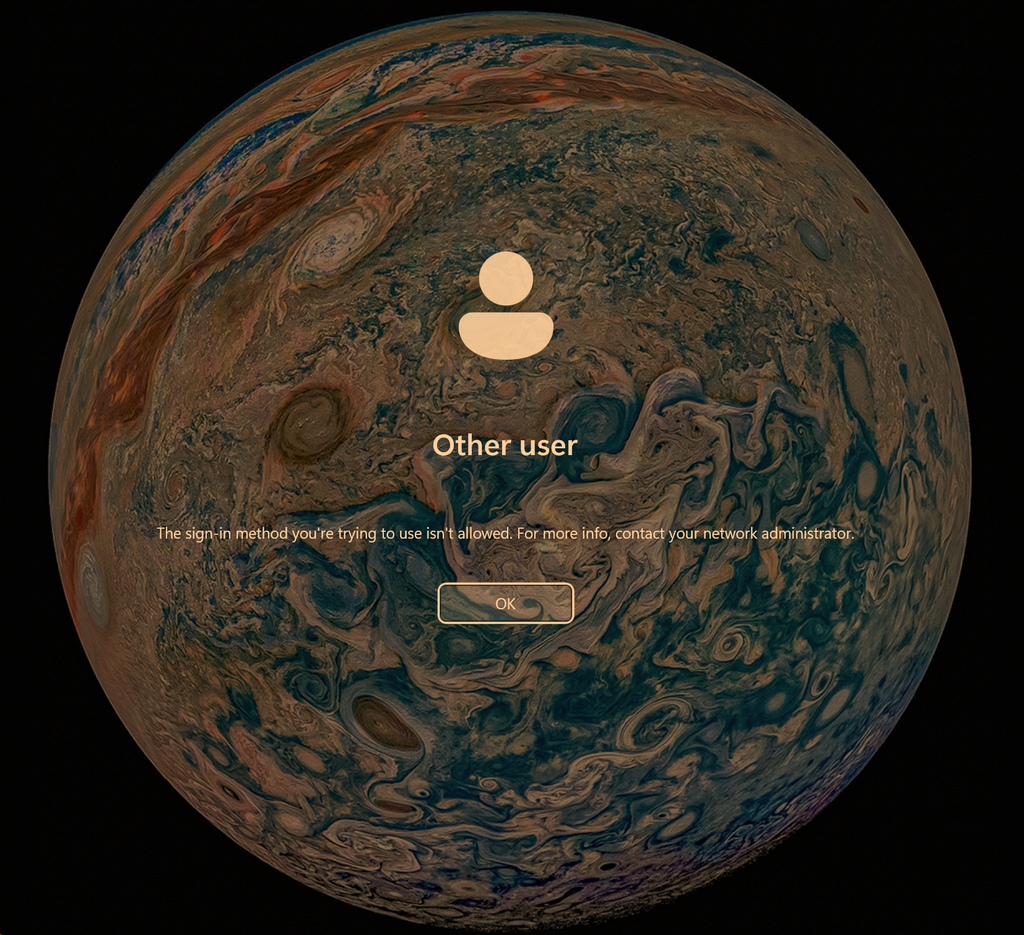
When you replace that list with a specific user account plus Administrators, only those identities can sign in locally. Everyone else – including other valid Entra ID accounts in your tenant – is rejected at the logon screen with the message:
The sign-in method you’re trying to use isn’t allowed. For more info, contact your network administrator.
Microsoft exposes this setting via the Policy CSP under the UserRights area, making it configurable through Intune without any Group Policy dependency. The OMA-URI path is:
./Device/Vendor/MSFT/Policy/Config/UserRights/AllowLocalLogOn
It is also available directly in the Settings Catalog under the User Rights category. Both the Settings Catalog and a custom OMA-URI profile use the same CSP node.
Scope note: Allow log on locally does not govern Remote Desktop. RDP sign-ins are controlled by the separate “Allow log on through Remote Desktop Services” and “Deny log on through Remote Desktop Services” rights. If RDP is enabled on your fleet, restrict it separately (for example with UserRights/DenyRemoteDesktopServicesLogOn).
Where Does Windows Store This Setting
User Rights Assignments trip up many administrators who are used to hunting for a single registry value. There are actually three layers, and it is worth knowing which one Windows reads at logon.
| Layer | Location | What it is | Readable? |
|---|---|---|---|
| 1. MDM policy delivery | HKLM\SOFTWARE\Microsoft\PolicyManager\current\device\UserRights (value AllowLocalLogOn / DenyLocalLogOn) | What Intune delivered through the CSP. Per-source copies live under HKLM\SOFTWARE\Microsoft\PolicyManager\Providers\<ProviderGUID>\default\Device\UserRights | Yes, regedit as admin |
| 2. LSA policy store (enforcement) | HKLM\SECURITY\Policy\Accounts\<SID>\ActSysAc – one key per SID holding a logon-rights bitmask | What LSASS actually evaluates at logon time | SYSTEM only – do not edit |
| 3. Security configuration engine | %SystemRoot%\Security\Database\secedit.sdb | Database of security templates applied by secedit / SCE – a record of configuration, not the live enforcement store | Via secedit only |
Correction vs common advice: LSASS does not read secedit.sdb at logon. The live user rights live in the LSA policy database inside the SECURITY hive. Whether a right arrives via Intune CSP, Group Policy or
secedit /configure, it ends up written to the LSA policy store – that is the source of truth.
The practical way to read the effective result is to export it with secedit.exe:
# Export only the User Rights area to a readable INF (UTF-16 file)
secedit /export /cfg C:\Temp\secpol.cfg /areas USER_RIGHTS

# Show just the interactive logon lines
Select-String -Path C:\Temp\secpol.cfg -Pattern 'SeInteractiveLogonRight|SeDenyInteractiveLogonRight'
In the exported file, look at the [Privilege Rights] section. A default workstation looks like this:
[Privilege Rights]
; Administrators, Users, Backup Operators (Guest may also appear)
SeInteractiveLogonRight = *S-1-5-32-544,*S-1-5-32-545,*S-1-5-32-551
| SID | Account |
|---|---|
| S-1-5-32-544 | BUILTIN\Administrators |
| S-1-5-32-545 | BUILTIN\Users |
| S-1-5-32-551 | BUILTIN\Backup Operators |
| S-1-5-113 | NT AUTHORITY\Local account (any local account) |
| S-1-5-114 | NT AUTHORITY\Local account and member of Administrators group |
| S-1-12-1-… | Microsoft Entra ID user or group (cloud identity) |
To confirm Intune delivered the policy, open regedit.exe and browse to the PolicyManager path above. The value contains the raw string as configured in the profile, with entries separated by the 0xF000 delimiter (it usually renders as a box or question mark). To confirm it is enforced, always use the secedit /export output – that reflects the LSA store.
Before You Start – Lockout Insurance
An allowlist that is wrong locks people out instantly, and on an Entra-joined device the only way back in may be a remote wipe or Autopilot reset. Put these in place first.
| Check | Why it matters | Where |
|---|---|---|
Administrators (*S-1-5-32-544) is always in the allow list | Covers the built-in Administrator, the Windows LAPS account, and Entra identities that are local admins | Every approach in this post |
| Windows LAPS is deployed | A recoverable local credential if the assigned user leaves or is locked out | Windows LAPS |
| Microsoft Entra Joined Device Local Administrator role has your IT team | Role holders are evaluated as local admins at sign-in on every Entra-joined device | How to manage the local administrators group on Microsoft Entra joined devices |
| Do not rely on Global Administrator alone | Adding the Global Administrator role to local Administrators at join is a tenant setting that can be turned off (and CIS recommends turning it off) | Entra ID -> Devices -> Device settings |
| SSPR / PIN reset from the lock screen still works | It signs in a temporary local account called defaultuser1 that needs the logon right | See Gotchas |
| No other profile sets AllowLocalLogOn | A security baseline or CIS profile that sets “Administrators, Users” will fight your lock | Intune -> Devices -> Configuration, Endpoint security -> Security baselines |
| A pilot group with a known recovery path | User rights mistakes are fleet-wide in one sync | Assignments |
Note on Entra role-based admins: users in the Microsoft Entra Joined Device Local Administrator role usually do not show up in
net localgroup administrators. Their admin rights are evaluated from their token at sign-in, which is also why including the Administrators SID is enough to keep them able to sign in.
Rollout – Test, Pilot, Then Gradually
Never assign any of the approaches in this post straight to production. A wrong user rights value takes effect on the next sync and can lock people out of every device in the assignment at once. Always roll out in stages:
| Stage | Scope | Duration | Move on when |
|---|---|---|---|
| 1. Test | Lab or spare test devices you can wipe | Until every check passes | The assigned user, Administrators, LAPS and (if used) SSPR / PIN reset all work, other users are blocked, and the unlock script works |
| 2. Pilot | A small group of real users across departments, device models and join types (Entra and hybrid) | A significant period – at least a few weeks, covering reboots, Windows updates, password changes and a device reassignment | No unexpected lockouts or helpdesk tickets, and Intune reports match secedit /export on the endpoints |
| 3. Gradual rollout | Expanding rings, for example 10%, 25%, 50%, then everyone | A few days to a week per ring | Each ring is stable before the next one is added |
Keep the unlock script and a tested admin path (LAPS and the Entra local administrator role) ready before every stage. If something goes wrong, stop expanding the assignment and fix the affected ring first.
Approach 1 – Static Lock via Settings Catalog (AllowLocalLogOn)
This approach works when a small, known set of users should be allowed on a specific set of devices – dedicated workstations, a lab, a kiosk-like station with a named operator.
The limitation is significant: Intune does not support per-device values in a CSP profile. You cannot say “allow the primary user of each device.” You define one fixed list that applies identically to every device in the assignment, which makes this unsuitable at scale for a 1:1 fleet.
- In the Intune admin center, go to Devices -> Windows -> Configuration and select Create -> New Policy.
- Set Platform to Windows 10 and later and Profile type to Settings catalog.
- Name it clearly, for example
UserRights - AllowLocalLogOn - Lab Workstations. - In the settings picker, search for Allow Local Log On (category User Rights) and add it.
- Add one entry per account with the Add button – the Settings Catalog inserts the
0xF000separator for you. A typical value set:
| Entry | Purpose |
|---|---|
*S-1-5-32-544 | Administrators – always include it. The SID works on any display language; the name “Administrators” is localized (for example “Administratoren” on German Windows) |
AzureAD\jane.doe@contoso.com | The named Entra ID user, in the format Microsoft documents for the UserRights CSP |
*S-1-5-113 (optional) | Local account – only if you need SSPR or PIN reset at the lock screen (see Gotchas) |
- Assign the profile to a tightly scoped device group (naming convention or a custom attribute based dynamic group) and pilot first.
Do not add an Entra ID group by display name. Windows cannot resolve a cloud group name locally, and admins on the Microsoft Tech Community have reported blocking all local logons exactly this way. If you need group-based scoping, test the group’s SID (
S-1-12-1-..., thesecurityIdentifierproperty in Graph) on a pilot device before you trust it.
If you use a custom OMA-URI profile instead, wrap the value in CDATA and separate entries with , exactly as the UserRights CSP documentation shows:
<![CDATA[*S-1-5-32-544AzureAD\jane.doe@contoso.com]]>
Verifying the policy on the endpoint
Allow time for a device check-in (or trigger a sync from Company Portal), then:
# 1. Delivered? Raw MDM value as Intune sent it
Get-ItemProperty -Path 'HKLM:\SOFTWARE\Microsoft\PolicyManager\current\device\UserRights' |
    Select-Object AllowLocalLogOn

# 2. Enforced? Effective right from the LSA store
secedit /export /cfg C:\Temp\secpol.cfg /areas USER_RIGHTS
Select-String -Path C:\Temp\secpol.cfg -Pattern 'SeInteractiveLogonRight'
The SIDs in SeInteractiveLogonRight should match your profile, and *S-1-5-32-545 (Users) should be gone.
Approach 2 – Dynamic Lock via Intune Remediation
This is the approach that scales to a full 1:1 fleet. Instead of hardcoding a user list, an Intune Remediation runs on each device, identifies the user who is signed in, and writes that user plus Administrators into SeInteractiveLogonRight – one device at a time, from a single package.
Why secedit and not the CSP? The CSP value is a static string defined at policy level. secedit /configure writes the right locally on each endpoint, so the value is device-specific even though the package is identical everywhere.
The pattern was popularized by community work such as imab.dk. The version below changes three things compared to the common pattern:
| Change | Problem it fixes |
|---|---|
Lock once. The device is treated as “not locked yet” only while the Users group (*S-1-5-32-545) is still in the right. Once locked, detection exits 0 no matter who is signed in | Without this, an IT admin who signs in (allowed via Administrators) is not in the line by SID, so detection fires and the remediation re-points the lock from the user to the admin |
SID straight from the process token with Win32_Process.GetOwnerSid | NTAccount.Translate() on AzureAD\Name can fail for cloud-only accounts; the SID needs no translation |
| Skips local accounts and ambiguous sessions | A LAPS admin session, or two users signed in through fast user switching, must never become the lock owner |
You can find all the scripts in this post in my GitHub page.
How the Detection Script Works
The detection script runs as SYSTEM:
- Exports SeInteractiveLogonRight with
secedit /export. - If the Users group is no longer present, the device is already locked: exit 0.
- Otherwise, collects the owner SIDs of all
explorer.exeprocesses and drops local accounts (SIDs under the machine’s own domain SID, such as the LAPS account). - No user, or more than one distinct user: exit 0 and do nothing.
- Exactly one domain or Entra user: exit 1, which tells Intune to run the remediation.
<#
.SYNOPSIS
    Detection: is this device locked to a single user yet?
.NOTES
    Run as SYSTEM, 64-bit PowerShell.
    Exit 0 = already locked, or no single eligible user signed in (do nothing)
    Exit 1 = not locked and exactly one eligible user is signed in (remediate)
    Author: systunation.com
#>

$usersSID = 'S-1-5-32-545'   # BUILTIN\Users - its presence means "not locked yet"
$logPath  = "$env:ProgramData\Microsoft\IntuneManagementExtension\Logs\LockToUser_Detection.log"
$cfgPath  = "$env:windir\Temp\LockToUser_detect.cfg"

function Write-Log {
    param([string]$Message)
    $entry = "[$(Get-Date -Format 'u')] $Message"
    Add-Content -Path $logPath -Value $entry -Encoding UTF8
}

try {
    # -- 1. Read the effective right from the LSA store --------------------------
    $null = secedit.exe /export /cfg $cfgPath /areas USER_RIGHTS 2>&1
    if (-not (Test-Path $cfgPath)) { Write-Log 'secedit export failed.'; Write-Output 'Export failed'; exit 0 }

    $line = Get-Content -Path $cfgPath -Encoding Unicode |
            Where-Object { $_ -match '^SeInteractiveLogonRight\s*=' }
    Remove-Item $cfgPath -Force -ErrorAction SilentlyContinue
    Write-Log "Current: $line"

    if (-not $line) { Write-Log 'Right not found - not touching it.'; Write-Output 'Right missing'; exit 0 }

    # -- 2. Already locked? (Users group removed) ----------------------------------
    if ($line -notmatch [regex]::Escape("*$usersSID")) {
        Write-Log 'Users group absent - device already locked.'
        Write-Output 'Locked'
        exit 0
    }

    # -- 3. Who is signed in? SID straight from the explorer.exe token ------------
    $machineSid = (Get-LocalUser | Where-Object { $_.SID.Value -match '-500$' }).SID.AccountDomainSid.Value

    $userSids = Get-CimInstance -ClassName Win32_Process -Filter "Name='explorer.exe'" |
        ForEach-Object { Invoke-CimMethod -InputObject $_ -MethodName GetOwnerSid } |
        Where-Object { $_.ReturnValue -eq 0 -and $_.Sid } |
        Select-Object -ExpandProperty Sid -Unique |
        Where-Object {
            # Drop local accounts (LAPS admin, built-in Administrator, other local users)
            ([System.Security.Principal.SecurityIdentifier]$_).AccountDomainSid.Value -ne $machineSid
        }

    # -- 4. Only act on exactly one eligible user --------------------------------
    $count = @($userSids).Count
    if ($count -ne 1) {
        Write-Log "Eligible interactive users found: $count - doing nothing."
        Write-Output "Not locked - $count eligible users"
        exit 0
    }

    # -- 5. Not locked and one user signed in: remediate --------------------------
    Write-Log "Not locked. Eligible user SID: $userSids - triggering remediation."
    Write-Output "Not locked - user $userSids"
    exit 1
}
catch {
    Write-Log "Detection error: $($_.Exception.Message)"
    Write-Output 'Detection error'
    exit 0   # fail safe: never remediate on an error
}
How the Remediation Script Works
The remediation script, also running as SYSTEM:
- Re-checks the same conditions (state may have changed since detection ran).
- Builds a minimal security template that sets SeInteractiveLogonRight to Administrators + the user (+ any optional extras).
- Applies it with
secedit /configure ... /areas USER_RIGHTS. Only rights listed in the template are touched. - Exports again and verifies the user’s SID is now in the right.
<#
.SYNOPSIS
    Remediation: lock SeInteractiveLogonRight to the signed-in user + Administrators.
.NOTES
    Run as SYSTEM, 64-bit PowerShell.
    Removes BUILTIN\Users (and Backup Operators) from "Allow log on locally".
    Author: systunation.com
#>

$adminSID  = 'S-1-5-32-544'   # BUILTIN\Administrators - never remove
$usersSID  = 'S-1-5-32-545'
# -- Accounts that must ALWAYS keep "Allow log on locally" --------------------
# $adminSID above already covers every member of the local Administrators group:
#   - the built-in Administrator account (if enabled)
#   - the Windows LAPS managed account (it is a local admin)
#   - Microsoft Entra Joined Device Local Administrator role holders
# No action is needed for those.
#
# Add below ONLY accounts that are NOT local admins but must still sign in,
# for example a non-admin local support / break-glass account, or a dedicated
# Entra ID break-glass user. One SID per line, WITHOUT the leading *.
#   Local account : (Get-LocalUser -Name 'breakglass').SID.Value
#   Entra user    : run 'whoami /user' while signed in as that user (S-1-12-1-...)
#   SSPR / PIN reset at the lock screen: 'S-1-5-113' (allows ALL local accounts)
$extraSIDs = @(
    # 'S-1-5-21-1111111111-2222222222-3333333333-1001'   # local break-glass (example)
    # 'S-1-12-1-1111111111-2222222222-3333333333-4444444444'   # Entra break-glass (example)
)

$logPath = "$env:ProgramData\Microsoft\IntuneManagementExtension\Logs\LockToUser_Remediation.log"
$expPath = "$env:windir\Temp\LockToUser_export.cfg"
$cfgPath = "$env:windir\Temp\LockToUser_apply.inf"
$dbPath  = "$env:windir\Temp\LockToUser_apply.sdb"

function Write-Log {
    param([string]$Message)
    Add-Content -Path $logPath -Value "[$(Get-Date -Format 'u')] $Message" -Encoding UTF8
}

function Get-LogonRightLine {
    $null = secedit.exe /export /cfg $expPath /areas USER_RIGHTS 2>&1
    $l = Get-Content -Path $expPath -Encoding Unicode | Where-Object { $_ -match '^SeInteractiveLogonRight\s*=' }
    Remove-Item $expPath -Force -ErrorAction SilentlyContinue
    return $l
}

try {
    # -- 1. Re-check state ---------------------------------------------------------
    $line = Get-LogonRightLine
    if (-not $line -or $line -notmatch [regex]::Escape("*$usersSID")) {
        Write-Log 'Already locked or right missing - no change.'; Write-Output 'No change'; exit 0
    }

    $machineSid = (Get-LocalUser | Where-Object { $_.SID.Value -match '-500$' }).SID.AccountDomainSid.Value
    $userSids = Get-CimInstance -ClassName Win32_Process -Filter "Name='explorer.exe'" |
        ForEach-Object { Invoke-CimMethod -InputObject $_ -MethodName GetOwnerSid } |
        Where-Object { $_.ReturnValue -eq 0 -and $_.Sid } |
        Select-Object -ExpandProperty Sid -Unique |
        Where-Object { ([System.Security.Principal.SecurityIdentifier]$_).AccountDomainSid.Value -ne $machineSid }

    if (@($userSids).Count -ne 1) {
        Write-Log "Eligible users: $(@($userSids).Count) - no change."; Write-Output 'No change'; exit 0
    }
    $userSID = [string]$userSids

    # -- 2. Build the template (Users group intentionally excluded) ---------------
    $entries = @("*$adminSID", "*$userSID") + ($extraSIDs | ForEach-Object { "*$_" })
    $inf = @"
[Unicode]
Unicode=yes
[Version]
signature="`$CHICAGO`$"
Revision=1
[Privilege Rights]
SeInteractiveLogonRight = $($entries -join ',')
"@
    $inf | Out-File -FilePath $cfgPath -Encoding Unicode -Force

    # -- 3. Apply it ---------------------------------------------------------------
    $out = secedit.exe /configure /db $dbPath /cfg $cfgPath /areas USER_RIGHTS /quiet 2>&1
    Write-Log "secedit /configure: $out"
    Remove-Item $cfgPath, $dbPath -Force -ErrorAction SilentlyContinue

    # -- 4. Verify -----------------------------------------------------------------
    $after = Get-LogonRightLine
    Write-Log "After: $after"
    if ($after -match [regex]::Escape("*$userSID") -and $after -notmatch [regex]::Escape("*$usersSID")) {
        Write-Output "Locked to $userSID + Administrators"
        exit 0
    }
    Write-Output 'Verification failed'
    exit 1
}
catch {
    Write-Log "Remediation error: $($_.Exception.Message)"
    Write-Output 'Remediation error'
    exit 1
}
Break-glass and LAPS accounts: if your LAPS account (or any break-glass account) is a member of the local Administrators group, you do not need to change anything – the Administrators SID in the template keeps it able to sign in. Only accounts outside Administrators go into
$extraSIDs. Two more things worth knowing:
- The detection and remediation scripts ignore local accounts when they look for the signed-in user, so a LAPS sign-in never becomes the lock owner.
- Entries in $extraSIDs are written on the first (and only) lock. Changing the list later does not touch devices that are already locked – run the unlock script on them first, or add the account with a separate one-off script.
Timing matters. With lock-once, the lock goes to whoever is the single signed-in non-local user when the remediation first runs. Make sure IT staff do not sign in interactively with their own Entra account after provisioning and before handover. Pre-provisioned (white glove) devices are fine, because nobody is signed in during the technician phase.
Deploying the Remediation in Intune
- Go to Devices -> Windows -> Scripts and remediations (Remediations tab) and select Create.
- Name it, for example
Remediation - Lock Device to First User. - On Settings:
| Setting | Value |
|---|---|
| Detection script file | the detection script |
| Remediation script file | the remediation script |
| Run this script using the logged-on credentials | No (must run as SYSTEM) |
| Enforce script signature check | your choice |
| Run script in 64-bit PowerShell | Yes (Get-LocalUser is not available in 32-bit PowerShell) |
- On Schedule, hourly or every few hours is reasonable for new devices – the sooner it runs after first sign-in, the shorter the unprotected window. Once a device is locked, every run is a cheap exit 0.
- Assign to a device group of the 1:1 workstations in scope.
Monitor per-device results under the package’s Device status. The Write-Output line appears in the detection and remediation output columns. The scripts also log to the IME Logs folder, so Collect diagnostics picks them up:
C:\ProgramData\Microsoft\IntuneManagementExtension\Logs\LockToUser_Detection.log
C:\ProgramData\Microsoft\IntuneManagementExtension\Logs\LockToUser_Remediation.log
Approach 3 – DenyLocalLogOn (Blocklist)
When Deny Makes More Sense Than Allow
The allow approach is powerful because it is strict, and that strictness is also its risk. The deny approach adds accounts to a blocklist instead of replacing the default allow behavior, so a typo blocks one account rather than everyone.
DenyLocalLogOn is the better tool when you want to:
- Prevent a specific shared or service account from interactive logon, leaving normal users unaffected.
- Block a recently offboarded employee or student on a shared pool, without touching who is allowed.
- Block the built-in Guest account or a known local account across the fleet.
- Apply a quick, low-risk control without the mass-lockout risk of a misconfigured allowlist.
The trade-off: DenyLocalLogOn is permissive by default. Any account not on your list can still sign in, including accounts you did not anticipate.
Configuring DenyLocalLogOn via Settings Catalog
The CSP node is:
./Device/Vendor/MSFT/Policy/Config/UserRights/DenyLocalLogOn
- Go to Devices > Windows > Configuration > Create > New Policy.
- Platform Windows 10 and later, Profile type Settings catalog.
- Name it, for example
UserRights - DenyLocalLogOn - Block Specific Accounts. - Search for Deny Local Log On (category User Rights) and add it.
- Add the accounts to block and assign the policy to your target device group:
| What you want to block | Value to enter | Watch out |
|---|---|---|
| A specific Entra ID user | AzureAD\user@contoso.com | – |
| The built-in Guest account | Guest (or *S-1-5-32-546 for the Guests group) | – |
| A specific local account | .\localaccountname | Do not list your LAPS account name |
| All local accounts | *S-1-5-113 | Also blocks the LAPS account and the built-in Administrator – read the warning below |
Warning: S-1-5-113 (“Local account”) is added to the token of every local account at logon, including your Windows LAPS account. Deny always wins over Allow, so denying S-1-5-113 interactively removes your local break-glass credential. Microsoft’s own security baselines use S-1-5-113 and S-1-5-114 for network and Remote Desktop deny rights, not for local console logon. If you want to block local accounts at the console, make sure Entra-based admin access (Microsoft Entra Joined Device Local Administrator) is reliable first, and accept that LAPS becomes a remote-only recovery tool. It also breaks SSPR / PIN reset at the lock screen, which signs in as the local
defaultuser1account.
The safer layered pattern is: AllowLocalLogOn (static or Remediation) for who can sign in, plus DenyRemoteDesktopServicesLogOn with *S-1-5-113 if RDP is enabled, to stop local accounts being used remotely.
Where DenyLocalLogOn Lives
Same three layers as the allow right:
| Layer | Location |
|---|---|
| MDM delivery | HKLM\SOFTWARE\Microsoft\PolicyManager\current\device\UserRights, value DenyLocalLogOn |
| Enforcement | LSA policy store (HKLM\SECURITY\Policy\Accounts\<SID>) |
| Readable view | secedit /export > [Privilege Rights] > SeDenyInteractiveLogonRight |
Important interaction: per Microsoft’s Deny log on locally reference, this right supersedes Allow log on locally if an account is subject to both. That includes group membership – a user allowed by SID but denied through a group they belong to is denied.
Reassigning or Unlocking a Device
A locked device does not “follow” a reassignment on its own. The new user cannot sign in, so there is never a session for the remediation to pick up. You need an explicit unlock step.
| Situation | What to do |
|---|---|
| Device goes to a new user, keep the OS | Run the unlock script below, then let the new user sign in. The lock-once remediation locks the device to them on its next run |
| Device goes back to stock | Autopilot Reset or Wipe – both rebuild the local security policy |
| Leaver, device stays in a drawer | Do nothing. Administrators and LAPS still work |
| Retiring the whole solution | Unassign the Remediation, then run the unlock script fleet-wide |
The unlock script restores the Windows workstation default (Administrators, Users, Backup Operators). Package it as a second remediation (detection = “Users missing”, remediation = this script) and launch it per device with the Run remediation device action in Intune, which runs a remediation on demand on a single device.
<#
.SYNOPSIS
    Unlock: restore default "Allow log on locally" (Administrators, Users, Backup Operators).
.NOTES
    Run as SYSTEM, 64-bit PowerShell.
    Author: systunation.com
#>

$cfgPath = "$env:windir\Temp\LockToUser_restore.inf"
$dbPath  = "$env:windir\Temp\LockToUser_restore.sdb"

$inf = @"
[Unicode]
Unicode=yes
[Version]
signature="`$CHICAGO`$"
Revision=1
[Privilege Rights]
SeInteractiveLogonRight = *S-1-5-32-544,*S-1-5-32-545,*S-1-5-32-551
"@

$inf | Out-File -FilePath $cfgPath -Encoding Unicode -Force
secedit.exe /configure /db $dbPath /cfg $cfgPath /areas USER_RIGHTS /quiet | Out-Null
Remove-Item $cfgPath, $dbPath -Force -ErrorAction SilentlyContinue

Write-Output 'Allow log on locally restored to Windows defaults'
exit 0
Why not
defltbase.inf? You will find advice to reset withsecedit /configure /cfg %windir%\inf\defltbase.inf. That template resets far more than user rights and its contents vary between Windows builds. An explicit, minimal template is predictable and only touches the one right you changed.
Verification and Troubleshooting
Use this checklist on a pilot device before and after each change.
| Question | How to check |
|---|---|
| Did Intune deliver the CSP? | HKLM\SOFTWARE\Microsoft\PolicyManager\current\device\UserRights |
| What is actually enforced? | secedit /export /cfg C:\Temp\secpol.cfg /areas USER_RIGHTS |
| Did the Remediation run? | Intune -> Remediation -> Device status, and the two LockToUser logs |
| Why was a user rejected? | Security log, Event ID 4625, Logon Type 2 (interactive), Status 0xC000015B – the user has not been granted the requested logon type (requires logon failure auditing, which is on by default for workstations) |
| Is something overwriting it? | Other Settings Catalog profiles, security baselines, CIS profiles, and on hybrid devices Group Policy |
Quick query for rejected interactive logons in the last 24 hours:
# 4625 fields: [5] TargetUserName, [7] Status, [10] LogonType
Get-WinEvent -FilterHashtable @{ LogName = 'Security'; Id = 4625; StartTime = (Get-Date).AddDays(-1) } |
    Where-Object {
        $_.Properties[10].Value -eq 2 -and
        ('{0:X8}' -f $_.Properties[7].Value) -eq 'C000015B'   # logon type not granted
    } |
    Select-Object TimeCreated, @{ n = 'User'; e = { $_.Properties[5].Value } }
Allow vs Deny – Full Comparison
| Criteria | AllowLocalLogOn (static) | DenyLocalLogOn | Dynamic Remediation |
|---|---|---|---|
| Approach | Allowlist, same for all devices | Denylist, same for all devices | Allowlist, per device |
| Default behavior | Blocks everyone not listed | Permits everyone not listed | Blocks everyone except first user + admins |
| Lockout risk | High if misconfigured | Low (high if you deny S-1-5-113 or a broad group) | Low – does nothing on errors, no session, or multiple users |
| Scales to 1:1 | No | No | Yes |
| Requires scripting | No | No | Yes |
| Follows reassignment | Edit the profile | Edit the profile | No – run the unlock script, then it re-locks |
| Licensing | Intune | Intune | Intune + Windows Enterprise/Education E3/A3 or higher (or VDA) |
| Best fit | Labs, dedicated stations | Blocking specific identities | Fleet-wide 1:1 enforcement |
| Delivered by | UserRights/AllowLocalLogOn CSP | UserRights/DenyLocalLogOn CSP | secedit /configure (no CSP) |
| Windows constant | SeInteractiveLogonRight | SeDenyInteractiveLogonRight | SeInteractiveLogonRight |
| Registry (MDM delivery) | ...\PolicyManager\current\device\UserRights\AllowLocalLogOn | ...\PolicyManager\current\device\UserRights\DenyLocalLogOn | None – nothing in PolicyManager |
| Enforced in | LSA policy store (SECURITY hive) | LSA policy store (SECURITY hive) | LSA policy store (SECURITY hive) |
| Reverts when removed | Not guaranteed – deploy a counter-setting | Not guaranteed – deploy a counter-setting | Never – run the unlock script |
Gotchas and Important Notes
Gotchas and Important Notes
Always include Administrators – and make sure an admin path actually exists. *S-1-5-32-544 covers the built-in Administrator (if enabled), the Windows LAPS account, users in the Microsoft Entra Joined Device Local Administrator role, the joining user if your Autopilot profile makes them admin, and Global Administrators if your tenant still adds that role at join. Confirm at least LAPS plus the Entra role are in place before rollout.
SSPR and PIN reset at the lock screen. These flows sign in a temporary low-privilege local account called defaultuser1, which needs the logon right. Because the account only exists while the reset runs, you cannot list it by name. The workable fix is adding *S-1-5-113 (Local account) to the allow list. Trade-off: that allows every local account to sign in, which on a well-managed device means the LAPS account (already allowed via Administrators) and little else. If you do not use these features, skip it.
Do not mix the Remediation with an AllowLocalLogOn profile on the same device. Any profile or security baseline that sets the right (for example a CIS “Administrators, Users” setting) is re-applied on policy refresh, puts Users back, and the lock-once remediation then locks again – a constant tug-of-war. Exclude Remediation devices from those profiles.
Hybrid joined devices and Group Policy. If a GPO configures Allow log on locally, Group Policy security settings re-apply periodically and overwrite the remediation. Either set the right only through one channel or exclude those computers from the GPO. Domain SIDs (S-1-5-21-<domain>-...) are handled by the scripts as eligible users.
Intune reporting can be wrong. UserRights profiles, especially custom OMA-URI ones, can show 0x87D1FDE8 / -2016281112 (Remediation failed) while the setting is applied. Microsoft documents this for values that Intune cannot match on readback. The Settings Catalog avoids most of it. Always verify on the endpoint with secedit /export.
No reboot needed, but existing sessions stay. The change applies to the next logon. A user already signed in is not ejected.
Removal and tattooing. Microsoft does not document per setting whether a UserRights value reverts when you unassign the profile, and community reports differ. Do not rely on it: deploy an explicit counter-setting (Administrators, Users) or run the unlock script. The Remediation approach never reverts on its own because it writes directly through secedit. More on this in Policy Tattooing in Intune.
Remote Desktop is separate. AllowLocalLogOn does not stop RDP. Restrict it with the Remote Desktop Services user rights if RDP is enabled.
Final Verdict
Intune’s Primary User will never stop someone signing in, but Windows’ own User Rights can. For a handful of fixed stations, a Settings Catalog AllowLocalLogOn profile is enough. For a real 1:1 fleet, the lock-once Remediation pins each device to its first user, and the unlock script handles reassignment. DenyLocalLogOn rounds it off for blocking specific identities – just keep S-1-5-113 away from the console deny right unless you have a plan for LAPS.
Pilot it, verify with secedit /export, and keep your admin path tested.
Happy automating!
References and Documentation
- Policy CSP – UserRights
- Allow log on locally – security policy setting
- Deny log on locally
- Remediations
- How to manage the local administrators group on Microsoft Entra joined devices
- Enable Microsoft Entra self-service password reset on the Windows sign-in screen
- What is Windows LAPS?
- GetOwnerSid method of the Win32_Process class
- Block the remote use of local accounts in Windows
- SharedPC CSP