Deploy Managed Bookmarks in Microsoft Edge with Intune — Smooth & Simple
Managed bookmarks (aka Managed Favorites) in Microsoft Edge are one of those small Intune wins that make a big difference: you give users a clean, consistent set of “company links” in Microsoft Edge, and because they’re policy-driven, they stay there (and users can’t accidentally delete or rename them).
In Microsoft Edge, this is done with the policy Configure favorites (policy key: ManagedFavorites). The policy value is a JSON list that defines a top folder, links, and (optionally) subfolders. Let’s see the details.
Table of Contents
Step 1 — Create your Managed Favorites JSON (simple + reliable)
The easiest way to keep things clean (and avoid JSON mistakes) is to build the favorites in Edge first, then export them using Microsoft’s admin export flow.
Step-by-step
- On a test machine, open Edge and go to:
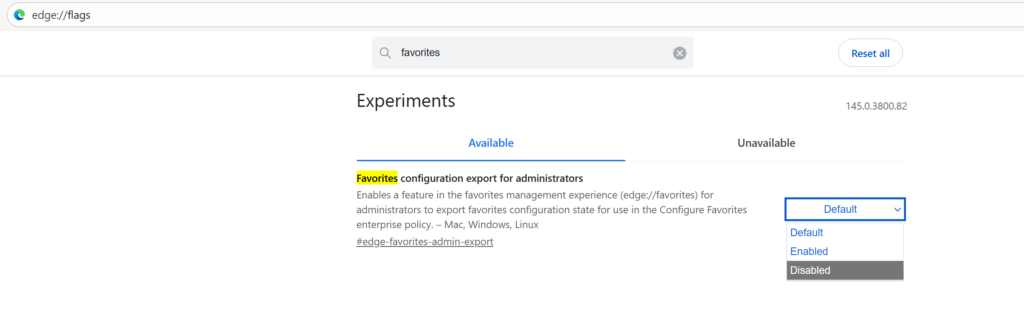
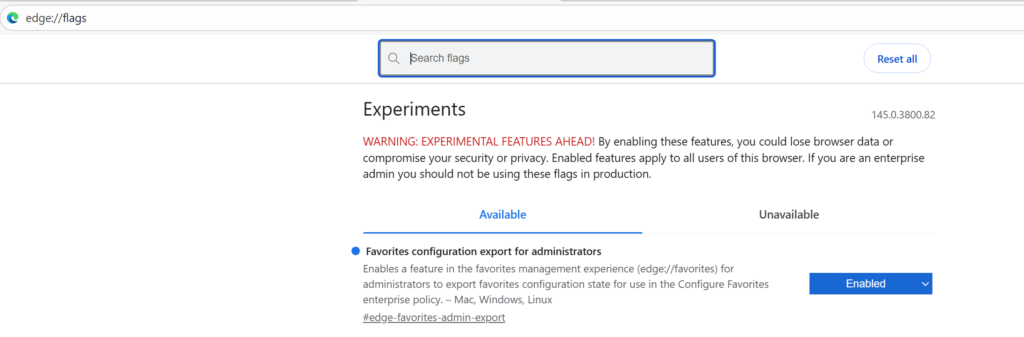
edge://flags/#edge-favorites-admin-export - Set Favorites configuration export for administrators = Enabled, then Restart Edge.
- Go to:
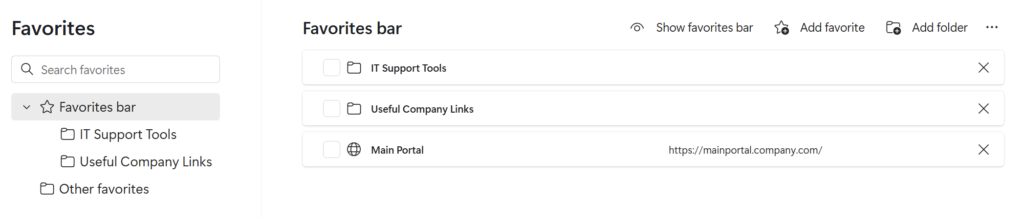
edge://favorites
Create the folder structure and favorites exactly as you want users to see them (e.g., “Company Links” → Intranet, IT Portal, Tools…).
- In
edge://favorites, click the … menu → Export favorites configuration
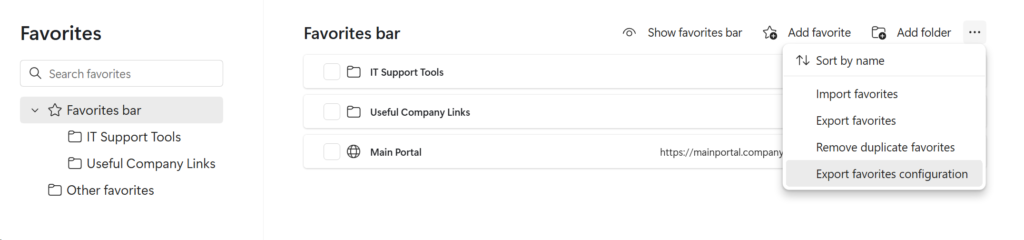
- Choose a folder name + platform format, then click Copy to clipboard.
What you get is the correct JSON you’ll paste into Intune.
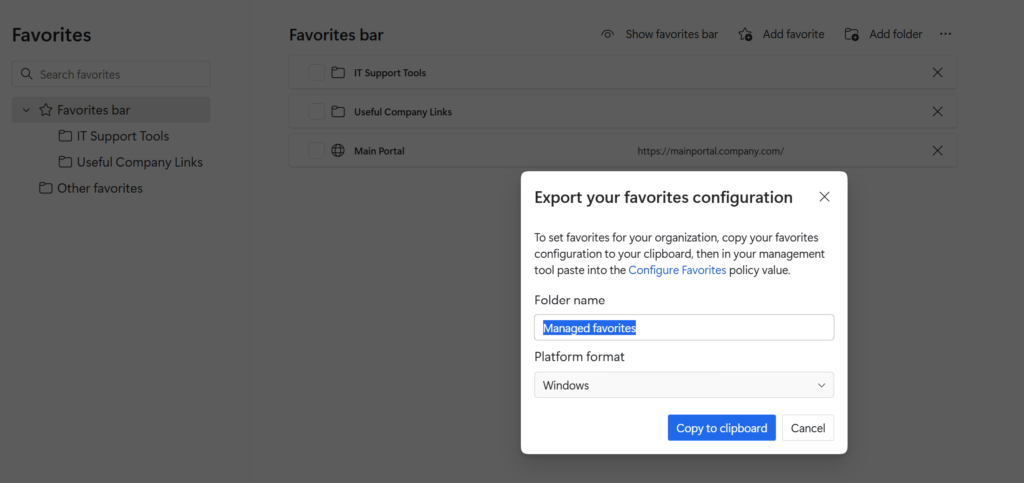
The json would look something like the below
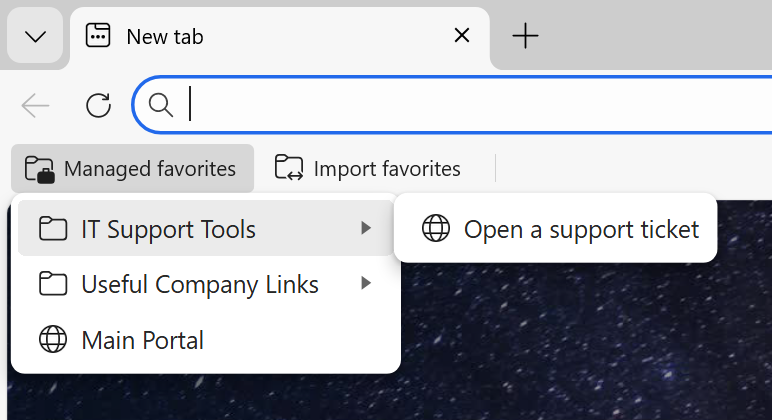
[{"toplevel_name":"Managed favorites"},{"name":"IT Support Tools","children":[{"name":"Open a support ticket","url":"https://opensupportticket.company.com/"}]},{"name":"Useful Company Links","children":[{"name":"Company's Internal Policies","url":"https://internalpolicies.company.com/"}]},{"name":"Main Portal","url":"https://mainportal.company.com/"}]
Why this approach works well
- You avoid hand-writing JSON (less troubleshooting).
- The structure you see in Edge is what users get.
- Great for quick iterations: edit → export → update Intune.
Step 2 — Deploy Managed Favorites with Intune (Settings catalog)
Once you have your JSON, deploying it is straightforward using the Settings catalog, which is the recommended method for configuring Microsoft Edge policies via Intune.
Step-by-step (Windows 10/11 or macOS)
- Open the Intune admin center and go to:
Devices → Windows → Configuration → Create → New policy - Choose:
- Platform: Windows 10 and later
- Profile type: Settings catalog
Click Create
- Go to Configuration settings → Add settings
Search for Microsoft Edge or Favorites → Microsoft Edge - Add the setting:
- Configure favorites (this maps to ManagedFavorites)
Paste the exported JSON into the value field.
- Configure favorites (this maps to ManagedFavorites)
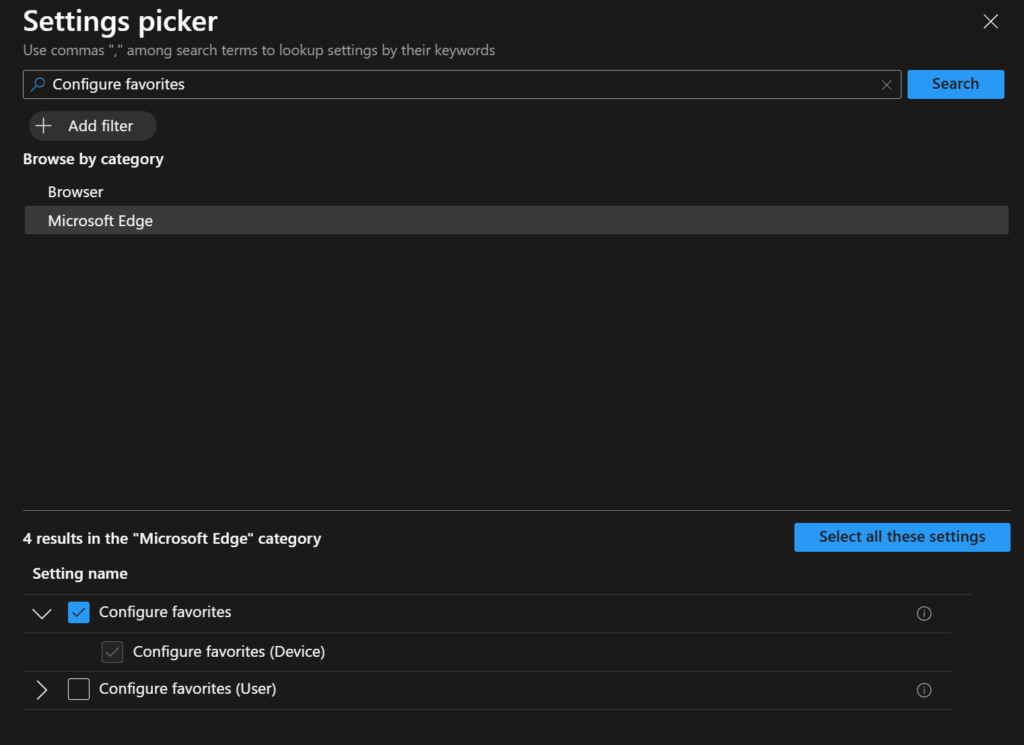
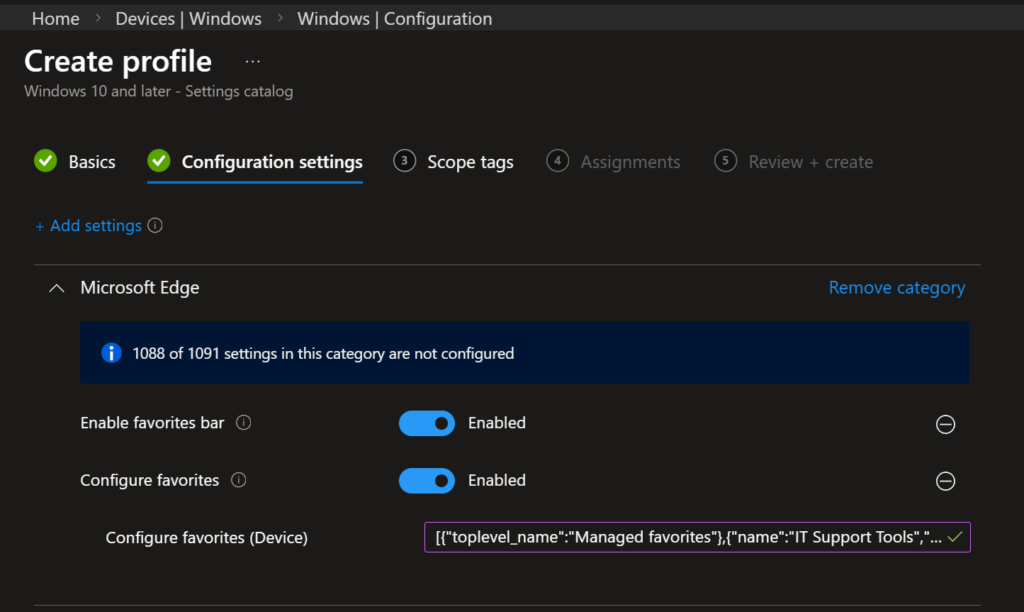
Here I chose to configure the favorites at a device level, but you could also choose user, based on the use case and the way you configure your environment. Take a look at the below useful hints.
Choose User when…
– You want the same managed favorites for a person, no matter which enrolled device they use.
– Your environment is mostly 1 user = 1 device (Autopilot user-driven, laptops, etc.).
– You’re thinking “these bookmarks belong to the user’s Edge profile.”
The policy is Per Profile = Yes.
Choose Device when…
– You want the setting to land machine-wide (device-scoped policies write to HKLM vs user-scoped to HKCU).
– The device is shared (kiosk, lab PCs, shift-worker/shared accounts, meeting room devices).
– You want everyone who logs onto that device to get the same managed favorites.
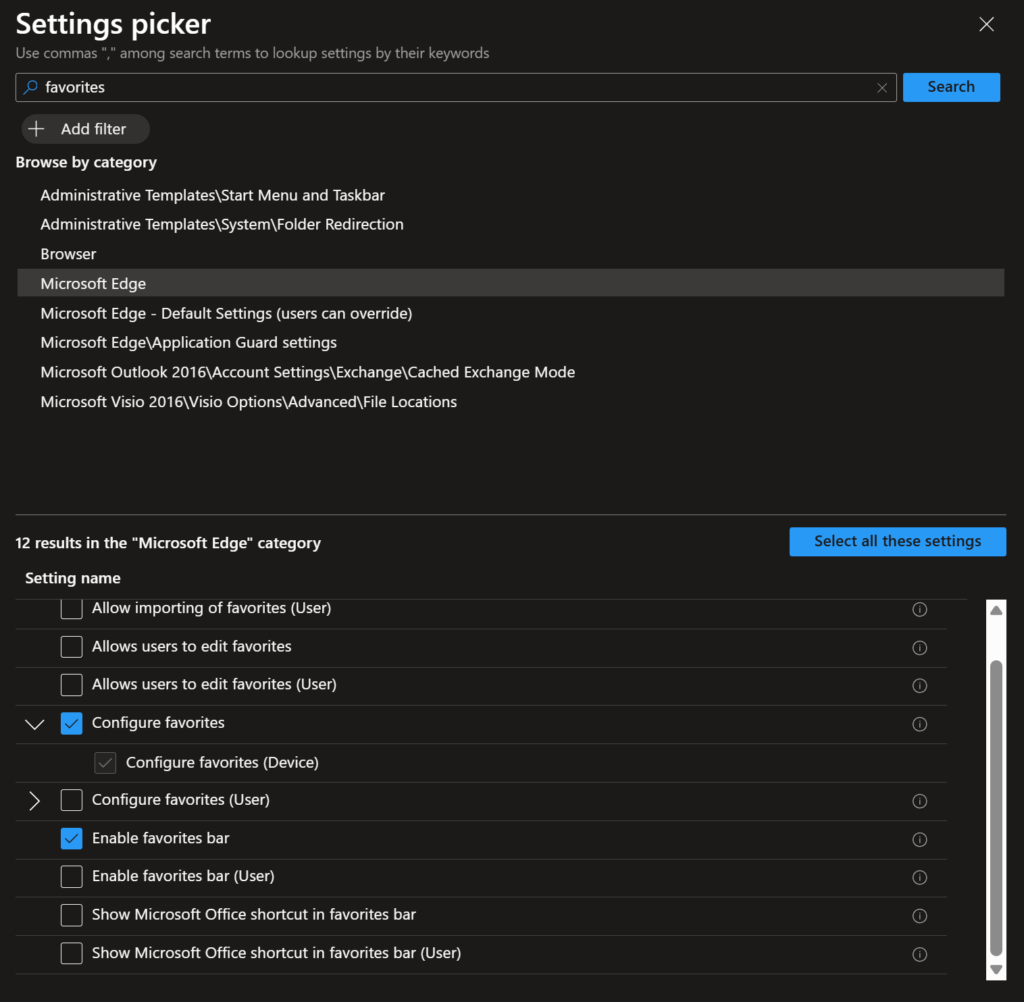
- (Optional but recommended) Add:
- Enable favorites bar
This helps users immediately notice the managed folder (especially in new profiles).
- Enable favorites bar
- Assignments:
Assign typically to a device group or user group (managed favorites are applied per Edge profile, so user targeting is also common). - Click Create to finish.
Quick validation (recommended)
On a target device:
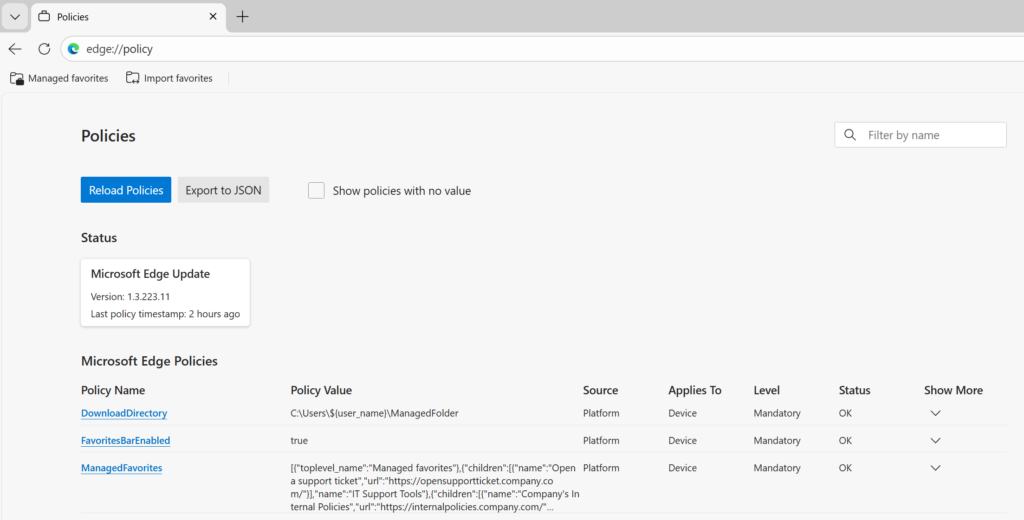
- Open
edge://policyand confirm ManagedFavorites is present
- Check Edge favorites for the managed folder
Additional Info
I would also like to show where can you check the application of the policy deployed above (apart from the obvious place, in Microsoft Edge it s
1) Registry (User vs Device)
Microsoft Edge documents ManagedFavorites as:
- Path:
SOFTWARE\Policies\Microsoft\Edge - Value name:
ManagedFavorites - Type:
REG_SZ(the JSON string)
Device-assigned policy (Device scope)
Look here:
HKEY_LOCAL_MACHINE\SOFTWARE\Policies\Microsoft\EdgeManagedFavorites(REG_SZ) = your JSON
User-assigned policy (User scope)
Look here:
HKEY_CURRENT_USER\SOFTWARE\Policies\Microsoft\EdgeManagedFavorites(REG_SZ) = your JSON
Why both are valid: Edge policies can live in HKLM or HKCU (depends on whether the policy is device- or user-targeted).
Quick tip: if you’re unsure which one is in play, check both. If both exist, Edge applies precedence rules (machine/device typically wins unless you explicitly change precedence).
2) Event Viewer (MDM policy application)
The most useful log for Intune-delivered settings is:
Event Viewer → Applications and Services Logs → Microsoft → Windows → DeviceManagement-Enterprise-Diagnostics-Provider → Admin
For ManagedFavorites specifically (it’s a string policy), you’ll typically see:
- Event ID 814 = “Set policy string …”(success/info)
(For reference: 813 is commonly used for integer policies.)
How to find it fast
- Open that Admin log
- Filter Current Log… → include 814
- Use Find… and search for:
ManagedFavorites
What to look for in the event text
- You should see something like “MDM PolicyManager: Set policy string, Policy: (ManagedFavorites) …”
- The event often shows Current User:
- Device-scoped often shows
Current User: (Device) - User-scoped often shows a user SID instead
- Device-scoped often shows
3) Windows Settings → “Access work or school” (Intune view)
Windows doesn’t show every applied policy nicely in the UI, but it does let you generate the official local report:
- Settings → Accounts → Access work or school
- Select your work/school account → Info
- Scroll down → Create report → Export
- Open:
C:\Users\Public\Documents\MDMDiagnostics
Inside that exported report (HTML + supporting files), you can search for policy areas/settings that were applied.
Bonus correlation (handy when digging deep):
- Many MDM-applied settings are also reflected under
HKEY_LOCAL_MACHINE\SOFTWARE\Microsoft\PolicyManager\current\device
and that content is closely related to what’s surfaced via “Access work or school” reporting.
Final Verdict
Managed favorites in Microsoft Edge are one of the simplest “high impact” Intune wins: build the bookmark structure once in Edge, export the JSON, and deploy it via the Settings catalog using Configure favorites (ManagedFavorites). Stick to a single top-level “Company Links” folder, keep the list short, and target users by default (switch to device targeting only for shared/kiosk scenarios).
Result: a consistent set of business-critical links that shows up automatically, stays compliant, and requires almost zero ongoing maintenance.
References and documentation
Other Interesting Posts