
Windows LAPS with Intune and Entra ID: Complete Setup, Migration and Useful Troubleshooting Guide
Windows LAPS with Intune is now the default answer for managing local administrator passwords, and if you set this up more than a couple of years ago, almost none of what you built still applies.
A while back we walked through enabling LAPS for our Windows devices. At the time, managing that local admin account you inevitably still need for break-glass scenarios meant either a GPO-based approach, a scheduled script rotating passwords, or the legacy LAPS MSI bolted on top of Active Directory.
None of that is how you should be doing it anymore.
Windows LAPS, the successor built directly into the OS, has quietly gone from interesting alternative to the only sane default, and the tooling around it has matured enough in Intune that there’s no longer a good excuse to keep running the old approach. If you’re still on legacy LAPS or a homegrown script, this post is the migration guide: what changed, what to prepare for, and how to roll it out in stages without breaking anything.
You can find the code snippets of this post in my GitHub page.
Table of Contents
What Actually Changed Since the Last Post
Three things, and they’re bigger than they sound.
It’s native now. Since the April 2023 Windows update, Windows LAPS ships as part of the OS itself, free on all supported Windows platforms, with no separate licensing requirement to back up passwords to Active Directory. No MSI, no agent. If your current setup involves pushing an installer or maintaining a custom script that rotates a local admin password on a schedule, that entire delivery mechanism goes away.
Intune configuration no longer needs a workaround. There’s now a dedicated Local admin password solution (Windows LAPS) profile under Endpoint Security -> Account protection, documented in full at Overview of Windows LAPS with Microsoft Intune and Deploy Intune policies to manage Windows LAPS. Point, click, assign. Microsoft’s docs are explicit that this Intune-delivered policy overrides any conflicting GPO or legacy LAPS configuration, which matters if you’re running old and new side by side during migration.
The account itself can now be fully managed by Windows LAPS. Originally you still had to pre-stage the local admin account yourself and hand it to LAPS for password rotation. As of Windows 11 24H2, LAPS supports an automatic account management mode that can create and manage the account for you; on earlier Windows versions it can only manage accounts that already exist on the device.
The old post’s goal of managing the account, rotating the password, and restricting who can read it hasn’t changed. Everything about how you accomplish it has.
The Decision That Shapes Everything Else: Where Do Passwords Live?
Before touching Intune, decide your backend. This is the one choice that’s expensive to reverse later, so get it right up front.
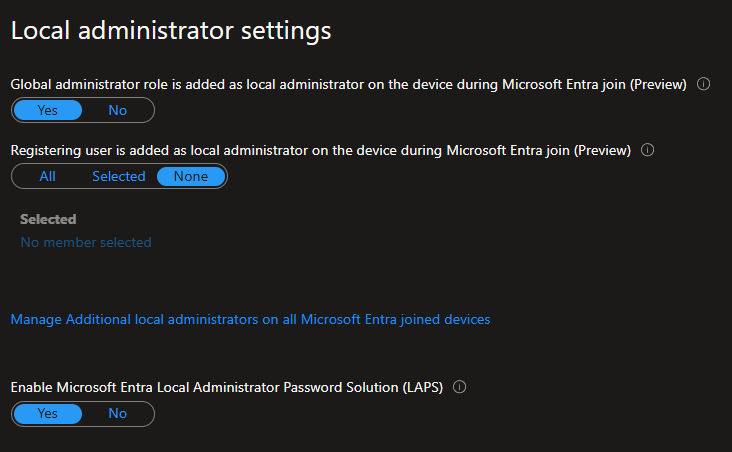
Microsoft Entra ID (recommended for anything Entra-joined or Entra hybrid-joined). Passwords are stored and rotated against the device object in Entra ID. Support for Entra join requires LAPS to be explicitly enabled in Entra ID first (Entra admin center -> Entra ID -> Devices -> Device settings -> Enable Microsoft Entra Local Administrator Password Solution (LAPS)), Entra hybrid join doesn’t require this extra step.
Hybrid / on-prem Active Directory. Still fully supported, and it’s the only option if you need Windows LAPS to also manage the DSRM (Directory Services Restore Mode) password on domain controllers, something the legacy product never did.
If you’re already Entra-joined or well along a hybrid-to-Entra journey, don’t build new tooling around the AD backend just because that’s what the org has always used. It’s the more painful path to maintain going forward.
Prerequisites Checklist
Before you touch a single device:
- OS baseline: Windows 11 is where you want to be standardizing. Windows 10 reached end of support on October 14, 2025. Intune will still let you enroll it, but treat LAPS behavior on out-of-support builds as unsupported territory. If you’ve still got Windows 10 in the fleet, that’s a separate conversation to have before this rollout, not during it.
- Join type: Devices need to be Entra joined or Entra hybrid joined.
- Licensing: No separate Windows LAPS license to buy. The Windows LAPS feature is free on all supported platforms; backing up to on-prem AD has no additional licensing requirement, and backing up to Entra ID needs only Entra ID Free. To manage it through Intune you need Microsoft Intune Plan 1, the base subscription.
- Backend decision made (see above), schema extension done if you’re going the hybrid AD route.
Staged Deployment: The Actual Rollout Plan
Don’t push this tenant-wide on day one. Here’s the ring structure that avoids surprises. One scoping note before the rings: this plan covers rolling out the Windows LAPS policy itself. Removing local admin rights from users who already have them is a second, separate rollout that happens afterwards, using a different policy type, and it carries far more risk of locking people out. That’s Step 6 below. Don’t merge the two into one change window.
Ring 0 – IT/Pilot devices (Week 1-2)
Deploy the Windows LAPS policy to a small group: your own device and a handful of test machines. Validate:
- The managed account appears correctly on the device (or is created, if you’re using the auto-create option).
- Password rotation actually fires on schedule.
- You can retrieve the current password through the Intune admin center or Entra ID, depending on your backend.
- Post-authentication actions (reset password, log off, or reboot after retrieval) behave as expected.
Ring 1 – Volunteer/early-adopter group (Weeks 3-6)
Expand to a representative slice: mixed hardware, mixed join types if you have both. This is where you catch the edge cases. Devices disabled in Entra ID won’t have password rotation or backup applied at all, so build a monitoring query for those before they get reported as policy failures. Same goes for conflicts with existing GPOs still targeting the same account.
# Devices whose password has not been backed up in the last N days.
# Useful during Ring 1/2 to catch devices silently not rotating
# (most commonly: disabled in Entra ID).
#
# Note the two timestamps mean opposite things:
#   LastBackupDateTime - when the credential WAS backed up (past)
#   RefreshDateTime    - when it WILL next be refreshed (future)
# Filter on LastBackupDateTime for staleness.
# Reference: https://learn.microsoft.com/en-us/graph/api/resources/devicelocalcredentialinfo

# Requires DeviceLocalCredential.ReadBasic.All (metadata only - no passwords)
Connect-MgGraph -Scopes 'DeviceLocalCredential.ReadBasic.All'

$thresholdDays = 14
$stale = Get-MgDirectoryDeviceLocalCredential -All |
    Where-Object { $_.LastBackupDateTime -lt (Get-Date).AddDays(-$thresholdDays) }

if ($stale) {
    $stale | Select-Object DeviceName, LastBackupDateTime, RefreshDateTime
} else {
    Write-Host "No stale devices - all LAPS credentials backed up within $thresholdDays days." -ForegroundColor Green
}
Ring 2 – Broad rollout (Weeks 7-10)
Once Ring 1 has run at least one full rotation cycle cleanly, expand in waves: by site, by device group, whatever your existing Intune ring structure uses for other policies. Keep the legacy mechanism (old GPO or script) running in parallel during this phase. The Intune-delivered LAPS policy takes precedence over conflicting GPO sources by design, so running both isn’t destructive.
Decommission (Week 11+)
Once broad rollout has been stable for a verification window (test thoroughly before decommissioning), pull the legacy GPOs and retire any scheduled rotation scripts. Confirm nothing downstream – helpdesk runbooks, break-glass documentation – still points at the old retrieval method.
Configuring the Intune Policy
Under Intune Portal -> Endpoint Security -> Account protection, create a new Local admin password solution (Windows LAPS) policy.
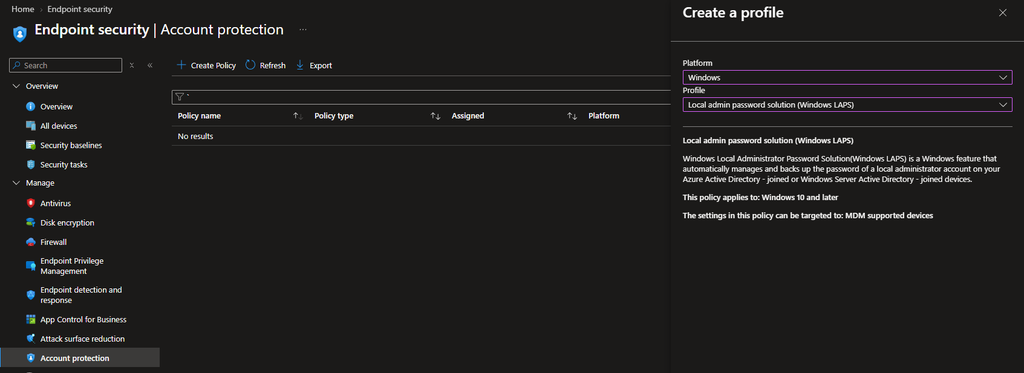
The settings that actually matter for a staged rollout:
- Backup directory: Entra ID or Active Directory, per your decision above.
- Password age (days): how often it rotates. Align this with your existing password policy rather than defaulting blindly.
- Administrator account name: leave blank and the policy targets the device’s built-in local admin account by its well-known RID, whatever it has been renamed to. Specify a name to manage a different account, but note that on Windows 11 23H2 and earlier, naming an account that doesn’t exist on the device has no effect and raises no error.
- Password complexity: where the passphrase option lives on supported builds.
- Password Length: match your organizational password standard.
- Post authentication actions: reset password + log off is the sane default; add “or reboot” if your security policy wants the session fully terminated after a privileged retrieval.
Full setting-by-setting reference: Deploy Intune policies to manage Windows LAPS.
Windows LAPS Step by Step: Building the Whole Thing
The sections above cover the what and the why. This part is the runbook: create the managed account, get rotation working, prove the password is actually landing in Entra, and only then take admin rights away from your users. Do these in order. Taking rights away before you have verified break-glass access is how you lock yourself out of a fleet.
Step 1: Enable LAPS in Microsoft Entra ID
Skip this only if every target device is Entra hybrid joined, which doesn’t need it.
- Sign in to the Microsoft Entra admin center as at least Cloud Device Administrator.
- Go to Entra admin center Entra ID -> Devices -> Overview -> Device settings.
- Set Enable Microsoft Entra Local Administrator Password Solution (LAPS) to Yes and save.
This is a tenant-level switch and is a prerequisite for Entra joined devices. You can also flip it via the Graph API Update deviceRegistrationPolicy.
Step 2: Sort out RBAC before you need it
Four separate permission sets are involved here, and one of them catches people out.
- Create and assign LAPS policy: rights from the Intune Security baselines category, included in the built-in Endpoint Security Manager role.
- Retrieve the password: a Microsoft Entra role holding
microsoft.directory/deviceLocalCredentials/password/read. Built-in roles that qualify are Cloud Device Administrator and Intune Administrator. For metadata only, device name, last and next rotation, no password,.../standard/readis enough, which Security Reader and Helpdesk Administrator both carry. - View or rotate the password in the Intune admin center: the Intune Remote tasks permission Rotate Local Admin Password, plus Managed devices: Read and Organization: Read. Note this gates viewing the blade too, not just rotating.
- View LAPS audit events and rotation history: permissions equivalent to the built-in Intune role Read Only Operator.
That third one is the trap. The Rotate Local Admin Password remote task is not included in any Intune built-in role, and it isn’t in the Entra Intune Administrator role either. You have to build a custom Intune role to grant it. If your service desk can’t rotate passwords on day one, this is why. It also explains the greyed-out Local admin password button people report.
Giving the service desk LAPS password access without making them admins
The four permission sets above tell you what’s needed. They don’t tell you how to give a helpdesk technician password access without handing over Intune Administrator, which is the question everyone actually has.
The key fact: there is no Intune role permission that grants password visibility. Under Tenant administration -> Roles you can build any custom Intune role you like and none of it will reveal a LAPS password, because microsoft.directory/deviceLocalCredentials/password/read is a directory permission, not an Intune one. It has to come from a custom Entra role.
The build:
- In the Microsoft Entra admin center go to Entra ID -> Roles and admins -> New custom role, create a role (for example LAPS Password View) containing the single permission
microsoft.directory/deviceLocalCredentials/password/read. You need at least Privileged Role Administrator to create custom roles. - Assign that Entra role to the group your service desk already activates.
- Separately, in Intune, give the same people Managed devices: Read, without it they can’t see devices at all, and the Rotate Local Admin Password remote task, or the Local admin password blade stays greyed out.
That third step is the part people miss, and it’s why this feels broken halfway through: the Entra role makes the password readable, the Intune permissions make the blade reachable. You need both.
The catch nobody mentions: you can only assign an Entra role to a group that was created as role-assignable. The isAssignableToRole property is set at creation and is immutable, you cannot convert an existing group. If your service desk group wasn’t created that way, you’ll need a new one. Role-assignable groups also require Entra ID P1 or P2, must use Assigned rather than dynamic membership, and a tenant is capped at 500 of them.
If that group is PIM-enabled, assign the custom role with assignment type Active rather than Eligible. The PIM activation on the group membership is already the time-bound control; making the role assignment eligible too means your technician has to activate twice for one task.
Tighten it further with an administrative unit. By default this grants password read across the whole tenant. Assigning the custom role at administrative unit scope instead limits recovery to the devices in that unit, regional service desks that can only recover their own region’s machines. Microsoft’s guidance is that any custom role can be assigned with administrative unit scope provided its permissions are relevant to users, groups or devices, which these are. Worth validating in your own tenant before you rely on it.
Step 3: Create the local admin account
This is the step where the answer depends on your OS baseline, and it’s the most commonly misunderstood part of Windows LAPS.
Windows LAPS has two account management modes, and which one you’re in decides whether you have to create anything at all.
Manual mode is the default. In manual mode, LAPS manages an account that already exists and does not create one. If you name a custom account in Administrator Account Name, you are responsible for creating it first. Plenty of guidance still states that “Intune LAPS policy doesn’t create accounts” – that is true of manual mode, and it is no longer the whole picture.
Automatic mode creates and owns the account. It is off by default, but the settings are now surfaced directly in the Intune LAPS profile, so it is a dropdown rather than a custom OMA-URI. In this mode LAPS handles account creation and deletion as required, adds the account to the local Administrators group, disables the password-not-required and password-never-expires flags, and rewrites the account description to mark it as LAPS-controlled.
There are three ways forward:
Option A – use the built-in Administrator account. Leave Administrator Account Name blank in the policy. LAPS then targets the device’s built-in local admin account identified by its well-known RID, regardless of what that account has been renamed to. Nothing to create. The built-in account is disabled by default on most images, so confirm your enablement approach.
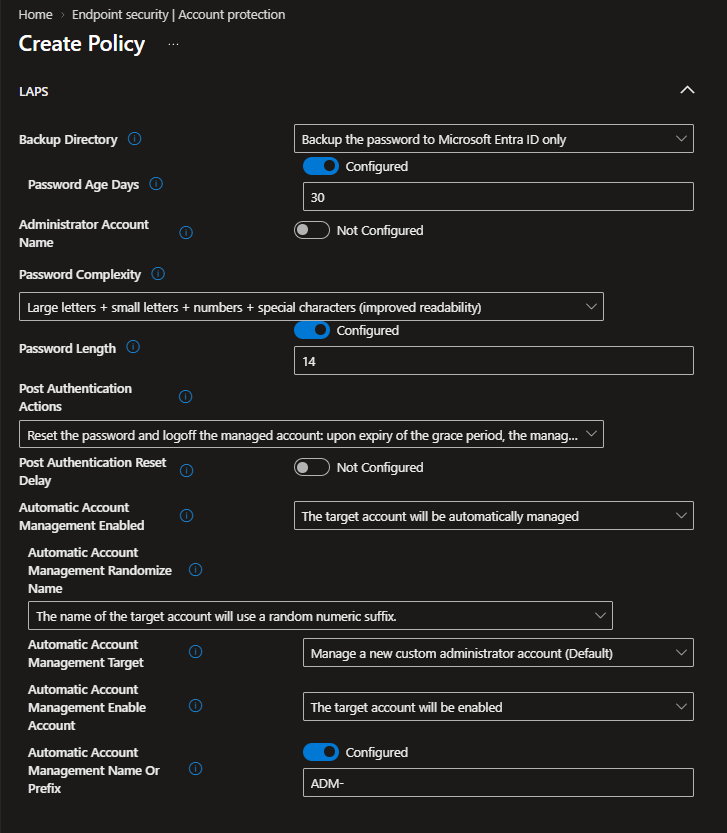
Option B – automatic account management (Windows 11 24H2 and later). This is the cleanest path if your fleet supports it, because LAPS creates and owns the account and Step 3 becomes a dropdown. Set Automatic Account Management Enabled to The target account will be automatically managed, which unlocks four dependent settings. The defaults are not what most people want, so go through all of them:
| Setting | Default | What to think about |
|---|---|---|
| Automatic Account Management Target | Manage a new custom administrator account | The default creates a new account rather than managing the built-in Administrator. Switch it if you want the built-in one. |
| Automatic Account Management Name Or Prefix | WLapsAdmin if left unconfigured | Set something that matches your naming standard. Max 14 characters if you randomize (see below). |
| Automatic Account Management Randomize Name | No random suffix | When enabled, a random six-digit suffix is appended every time the password rotates, so the account name is a moving target. Windows caps local account names at 20 characters, so the prefix is truncated to 14 to leave room. |
| Automatic Account Management Enable Account | The target account will be disabled | This is the one that bites. |
That last default deserves its own paragraph. Out of the box, automatic account management creates your break-glass account disabled. LAPS will dutifully generate, rotate and back up a password for an account nobody can sign in with. Everything looks green in the admin center, the password shows up in Entra, and the account is useless at the exact moment you need it. If this account is your recovery path, set it to enabled and then actually test a sign-in on a pilot device.
One more behavior to plan for: changing the name or prefix later isn’t a rename. LAPS deletes the account it was managing and creates a new one under the new name. Settle on your naming convention before you roll this out broadly, not after.
Also worth knowing before you build the policy: once automatic account management is enabled, the Administrator Account Name setting is ignored entirely. The account name comes from Automatic Account Management Name Or Prefix instead. Leaving both configured is a common way to end up with an account named something other than what you typed, so set one or the other, not both.
Two other settings only support 24H2 and later alongside these, so on a mixed fleet the policy applies cleanly but the automatic-mode settings are simply ignored on older builds. That’s a silent no-op, not an error, which is why a mixed-baseline fleet should stay on Option A or C until it isn’t mixed.
Here’s what that silent no-op actually looks like, because it’s worth seeing rather than being told. Take the policy above – automatic account management on, target set to a new custom administrator account, prefix ADM-, randomize name enabled – and assign it to a Windows 11 23H2 device. The policy reports Succeeded. Then open the device’s Local admin password pane and the account name is Administrator, with a SID ending in -500.
RID 500 is the built-in Administrator account. Every automatic account management setting was ignored, and LAPS quietly fell back to manual-mode behavior: manage the built-in account by well-known RID, exactly as if Administrator Account Name had been left blank. No error, no warning, green status in the console, and a completely different account under management than the one the policy describes.
The same device also silently downgraded Password Complexity, because the improved-readability option is 24H2-only too. So one unsupported build produced two divergences from the written policy, neither of them visible in Intune reporting.
This is the whole argument for splitting policies by OS baseline rather than assigning one policy to everything and trusting the status column. If you take one thing from this section: a green policy state means the settings were delivered, not that the device honoured them.
Option C – pre-create the account yourself (any down-level Windows). Use this when you need a custom account and can’t rely on Option B because part of your fleet is below 24H2. On Windows 11 23H2 and earlier, LAPS can only manage accounts that already exist. Worse, if you specify an account name that isn’t on the device, nothing happens and no error is generated. The policy silently manages nothing. Deploy the account first with a platform or remediations script, run in system context:
# Pre-create the LAPS-managed local admin account on down-level Windows.
# Run as system, 64-bit. The password set here is a throwaway - LAPS
# overwrites it on the first rotation.

$AccountName = 'LapsAdmin'

# S-1-5-32-544 is the well-known SID for the local Administrators group.
# Use the SID, not the name - the group name is localized on non-English Windows.
$AdminsSid = 'S-1-5-32-544'

function New-SeedPassword {
    param([int]$Length = 24)

    # Ambiguous characters (0/O, 1/l/I) left out - this value is short-lived
    # but may need to be typed once during testing.
    $upper  = 'ABCDEFGHJKLMNPQRSTUVWXYZ'
    $lower  = 'abcdefghijkmnopqrstuvwxyz'
    $digit  = '23456789'
    $symbol = '!#$%&*+-=?@'
    $all    = $upper + $lower + $digit + $symbol

    $rng = [System.Security.Cryptography.RandomNumberGenerator]::Create()
    $buf = [byte[]]::new(4)

    # Rejection sampling to avoid modulo bias.
    $pickIndex = {
        param([int]$Max)
        $limit = [uint32]::MaxValue - ([uint32]::MaxValue % [uint32]$Max)
        do {
            $rng.GetBytes($buf)
            $val = [BitConverter]::ToUInt32($buf, 0)
        } while ($val -ge $limit)
        [int]($val % $Max)
    }

    # Guarantee one character from each class, then fill the rest.
    $chars = [System.Collections.Generic.List[char]]::new()
    foreach ($set in @($upper, $lower, $digit, $symbol)) {
        $chars.Add($set[(& $pickIndex $set.Length)])
    }
    while ($chars.Count -lt $Length) {
        $chars.Add($all[(& $pickIndex $all.Length)])
    }

    # Fisher-Yates shuffle so the guaranteed characters aren't always first.
    for ($i = $chars.Count - 1; $i -gt 0; $i--) {
        $j = & $pickIndex ($i + 1)
        $tmp = $chars[$i]; $chars[$i] = $chars[$j]; $chars[$j] = $tmp
    }

    $rng.Dispose()
    -join $chars
}

if (-not (Get-LocalUser -Name $AccountName -ErrorAction SilentlyContinue)) {
    $TempPassword = ConvertTo-SecureString (New-SeedPassword) -AsPlainText -Force

    New-LocalUser -Name $AccountName `
        -Password $TempPassword `
        -FullName 'Managed Local Administrator' `
        -Description 'Password managed by Windows LAPS' `
        -PasswordNeverExpires
}

# Ensure membership in the local Administrators group
$IsMember = Get-LocalGroupMember -SID $AdminsSid -ErrorAction SilentlyContinue |
    Where-Object { $_.Name -like "*\$AccountName" }

if (-not $IsMember) {
    Add-LocalGroupMember -SID $AdminsSid -Member $AccountName
}
Whichever option you pick, remember LAPS manages exactly one account per device. If two policies hit the same device naming different accounts, you get a conflict that has to be resolved before either works.
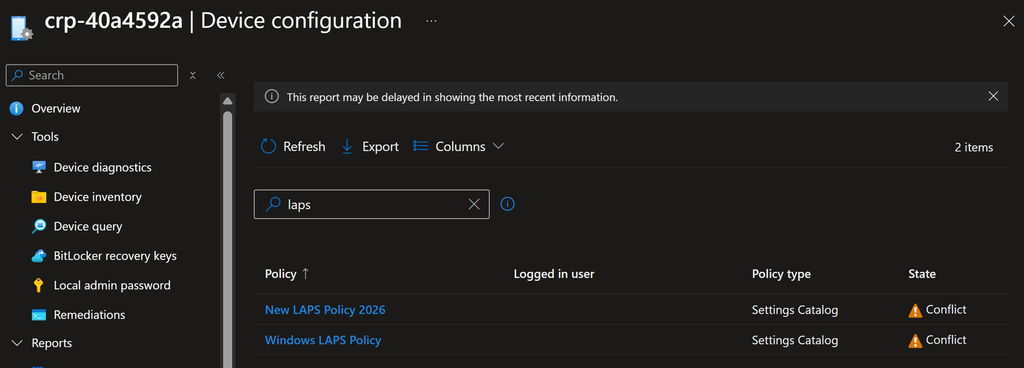
Step 4: Create and assign the LAPS policy
- In the Microsoft Intune admin center, go to Endpoint security -> Account protection -> Create Policy.
- Platform: Windows. Profile: Local admin password solution (Windows LAPS). Select Create.
- Basics: give it a name you’ll recognize in six months, and a description.
- Configuration settings: set Backup Directory first, because it determines which other settings appear.
- Administrator Account Name: blank for the built-in account (Option A), or the exact name from Step 3. Leave it unconfigured if you’re using automatic account management, which ignores this setting.
- Password Age Days: your rotation interval. This is the clock that scheduled rotation runs on.
- Password Length and Password Complexity: match your organizational password standard.
- Post Authentication Actions: what happens when the password expires after use. Options run from resetting the managed account to a new password, to logging the account off, to doing both and powering the device down. Post Authentication Reset Delay controls how long the device waits first.
- Scope tags: apply as needed.
- Assignments: assign to device groups, not user groups. Microsoft is explicit about this. A user-group assignment follows the user from device to device, so a device can flip between LAPS configurations every time a different person signs in, producing conflicts and confusion over which account is actually being managed.
- Review + create.
Until a device checks in and successfully processes the policy, no account data shows up in the admin center at all. That’s expected, not a failure.
Step 5: Verify the local admin password actually reached Entra ID
This is the step people skip, and it’s the one that matters. Policy showing “succeeded” only means the settings applied. It doesn’t prove a password was backed up.
- Go to Devices -> All devices and select one of your pilot devices.
- On the left pane, select Local admin password.
If the backup worked, you get:
- Account name – the local admin account backed up from the device
- Security ID – the SID for that account
- Local administrator password – obscured; select Show to reveal, then Copy
- Last password rotation (UTC)
- Next password rotation (UTC)
Two things to know. Revealing a password generates an audit event, which is a feature, not a problem – it’s your access trail. And this pane will never show a password for devices backing up to on-premises Active Directory; that data lives in AD and is retrieved with the LAPS PowerShell cmdlets instead.
To test rotation on demand: with the device selected, select Secure in the menu bar and choose Rotate local admin password, then confirm. It takes a few minutes and shows as Pending, then Complete, in Device actions status.
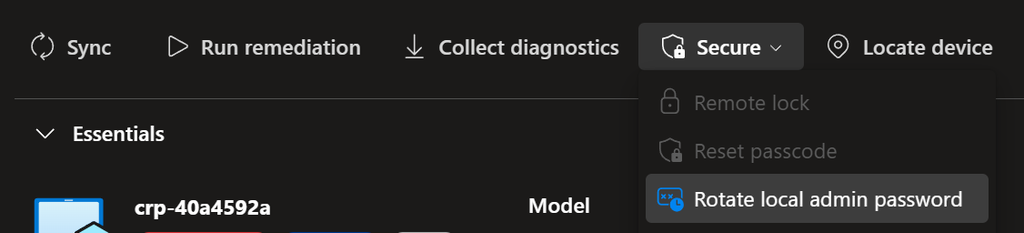
Worth knowing:
- The device must be online at the time of the request for Entra joined devices, or the rotation fails. Also the old password will be replaced with the new one in Entra ID.
- Rotation is single-device only. There is no bulk action.
- A manual rotation resets the Password Age Days clock. Rotate on day 5 of a 10-day cycle and the next automatic rotation is 10 days from that manual rotation, not from the original schedule.
- Any device that has never successfully backed up its account will fail the rotate request, which makes this a useful smoke test.
For fleet-wide verification rather than clicking through devices one at a time, use the Graph query from earlier in this post, or the built-in LAPS reports under Endpoint security -> Account protection.
Step 6: Remove local admin rights from your users
Only now, with a verified working break-glass account, is it safe to do this. Please check below in the Questions section, to understand how EPM can be utilized to give your user JIT administrator permissions (I’ll try to create a same guide at some point in the future).
Use a second policy: Endpoint security -> Account protection -> Create Policy -> Platform Windows -> Profile Local user group membership. This drives the LocalUsersAndGroups Policy CSP and requires Windows 10 20H2 or later, or Windows 11.
On the Configuration settings page you build one or more rules:
- Local group: pick Administrators. The dropdown is limited to the six built-in local groups guaranteed to be evaluated at logon.
- Group and user action: three choices, and the difference is critical.
- Add (Update) – adds the members you name; leaves everyone else alone.
- Remove (Update) – removes the members you name; leaves everyone else alone.
- Add (Replace) – replaces the entire group membership with exactly who you name. Anyone not listed is removed. This behaves like the old Restricted Groups.
- User selection type:
- Users – pick Entra users and groups from the Selected users/groups column on the right of each rule. This picker only lists directory objects, so local accounts do not appear in it. Entra joined devices only.
- Manual – type identifiers yourself, which is the only way to specify a local account such as the LAPS-managed one or the built-in Administrator. Works for both Entra joined and Entra hybrid joined. Supported formats in order of preference: SID, then domain\username, then username. Use Active Directory values for hybrid joined devices and Entra values for Entra joined.
Add (Replace) is what actually strips standing local admin rights from users who already have them. If you only need to remove a handful of named accounts and leave the rest of the group untouched, Remove (Update) is the surgical option.
Add (Replace) is the one you want for a fleet-wide cleanup where you can’t enumerate every account that has crept into the Administrators group over the years. Before assigning it, build the complete intended membership in one policy:
- The built-in Administrator account (or your LAPS-managed account)
- The two Entra role SIDs that Windows puts there by default on Entra joined devices – see below
- Domain Admins, if hybrid joined and your model requires it
- Any dedicated workstation admin Entra group
- Nothing else
That second item catches almost everyone. On an Entra joined device, the local Administrators group already contains two role-based members that nobody explicitly added: Global Administrator and Azure AD Joined Device Local Administrator. They appear as SIDs in the S-1-12-1- format rather than as friendly names. A Replace rule that doesn’t list them removes them, and your cloud admin roles quietly stop being local administrators on every device the policy touches.
Don’t type them from a blog post, including this one. Read the real values off a device that’s still in a known-good state:
# Run on a representative Entra joined device BEFORE applying any Replace rule.
# The S-1-12-1-... entries are the Entra role SIDs you need to carry forward.
Get-LocalGroupMember -SID 'S-1-5-32-544' |
    Select-Object Name, SID, PrincipalSource
Copy those SIDs verbatim into the member list. The Intune blade accepts username, domain\username, or SID, and it silently drops identifiers it can’t resolve – which in a Replace rule is indistinguishable from deliberately removing that member. Placeholder text like SID_GlobalAdmin isn’t a SID and will be discarded.
If you’d rather derive them, both roles have fixed template IDs that are identical in every tenant, and the SID is a conversion of that GUID:
function Convert-EntraRoleIdToSid {
    param([guid]$RoleTemplateId)
    $bytes = $RoleTemplateId.ToByteArray()
    'S-1-12-1-' + ((0, 4, 8, 12 | ForEach-Object {
        [BitConverter]::ToUInt32($bytes, $_)
    }) -join '-')
}

# Global Administrator
Convert-EntraRoleIdToSid '62e90394-69f5-4237-9190-012177145e10'

# Azure AD Joined Device Local Administrator
Convert-EntraRoleIdToSid '9f06204d-73c1-4d4c-880a-6edb90606fd8'
Cross-check whatever this produces against what Get-LocalGroupMember actually returns before you rely on it. A SID you haven’t seen resolve on a real device has no business in a Replace rule.
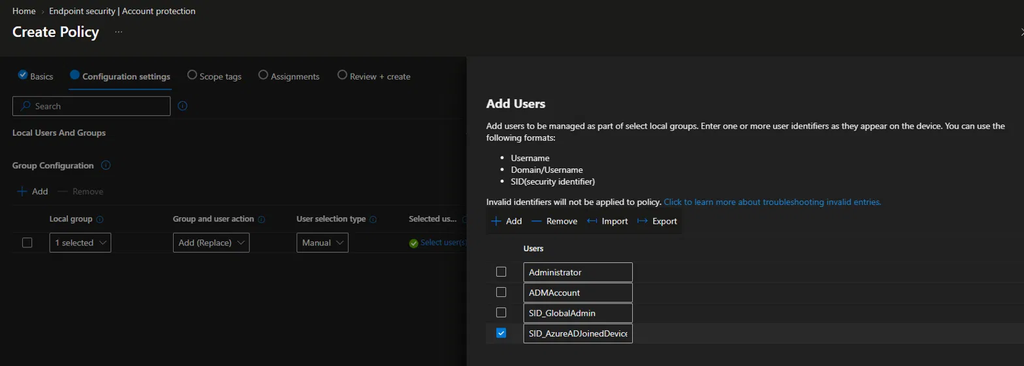
Two hard constraints before you build that list, both of which will bite you at the worst moment.
The built-in Administrator cannot be removed, and must be named explicitly. Removing the built-in Administrator account from the built-in Administrators group is blocked at the SAM/OS level. If you configure Administrators with the Replace action and don’t include the built-in Administrator’s SID or name in your member list, the rule fails outright with “Cannot perform this operation on built-in accounts”. It isn’t silently skipped. List it.
Replace and randomized LAPS account names are incompatible. This is the one that quietly destroys your break-glass access. If you enabled Automatic Account Management Randomize Name, the managed account is your prefix plus a six-digit suffix that changes on every password rotation. There is no wildcard support in this policy and the SID is per-device, so there is no way to name that account in a Replace list. A custom LAPS account is not a built-in account, so nothing protects it – the next policy evaluation strips it from Administrators. LAPS carries on rotating and backing up the password perfectly, Intune reports everything green, and the account it’s managing is no longer an administrator. You find out during an incident.
If you want randomized names, use Remove (Update) on the Administrators group instead, naming the users and groups you want gone. Update leaves unlisted members untouched, so the managed account survives. If you want the fleet-wide certainty that Replace gives you, turn randomization off and reference the account by its stable name, or point automatic account management at the built-in Administrator, which Windows won’t let the policy remove.
Two behaviors to plan around. If the same group receives both a Replace rule and an Update rule, Replace wins, and Microsoft does not treat this as a conflict – so don’t try to build membership incrementally across multiple policies. And Entra groups deployed this way do not apply to remote desktop connections; for RDP access on Entra joined devices you need the individual user’s SID added.
Roll this one out through the same rings as the LAPS policy, and be even more conservative. Ring 0 for this policy should be devices you can physically reach.
Step 7: Confirm the end state
On a pilot device, after both policies have applied:
# Who is actually in the local Administrators group now?
Get-LocalGroupMember -SID 'S-1-5-32-544'

# Confirm the LAPS-managed account exists and is enabled
Get-LocalUser -Name 'ADMAccount' -ErrorAction SilentlyContinue |
    Select-Object Name, Enabled, PasswordLastSet
If you enabled Automatic Account Management Randomize Name, don’t hard-code the account name anywhere – not in verification scripts, not in helpdesk runbooks, not in a compliance rule. The six-digit suffix changes with every password rotation, so the name is a moving target by design. Match on the prefix, or read the current Account name from the Local admin password pane in Intune, which always reflects what’s on the device right now. The account description is also rewritten by LAPS to mark it as LAPS-controlled, which gives you a second thing to match on.
Then have a standard user sign in – in a fresh session, not the one that was open when the policy applied – and confirm they get a UAC prompt for credentials rather than a consent prompt, which is the practical proof that standing admin rights are gone. The fresh session matters because the user’s access token is built at logon and doesn’t change mid-session; testing without signing out first will show the old rights and look like the policy failed. Retrieve the LAPS password from Intune and confirm it satisfies that prompt. That round trip is the whole point of the exercise.
If group membership doesn’t look right, check the Intune event log on the device at Applications and Services Logs > Microsoft > Windows > DeviceManagement-Enterprise-Diagnostics-Provider > Admin. A result of 0x80070534 on a LocalUsersAndGroups merge is the HRESULT for ERROR_NONE_MAPPED: Windows could not resolve an account name you specified to a SID. In practice that means a mistyped identifier, or the wrong identifier format for the device’s join type (Entra values on a hybrid joined device, or vice versa).
Windows LAPS Gotchas Before Someone Files a Ticket
- Disabled devices don’t rotate. If a device is disabled in Entra ID, LAPS won’t rotate or back up its password. This looks identical to a policy failure in reporting, so check join/enabled status before you go down a troubleshooting rabbit hole.
- Running legacy and new LAPS side by side is fine, temporarily. Don’t rush decommissioning out of tidiness. The parallel-run period is your safety net.
Windows LAPS Questions That Come Up Every Time
These are the ones that fill up forum threads and helpdesk tickets. Worth knowing before you hit them.
What happens to the password if a device is deleted from Entra ID?
It’s gone. When a device object is deleted in Microsoft Entra, the LAPS credential tied to that device is lost along with it, and there is no method in Entra ID to recover the managed password for a deleted device. If you have a scenario where you need to recover a wiped-from-directory device, you need a custom workflow that retrieves and stores passwords externally before deletion. Most organizations don’t have this and don’t discover the gap until it matters.
Can LAPS manage more than one local admin account per device?
No. One account per device, full stop. If you change the account a policy targets, the previously managed account stops being managed, and its details disappear from the admin center and the directory. If two policies target the same device with different account names, that’s a conflict and neither applies until you fix it.
Do I still need LAPS if I have Endpoint Privilege Management?
Yes. They solve different problems and the pairing is the point. EPM lets standard users run specific approved applications with elevation, so day-to-day work doesn’t require admin rights. LAPS secures the break-glass account that still exists on every device for when something is genuinely broken and nobody can sign in. Microsoft’s own guidance on transitioning users from administrator to standard user pairs EPM with Local Users and Groups for exactly this reason. If your users are losing admin rights in Step 6 and there’s no elevation story for them, expect a ticket queue. EPM requires Intune Suite or the standalone add-on, which is the usual blocker.
How do I force LAPS to apply right now instead of waiting?
Windows LAPS processes its policy on an hourly cycle. To skip the wait on a test device, run Invoke-LapsPolicyProcessing from an elevated PowerShell prompt. Note this forces LAPS to process; it doesn’t force Intune to deliver the policy, so sync the device first.
Why isn’t my rotation interval applying?
Almost always because you’ve set Password Age Days below the supported minimum. The floor depends on your backup directory: seven days when backing up to Microsoft Entra ID, one day for Active Directory. The maximum either way is 365, and the default is 30. Configure a value below the minimum and LAPS falls back to the default rather than honouring it.
Two related behaviors that generate the same “it isn’t working” ticket:
- Changing Password Age Days has no effect on the current password’s expiry, and doesn’t trigger a rotation by itself. The new interval applies from the next rotation onward. If you need the change to take effect now, rotate manually and the clock restarts from there.
- If Password Length or Password Complexity conflicts with the device’s own local password policy, LAPS can’t generate a compliant password and rotation fails. Look for event ID 10027 in the LAPS Operational log.
One more worth knowing if you’re on a mixed fleet: the passphrase complexity options and a few other settings only exist on Windows 11 24H2 and Windows Server 2025. Apply a policy using them to an older build and the device silently falls back to the default complexity instead of erroring. Microsoft’s guidance is to run two separate policies, one per OS baseline, rather than one policy with settings half your fleet ignores.
Where do I look when it silently isn’t working?
Event Viewer, at Applications and Services Logs -> Microsoft -> Windows -> LAPS -> Operational. A processing cycle opens with Event ID 10003 and closes with 10004, if the cycle failed, you get 10005. Work backwards from there and fix the earliest error in the sequence rather than the last one. Event ID 10029 specifically confirms the password was successfully updated in Microsoft Entra ID, which is the single event you want to see on a pilot device.
For a full dump, Get-LapsDiagnostics collects logs and tracing from the local machine into one bundle.
# Force a policy cycle, then check the last 20 LAPS events
Invoke-LapsPolicyProcessing

Get-WinEvent -LogName 'Microsoft-Windows-LAPS/Operational' -MaxEvents 20 |
    Format-Table TimeCreated, Id, LevelDisplayName, Message -AutoSize
Do users need to restart after their admin rights are removed?
They need to sign out and back in. A restart works too, but it isn’t required and locking the screen does nothing.
Windows builds a user’s access token at logon and that token is fixed for the life of the session. Group membership is only evaluated when the token is created, so removing an account from Administrators has no effect on a session that already exists. This is also why the policy’s group dropdown is limited to the six built-in groups that are guaranteed to be evaluated at logon.
The practical consequence is that your verification will disagree with itself for a while. Get-LocalGroupMember shows the account gone from the group immediately, while whoami /groups for the signed-in user still lists Administrators until they sign out. Both are correct. Any elevated process the user already had open also keeps its rights until it’s closed.
This is the single most common “the policy didn’t work” report during a rollout, and it usually isn’t a policy problem – it’s someone testing UAC behaviour in the same session the policy landed in. Tell people to sign out explicitly rather than “restart”, because on machines with Fast Startup a shutdown and boot doesn’t always end the session the way they expect.
Can I see the LAPS account in Computer Management?
Yes. It’s an ordinary local account, so Computer Management > Local Users and Groups > Users (or lusrmgr.msc) lists it like any other, and you’ll see it in the Administrators group too. What you won’t see is the password – that only exists in Entra ID or Active Directory, never as a readable local copy.
Two things worth checking while you’re in there. The Description field is rewritten by Windows LAPS to mark the account as LAPS-controlled, which is the most reliable way to identify the managed account when the name is randomized. And a disabled account shows a small down-arrow on its icon, which is the fastest visual check for the enable-account trap described in Step 3.
If randomization is on, treat what you see as a snapshot: the numeric suffix changes at every rotation, so don’t write the name down and assume it stays valid. Get-LocalUser | Select-Object Name, Enabled, Description gives you the same picture faster, and works on Windows Home where lusrmgr.msc isn’t present.
Can I retrieve passwords without using the portal?
Yes. The Windows LAPS PowerShell module ships with Get-LapsAADPassword for Entra-backed passwords and Get-LapsADPassword for AD-backed ones, plus Reset-LapsPassword to trigger an immediate local rotation. Get-LapsAADPassword is a wrapper around the Microsoft Graph PowerShell library, so you’ll need Connect-MgGraph first.
A word on the follow-up question this always generates, which is “how do I export every LAPS password in the tenant to CSV.” You can, technically. You almost certainly shouldn’t. Every password retrieval generates an audit event, a bulk export defeats the entire point of the control, and the resulting file is the highest-value target in your environment. If you need a break-glass export for disaster recovery, treat it as a designed process with its own storage protections, not a script someone runs ad hoc.
Why is the Local admin password button greyed out?
Because your account lacks the Rotate Local Admin Password Intune permission. See Step 2. This is the single most common access complaint with Intune LAPS, and it’s not obvious because the button exists but does nothing.
When does the password first get backed up on a new device?
Not until the device successfully checks in with Intune and processes its LAPS policy. Until that happens, no account data is viewable or manageable in the admin center at all. If you’re validating during an Autopilot build, don’t panic when the Local admin password pane is empty mid-provisioning; check after the device has fully enrolled and completed a check-in cycle.
Does the managed account need to be enabled?
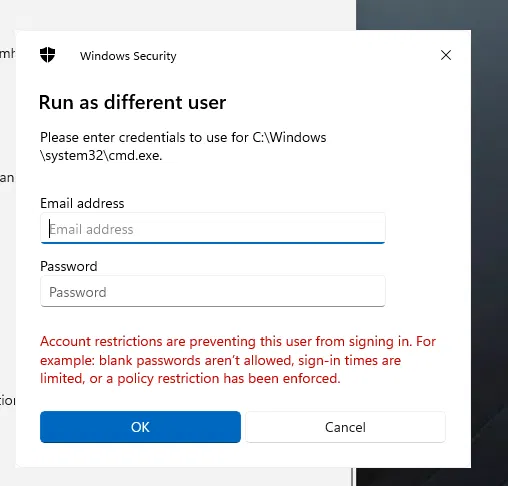
Yes, and this catches people twice. The built-in Administrator account is disabled by default on most Windows images. And if you use automatic account management, its Automatic Account Management Enable Account setting also defaults to creating the account disabled. Either way LAPS will happily manage and rotate the password for an account nobody can sign in with, which is a fine outcome right up until the moment you need it. Set it explicitly, then test an actual sign-in on a pilot device rather than trusting the green checkmarks.
The built-in Administrator on a Windows 11 23H2 device: LAPS is rotating and backing up its password normally, but the account is disabled, so sign-in is refused.
Where This Leaves the Old Approach
The original post’s underlying goal – get people off standing local admin rights, and lock down whatever privileged account remains – is still exactly right. What’s changed is that the mechanism for the second half of that has gone from something you maintain to something you configure once and let Intune and the OS handle. If you built anything around the old CSP workaround or a rotation script, this is a good moment to retire it.
There’s a third piece to this, and it’s the one that decides whether your users accept the change or bury the service desk: what happens when a standard user legitimately needs to run something elevated. Windows LAPS secures the break-glass account. Local user group membership takes the standing rights away. Neither of them gives a developer a way to install a driver on a Tuesday afternoon. That’s what Endpoint Privilege Management is for, and it’s a big enough topic that it deserves its own walkthrough rather than a paragraph here. Coming in a follow-up post in the future.
Sources / further reading:
- What is Windows LAPS? – Microsoft Learn
- Key concepts in Windows LAPS – Microsoft Learn
- Microsoft Intune support for Windows LAPS – Microsoft Learn
- Deploy Windows LAPS policy with Microsoft Intune – Microsoft Learn
- Account protection policy for endpoint security in Intune – Microsoft Learn
- Get started with Windows LAPS in legacy Microsoft LAPS emulation mode – Microsoft Learn
- Reports for LAPS policy in Intune – Microsoft Learn
- Policy CSP – LocalUsersAndGroups – Microsoft Learn
- Windows LAPS account management modes – Microsoft Learn
- Windows LAPS troubleshooting guidance – Microsoft Learn
- Get started with Windows LAPS and Microsoft Entra ID – Microsoft Learn
- LAPS PowerShell module – Microsoft Learn
- Use Endpoint Privilege Management with Microsoft Intune – Microsoft Learn
- Get-MgDirectoryDeviceLocalCredential – Microsoft Learn
- deviceLocalCredentialInfo resource type – Microsoft Learn
Questions, or hit something during your own migration that isn’t covered here? Drop a comment and I’ll update this with real-world edge cases.