
Join-Register-Enroll an easy demystification
Modern device management in Microsoft Entra and Intune hinges on understanding where and how a device is registered or joined. The key states are:
- Entra ID Joined (formerly Azure AD Joined)
- Hybrid Entra ID Joined (formerly Hybrid Azure AD Joined)
- Entra ID Registered (formerly Azure AD Registered)
- (On-premises) AD Domain Joined
…and in Intune:
- MDM-enrolled (Intune Joined)
- MAM-enrolled (Intune Registered / App protection only)
Plus the critical distinction between corporate-owned and BYOD (personal) devices. Each state unlocks different management capabilities—from full policy application and remote wipe to app-only protection.
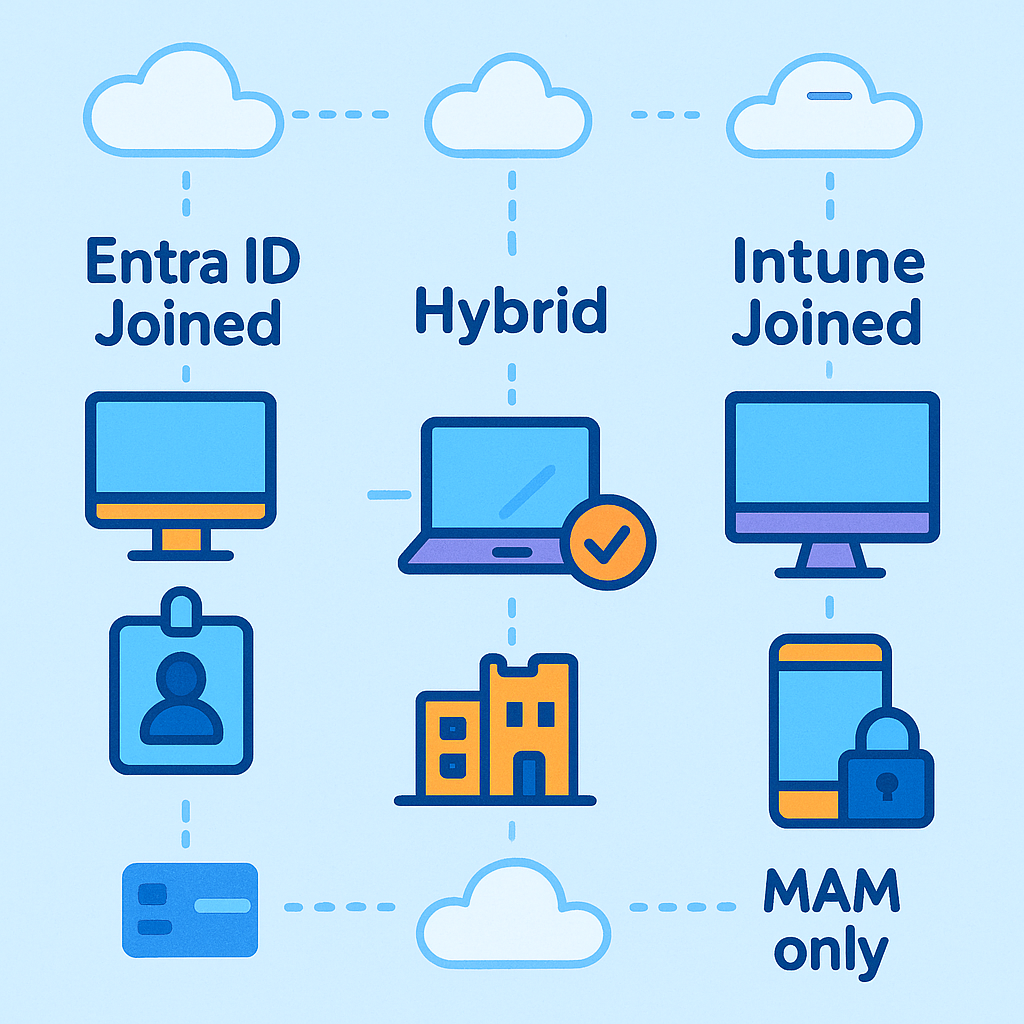
Table of Contents
Directory Join & Registration Types
Entra ID Joined
Entra ID Joined describes Windows 10 and Windows 11 devices whose computer accounts are created and stored directly in Microsoft Entra ID (formerly Azure Active Directory). When a device is Entra ID Joined:
- Device Identity in the Cloud:
A device object exists in Entra ID alongside your users, groups, and applications.
This cloud-native identity replaces (or augments) a traditional on-premises AD computer account.
- Sign-In with Corporate Credentials:
End users sign in at Windows logon using their corporate Entra ID username and password (or password-less methods).
Their session is fully integrated with Microsoft 365 and other corporate SSO apps—no need for separate credentials.
- Automated MDM Enrollment (Optional):
If your tenant is configured for automatic enrollment, an Entra ID Joined device will self-enroll into Microsoft Intune MDM on first sign-in.
Why “Entra ID Join” Matters
| Benefit | What It Enables |
|---|---|
| Central Identity | Devices appear in the same directory as users—simplifying inventory and conditional access. |
| Seamless SSO | One sign-in unlocks Windows, Microsoft 365, and third-party apps federated with Entra ID. |
| Cloud-First Management | Devices can skip VPNs or on-prem prerequisites—policies and software deployments come straight from Intune. |
| Zero-Touch Provisioning | Pair with Windows Autopilot for a fully automated setup experience. |
Prerequisites and Setup
- Entra ID Licensing & Configuration:
You must have Entra ID Premium P1 or P2 (for automatic enrollment and device management features).
- Windows Version:
Supported on Windows 10, version 1703 or later, and all editions of Windows 11.
- Tenant Settings:
In the Azure portal under Microsoft Entra ID → Devices → Manage → Device Settings, enable “Users may join devices to Microsoft Entra” and configure automatic MDM enrollment to Intune.
How to Join a Windows 10/11 Device
- During Windows Setup (OOBE):
When prompted for account type, choose “Work or school account” and enter your Entra ID credentials.
- After Setup (Existing PC):
Go to Settings → Accounts → Access work or school → Connect, then select Join this device to Azure Active Directory.
Real-World Example
Scenario: Your company issues 500 new laptops and wants them fully managed in the cloud—no local AD, no VPN first.
Solution: Configure Windows Autopilot profiles, enable Entra ID Join and automatic Intune enrollment. Users unbox, power on, sign in with Entra ID, and walk away with a fully configured, policy-compliant device in under 10 minutes.
Hybrid Entra ID Joined
Hybrid Entra ID Joined devices are Windows computers that are first joined to your on-premises Active Directory domain and then automatically register with Microsoft Entra ID. This dual-identity approach gives you:
- Cloud-based capabilities like Conditional Access, Intune compliance policies, and single sign-on to cloud applications.
- On-premises management via Group Policy and traditional domain-joined workflows.
When a computer is Hybrid Entra ID Joined:
- On-Prem AD Account: The device has an on-prem AD computer account, allowing legacy tools and GPO to apply.
- Entra ID Registration: Entra ID Connect publishes a Service Connection Point (SCP) in AD; devices locate it at sign-in and register a device object in Entra ID.
- Seamless Cloud Integration: The device appears in both AD and Entra ID simultaneously, enabling cloud compliance and reporting.
Why Hybrid Join Matters
| Benefit | Description |
|---|---|
| GPO & MDM Co-existence | Continue using existing on-prem Group Policy while rolling out Intune device profiles. |
| Cloud Conditional Access | Enforce MFA, device compliance, and location-based policies via Entra ID. |
| Smooth Migration Path | Gradually transition workloads and policies to the cloud without disrupting end users. |
| Unified Inventory | See devices in both on-prem AD and Entra ID portals for consolidated reporting. |
Prerequisites & Setup
- Entra Connect
Version 1.1.524.0 or later to support device writeback and SCP publishing.
- Service Connection Point (SCP)
Ensure the “Configure Hybrid Entra ID Join” option is enabled in the AD Connect wizard for your forest.
- Windows Version
Supported on Windows 10, version 1607 or later, and Windows 11.
- Entra ID Licensing
Entra ID Premium P1 or P2 required for device writeback and automatic MDM enrollment.
- Network Requirements
Devices must reach Entra ID endpoints and your on-prem AD.
Real-World Example
Scenario: A large enterprise has 5,000 existing domain-joined desktops managed by Group Policy and SCCM. They need to apply modern Conditional Access and Intune compliance policies without ripping and replacing their current setup.
Solution: Enable Hybrid Entra ID Join via Entra ID Connect. PCs automatically register in Entra ID at next user sign-in. IT then configures Intune auto-enrollment for hybrid joined devices and rolls out compliance policies gradually. Users retain their familiar on-premises environment while gaining modern security controls.
Hybrid Join vs. Entra ID Join
| Feature | Entra ID Joined | Hybrid Entra ID Joined |
|---|---|---|
| On-Premises GPO | ❌ | ✔️ |
| Entra ID Single Sign-On | ✔️ | ✔️ |
| Intune Auto-Enrollment | ✔️ (if configured) | ✔️ |
| Legacy Tools Compatibility | Limited | Full (e.g., SCCM client, logon scripts) |
| Cloud-Only Scenario | Ideal | Transitional/mixed environments |
Entra ID Registered
Entra ID Registered devices are “lightweight” registrations across platforms (Windows, macOS, iOS, Android, Linux). Instead of fully joining your directory, these devices simply create a minimal device object in Entra ID. This record allows you to:
- Device Presence in the Cloud:
The device appears under Devices in the Entra ID portal, but without full join metadata or computer account attributes.
- Conditional Access Eligibility:
Registered devices can satisfy device–based requirements (for example, requiring a registered device before granting access to certain applications).
- Single Sign-On for Entra Applications:
Users on registered devices enjoy seamless SSO to Microsoft 365 and any other federated applications without needing to re-enter credentials.
Unlike fully joined devices, Entra ID registration does not automatically trigger MDM enrollment—no device-wide policies or configurations are pushed by default. It’s primarily designed for BYOD scenarios where you want to protect access to corporate resources without managing the entire device.
Why Entra ID Registration Matters
| Benefit | Description |
|---|---|
| Minimal Footprint | Users simply authorize registration—no device admin provisioning required. |
| App-Only Protection | Combined with Intune MAM, you can apply App Protection Policies (APP) to secure corporate apps. |
| Conditional Access Enforcement | Enforce location, risk, and device-based policies on personal devices without full MDM. |
| Cross-Platform Support | Works on Windows, macOS, iOS, Android, even Linux—any platform that can reach Entra ID endpoints. |
Prerequisites & Setup
- Entra ID Configuration
Under Entra ID → Devices → All Devices → Device Settings, enable Users may register their devices with Microsoft Entra.
- User License Assignments
Ensure users have the necessary license (e.g., Microsoft 365 E3/E5 or Entra ID Premium P1/P2) to register devices and use Conditional Access.
- Network Access
Devices must reach the Entra ID registration endpoints.
- Intune MAM (Optional)
If you plan to secure corporate data in apps, configure Intune App Protection Policies and allow MAM-only enrollment.
Real-World Example
Scenario: Your organization allows employees to BYOD their tablets but must secure Outlook and Teams.
Solution: Users install the Intune Company Portal, choose Register only, and then install managed apps. You apply App Protection Policies requiring app PIN and block data-copy. Corporate email flows securely, while personal apps (Photos, Safari) remain unmanaged and private.
Entra ID Registered vs. Entra ID Joined
| Feature | Entra ID Joined | Entra ID Registered |
|---|---|---|
| Cloud Computer Object | Full computer account | Lightweight device record |
| Sign-On Experience | Windows login + SSO | SSO in browser & corporate apps |
| MDM Enrollment | Optional auto-enroll | None by default (MAM only) |
| Conditional Access Support | ✔️ | ✔️ |
| Group Policy / Legacy Tools | ❌ | ❌ |
| App Protection Policies (MAM) | ✔️ | ✔️ |
AD Domain Joined (On-Premises)
Traditional Windows computers joined to a local Active Directory domain. They can be “Hybrid Joined” as above, but alone they lack native cloud identity, Conditional Access, or MDM integration.
Intune Enrollment States
MDM-Enrolled (Intune Joined)
An MDM-enrolled device—often described as Intune Joined—is any endpoint (Windows PC, Android device, or iOS device) that you have fully enrolled into Microsoft Intune’s Mobile Device Management service. Once enrolled:
- Configuration Profiles (Wi-Fi, VPN, certificates, security baselines) are applied automatically.
- Compliance Policies (password requirements, device health attestation, OS version checks) report device status back to Intune.
- Software Updates are delivered and managed through Windows Update for Business or intune-specific update rings.
- Remote Actions (Wipe, Retire, Autopilot Reset, Fresh Start) can be issued on demand.
- Inventory & Reporting tracks hardware properties, installed apps, and compliance state in the Intune console.
MDM enrollment unlocks the full suite of endpoint management capabilities—making Intune-joined devices the gold standard for corporate-owned fleets.
Why Intune MDM Enrollment Matters
| Capability | Benefit |
|---|---|
| Policy Enforcement | Ensure devices meet your security requirements (encryption, PIN complexity, OS patch). |
| App Deployment | Push Line-of-Business (LOB), Win32 apps and Microsoft 365 apps seamlessly. |
| Update Management | Control Windows and Android update rings to reduce downtime and improve stability. |
| Conditional Access | Combine compliance signals with Entra ID policies to protect corporate resources. |
| Remote Remediation | Execute remote wipe, retire, or reset to recover lost/stolen or repurposed devices. |
Prerequisites & Setup
- Licensing
Users require one of: Microsoft 365 E3/E5, Enterprise Mobility + Security E3/E5, or Intune standalone licenses.
- MDM Authority
In the Microsoft Intune admin center add Intune as MDM authority.
- Device Enrollment Restrictions
Define which platforms, OS versions, and ownership types may enroll..
- Platform Configuration
- For Android Enterprise, configure the Managed Google Play connection.
- For iOS/iPadOS, integrate Apple Business Manager and upload an MDM Push certificate.
How to Enroll Devices
- Windows 10/11 (Corporate-Owned PC)
- Automatic Enrollment: On Entra ID-joined or Hybrid AD-joined devices, automatic MDM enrollment triggers on first user sign-in.
- Manual Enrollment: Users go to Settings → Accounts → Access work or school → Enroll only in device management, then follow the prompts.
- Android Enterprise (Corporate-Owned)
- Corporate-Owned, Fully Managed: Use zero-touch/EMM token or QR-code provisioning during the Android setup wizard to enroll as a fully managed work device.
- iOS/iPadOS (Corporate-Owned)
- Automated Device Enrollment: Devices purchased through Apple Business Manager auto-enroll in Intune during iOS setup.
- Manual Enrollment: Users install the Company Portal, sign in, and tap Enroll this device.
Real-World Example
Scenario: A financial services firm issues 1,000 new laptops and 500 company-owned Android tablets. They need consistent security baselines (BitLocker, firewall) on PCs and kiosk-mode lockdown on tablets.
Solution:
- Configure Entra ID Join & Automatic Enrollment for Windows in Entra ID.
- Set up Windows Security Baselines in Intune and assign to the Windows device group.
- Integrate Android Enterprise in Intune; create a Kiosk profile for tablet deployments.
- Users unbox, power on, and sign in—devices automatically enroll, receive policies, apps, and are ready for use within minutes.
MAM-Enrolled (Intune Registered)
A MAM-Enrolled device—often called Intune Registered or App Protection (MAM-only)—is one that isn’t fully managed by Intune MDM but has one or more corporate applications wrapped in App Protection Policies. On these devices:
- Only selected apps (e.g., Outlook, OneDrive, Teams) enforce Intune policies such as PIN requirements, data encryption at rest, and selective wipe of corporate data.
- No device-wide configuration (Wi-Fi, VPN, certificates) is pushed.
- Personal apps and settings remain entirely under user control.
This model is ideal for BYOD (Bring Your Own Device) scenarios, where you must secure corporate data in apps without taking over the entire device.
Why MAM-Only Enrollment Matters
| Benefit | Description |
|---|---|
| User Privacy | Personal apps, photos, and settings stay untouched—only corporate data in managed apps is protected. |
| Simple Onboarding | Users sign into the Company Portal and corporate apps; no device enrollment prompts or reboots needed. |
| Cross-Platform | Works on iOS, Android, and Windows 10+—any platform supported by App Protection Policies. |
| Selective Wipe | IT can wipe only the corporate data frlen, or the user leaves. |
| Cost-Effective | No MDM licensing or configuration overhead for devices that don’t require full management. |
Prerequisites & Setup
Licensing
- Users need an Intune license as part of Microsoft 365 E3/E5 or EMS E3/E5.
Configure App Protection Policies
- Create policies that specify PIN requirements, encryption settings, data transfer restrictions, and selective wipe options.
Deploy Company Portal
- Instruct users to install the Intune Company Portal or Authenticator app from their device’s app store.
Real-World Example
Scenario: A marketing consultant uses a personal iPad but needs secure access to corporate email and files.
Solution:
- The consultant installs the Intune Company Portal and signs in with Entra ID.
- They register for App Protection only (no device enrollment).
- Corporate apps—Outlook and OneDrive—download, enforce a four-digit PIN, and encrypt corporate data.
- If the iPad is lost, IT issues a Selective Wipe to remove only the corporate data, leaving personal photos and games intact.
MDM vs. MAM-Only Enrollment
| Capability | MDM-Enrolled (Intune Joined) | MAM-Enrolled (Intune Registered) |
|---|---|---|
| Full device configuration | ✔️ | ❌ |
| Compliance policy reporting | ✔️ | ❌ |
| Remote wipe / retire | ✔️ (device-wide) | ❌ (app-only) |
| App Protection Policies | ✔️ | ✔️ |
| Inventory & hardware data | ✔️ | ❌ |
| Selective corporate wipe | ✔️ | ✔️ |
Personal vs. Corporate Devices
| Ownership | Directory State | Intune State | Management Scope |
|---|---|---|---|
| Corporate PC | Entra ID Joined / Hybrid | MDM-Enrolled | Full device control: configs, apps, remote wipe |
| Corporate Mobile | Entra ID Registered / Joined | MDM-Enrolled | Mobile device management (Android Enterprise/iOS) |
| Personal PC | Entra ID Registered | MAM-Enrolled | App-level protection only |
| Personal Mobile | Entra ID Registered | MAM-Enrolled | App protection, no device policies |
What You Can—and Can’t—Do
| State | Push Config Profiles | Enforce Compliance | Conditional Access | Remote Wipe | App Protection |
|---|---|---|---|---|---|
| Entra ID Joined + MDM | ✔️ | ✔️ | ✔️ | ✔️ | ✔️ |
| Hybrid Joined + MDM | ✔️ | ✔️ | ✔️ | ✔️ | ✔️ |
| Entra ID Registered + MDM | (rare) | ✔️ | ✔️ | ✔️ | ✔️ |
| Entra ID Registered + MAM | ❌ | ❌ | ✔️ | ❌ | ✔️ |
| On-Prem AD JoinedOnly | ✔️ (GP) | ❌ | ❌ | ❌ | ❌ |
Best Practices & Scenarios
Corporate Windows Fleet:
- Join: Entra ID Joined (or Hybrid Join)
- Enroll: Intune MDM
- Why? Full configuration, updates, compliance, and remote actions.
Corporate Mobile Devices:
- Join/Register: Entra ID Registered (plus device enrollment)
- Enroll: Intune MDM (Android Enterprise or iOS MDM)
- Why? Full mobile management under corporate-owned program.
BYOD (Personal Devices):
- Register: Entra ID Registered
- Enroll: Intune MAM-only
- Why? Protect corporate data in apps without infringing on personal devices.
Migrating On-Prem to Cloud:
- Hybrid Entra ID Join for existing domain-joined PCs.
- Co-management with Configuration Manager + Intune for gradual shift.
Final Remarks
Understanding the full spectrum of join (Entra ID, Hybrid AD, on-prem AD) and enrollment (MDM vs. MAM) states—and mapping them to corporate vs. personal device ownership—is the cornerstone of a robust device management strategy. Match each device’s purpose and ownership model to the right combination, and you’ll unlock appropriate security, compliance, and user experience.
References and Documentation
- What is a device identity?
- Entra ID Joined (Azure AD Join) Overview
- Hybrid Azure AD Join
- Entra ID Registered Devices
- Windows Enrollment Methods in Intune
- Microsoft Intune Device Enrollment (MDM)
- Microsoft Intune App Protection Policies (MAM-only)
- Windows Autopilot Overview
- Intune Enrollment Restrictions