Intune company portal-A useful guide
The Intune Company Portal serves as your end‑user’s gateway to enrolling and managing devices—whether corporate‑owned or BYOD—across Windows, iOS, and Android. In this ultimate guide, we’ll walk through every aspect: what the portal is, why it’s the simplest deployment path, how to configure your tenant’s settings related to it, branding, monitoring, security integrations, best practices, and FAQs. By the end, you’ll have a clear playbook to roll out and support the Company Portal at scale.
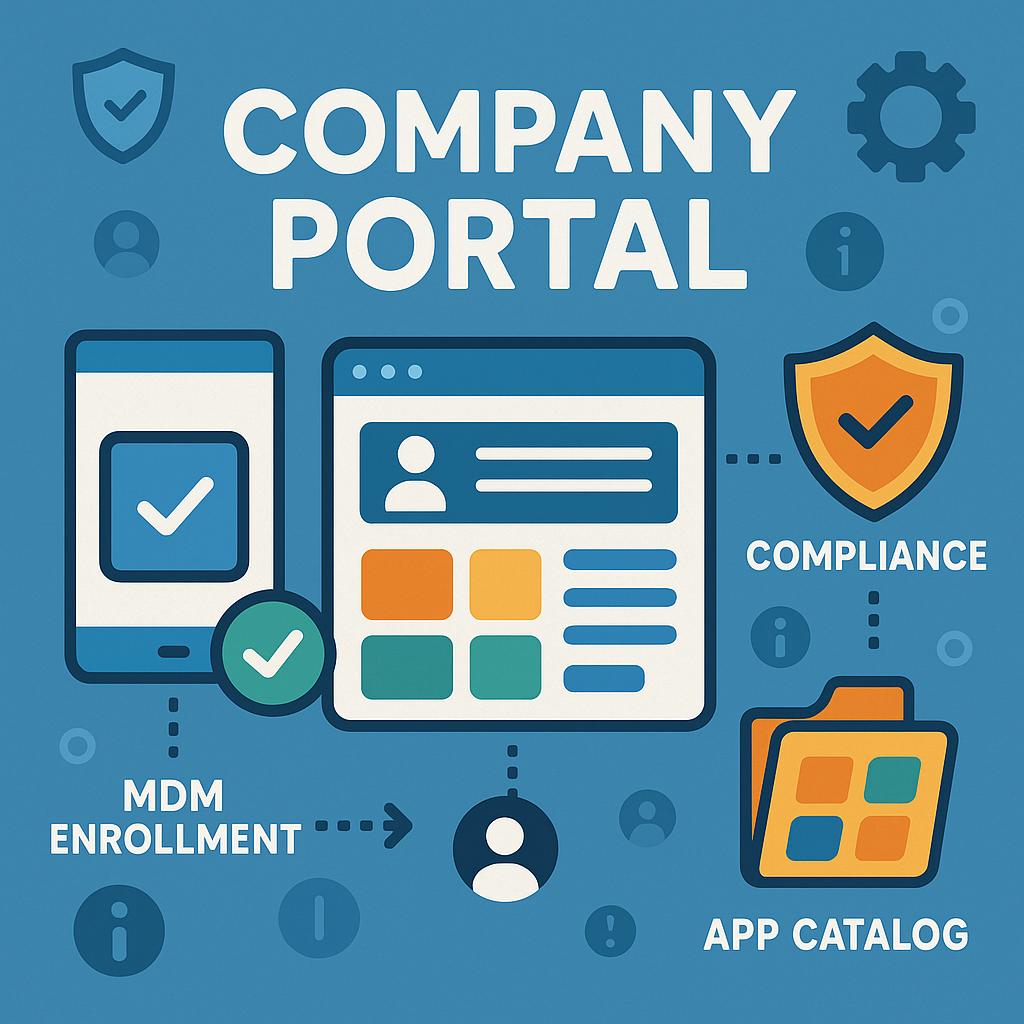
Table of Contents
1. Introduction
In today’s hybrid‑work world, organizations need a streamlined, user‑friendly way to bring devices—whether corporate‑owned or personally owned—under management. The Intune Company Portal rises to that challenge by serving as the single on‑device app through which end users can:
- Enroll their devices into Microsoft Intune MDM or Intune App Protection (MAM).
- Discover and install corporate apps, both internal line‑of‑business packages and Microsoft Store/Apple Store apps.
- Check device compliance against your organization’s policies (e.g., device encryption, PIN strength, OS updates) and receive remediation guidance.
- Access self‑service support, including company‑branded help content, remote assistance requests, and device‑wipe commands.
By consolidating enrollment, app deployment, compliance monitoring, and support into one unified experience, the Company Portal eliminates the need for multiple installers, complex VPN setups, or per‑platform scripts. Users simply download the portal from their device’s store (Microsoft Store on Windows, App Store on iOS, Play Store on Android), sign in with their work or school account, and follow guided prompts. Devices are automatically configured, corporate resources become available instantly, and IT gains full visibility—no more manual imaging or one‑off configuration tools.
In this “ultimate guide,” we’ll walk through everything you need to know to plan, deploy, and optimize the Company Portal across your environment.
Whether you’re just beginning your Intune journey or looking to refine your existing deployment, this guide will equip you with the insights and step‑by‑step instructions to make the Intune Company Portal your go‑to solution for device enrollment and management. Let’s get started!
2. What Is the Intune Company Portal?
The Intune Company Portal is a unified, cross‑platform application that serves as the user‑facing gateway for device enrollment, corporate app distribution, and self‑service support within Microsoft Intune. It consolidates multiple device management interactions into a single, branded experience, simplifying IT and end‑user workflows.
2.1 Functional Overview
- Enrollment Hub
The portal provides a guided wizard for registering or enrolling devices in Intune. On Windows, this supplements the native Settings → Access work or school → Add a work or school account → Enroll only in device management flow by offering an alternate path—particularly useful for BYOD scenarios. On iOS, it streamlines Apple Business Manager or user‑driven enrollment ; on Android, it handles Android Enterprise provisioning and work‑profile setups. - Corporate App Catalog
After enrollment, the portal displays your organization’s list of approved applications (Line‑of‑Business, Microsoft Store, Apple Store, Managed Google Play) in a branded storefront. Users can browse, search, and install these apps on demand—eliminating manual installers and simplifying software distribution. - Support & Remediation Channel
The Intune Company Portal shows device compliance status, highlights failed policies (e.g., missing encryption or PIN requirements), and provides step‑by‑step remediation guidance. Users can retire or remove old devices, and request remote assistance—all from within the portal. - MDM & MAM in One App
It supports both full MDM enrollment and MAM‑only (App Protection) scenarios. Users choose whether to enroll for device‑wide management or just for app‑level protection, with all flows presented in the same interface. - Frequent Feature Updates
Delivered via app stores rather than OS updates, the portal receives independent feature releases—ensuring immediate access to new enrollment experiences, compliance tools, and UI enhancements.
2.2 How It Differs from Native OS Enrollment
- Consistency Across Platforms
Native enrollment UIs (Windows Settings, iOS Profiles, Android Accounts) vary significantly. The Company Portal standardizes the experience, using the same branding and navigation on all supported platforms. - Branded, Zero‑Touch Experience
While native flows require users to manually locate settings or URLs, the portal’s branding (logo, colors, support links) and guided prompts deliver a seamless, zero‑touch enrollment—especially when paired with Windows Autopilot for corporate PCs. - Integrated App Distribution & Compliance
Native MDM clients can push policies silently but lack a storefront for self‑service installs and on‑device compliance troubleshooting. The portal unifies app deployment, compliance checks, and remediation steps, reducing help‑desk calls and increasing user satisfaction.
2.3 How It Differs from Other MDM Clients
- Tight Microsoft 365 Integration
Unlike third‑party MDM agents, the Intune Company Portal is natively integrated with Entra ID conditional access, Intune compliance reporting, and Microsoft ecosystem signaling—no extra connectors or plugins needed. - Single‑App for All Scenarios
Many MDM solutions require separate apps or profiles for enrollment, app protection, and device management. The Intune Company Portal combines these into one, letting users enroll, install apps, and manage compliance from a single app. - Customizable via Intune Branding
Administrators can tailor the portal’s look and feel—adding corporate logos, color schemes, and custom support information—directly in the Intune admin center without rebuilding or redistributing client binaries.
3. Prerequisites & Tenant Configuration
Before rolling out the Intune Company Portal, you must ensure your tenant is correctly licensed, configured, and scoped to support both MDM and MAM enrollment. This involves assigning the proper Intune (and Azure/Microsoft 365) licenses, setting the MDM authority, configuring Entra ID device settings and user scopes, and defining enrollment restrictions by platform and device limits. Once these prerequisites are in place, the Company Portal can provide a seamless, secure enrollment and app‑delivery experience for your users.
3.1 Licensing and MDM Authority Setup
- Assign Intune Licenses: Every user or device that will enroll in Intune must have a valid Intune license, which is included in Microsoft 365 E3/E5, Enterprise Mobility + Security (EMS) E3/E5, or Intune standalone SKUs.
- Assign MAM‑Only Licenses (if using App Protection): For devices that will use App Protection Policies without full MDM, ensure users have Microsoft 365 Business Premium or EMS licenses that include Intune MAM capabilities.
- Set the MDM Authority: In the Microsoft Intune admin center, navigate to Tenant administration → Tenant Status → Tenant Details and verify that Microsoft Intune is selected as the MDM authority. This step is required before any device enrollment can occur (check this documentation for initial configuration).
3.2 Entra ID Device Settings & MDM/MAM User Scopes
- Enable Device Registration and Join:
In the Azure portal under Entra ID → Devices → Device settings, turn on Users may register their devices with Microsoft Entra and/or Users may join devices to Microsoft Entra depending on your BYOD or corporate enrollment strategy. - Configure MDM User Scope:
Under Entra ID → Mobility (MDM and WIP) → Microsoft Intune, set MDM user scope to “Some” or “All” and select Entra ID groups whose members can automatically enroll in MDM. Devices in scope will auto‑enroll when joined or registered.
3.3 Enrollment Restrictions & Platform Permissions
- Create Enrollment Restrictions:
In Microsoft Intune, go to Devices → Enrollment → Enrollment restrictions.- Platform Restrictions: Define which OS platforms and versions are allowed (e.g., Windows 10/11, iOS 14+, Android 11+) by creating a Platform restriction profile and assigning it to user/device groups.
- Device Limit Restrictions: Optionally limit the number of devices a single user can enroll to prevent sprawl (commonly set to 5 or fewer).
- Configure Individual Platform Settings:
- Windows Enrollment: Ensure Windows enrollment methods (automatic enrollment, device enrollment via Settings) are enabled under Devices → Windows → Enrollment.
- iOS/iPadOS Enrollment: Under Devices → iOS/iPadOS → Enrollment, configure Apple Business Manager integration and MDM Push certificates for silent corporate device enrollment.
- Android Enrollment: In Devices → Android → Enrollment, set up Android Enterprise (Work Profile or Fully Managed) with Managed Google Play and corporate-owned zero‑touch or QR‑code provisioning.
4. Customizing & Branding the Company Portal
Before you roll out the Company Portal to your users, you can tailor its look, feel, and support resources so that it aligns with your organization’s branding and policies. This not only delivers a seamless, professional experience but also embeds your helpdesk and legal links directly into the enrollment and self‑service flows. Below are the key customization areas and how to configure them in the Microsoft Intune admin center.
4.1 Company Portal Branding
Within the admin center, navigate to Tenant administration → Customization (either edit the Default one or create a new one as per your likings). Here you can specify:
- Logos and Images
- Light Theme Logo and Dark Theme Logo (PNG or JPG, recommended 200 × 40 px)
- Background Image (1440 × 400 px) to display at the top of the portal
- Theme Colors
- Primary color, Secondary color, and Window background color to match your corporate palette
- Banner Text
- A short headline displayed on the portal’s main page, such as “Contoso Company”
Once saved, these assets and color choices will apply across Windows, iOS, and Android versions of the Company Portal, ensuring a consistent, branded experience.
4.2 Adding Support Information
On the same Company portal branding page, you can embed your support contact details and links:
- Support name and support email address
- Support phone number
- Help desk website URL
- Privacy statement URL
These fields populate a “Need help?” section in the portal, giving users one‑click access to your internal helpdesk or external documentation. If users encounter enrollment or compliance errors, they can immediately reach out for assistance.
4.3 Configuring Terms of Use & Privacy Links
To ensure users acknowledge your corporate policies during enrollment:
- Terms of Use
- In the Azure portal under Entra ID → Protection → Conditional Access → Terms of use, upload your legal document (PDF or link) and enable it.
- Associate the Terms of Use policy with a Conditional Access rule targeting All users or specific groups.
- During sign‑in, users must accept the Terms of Use before their device can enroll or access protected resources.
- Privacy Link
- Back in Company portal branding, set your Privacy statement URL to point at your corporate privacy policy.
- Users can review how their data is handled before or after enrollment.
By combining Terms of Use with the portal’s built‑in privacy link, you both comply with legal requirements and maintain transparency with end users.
5. Step‑by‑Step: Deployment in Windows Devices
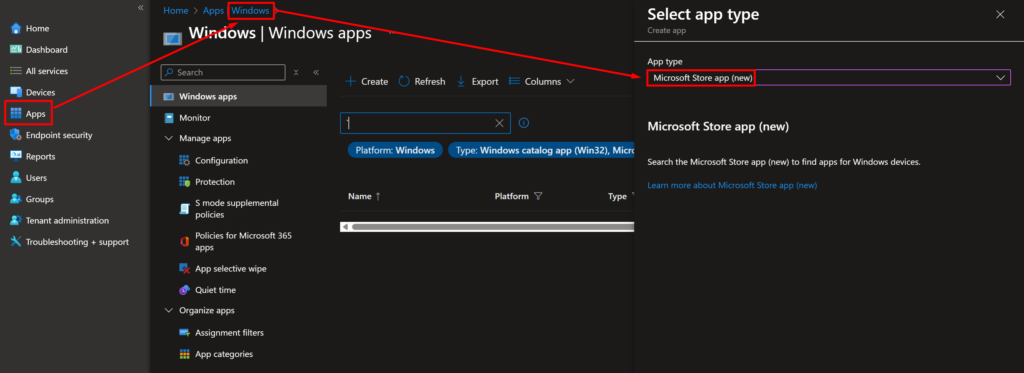
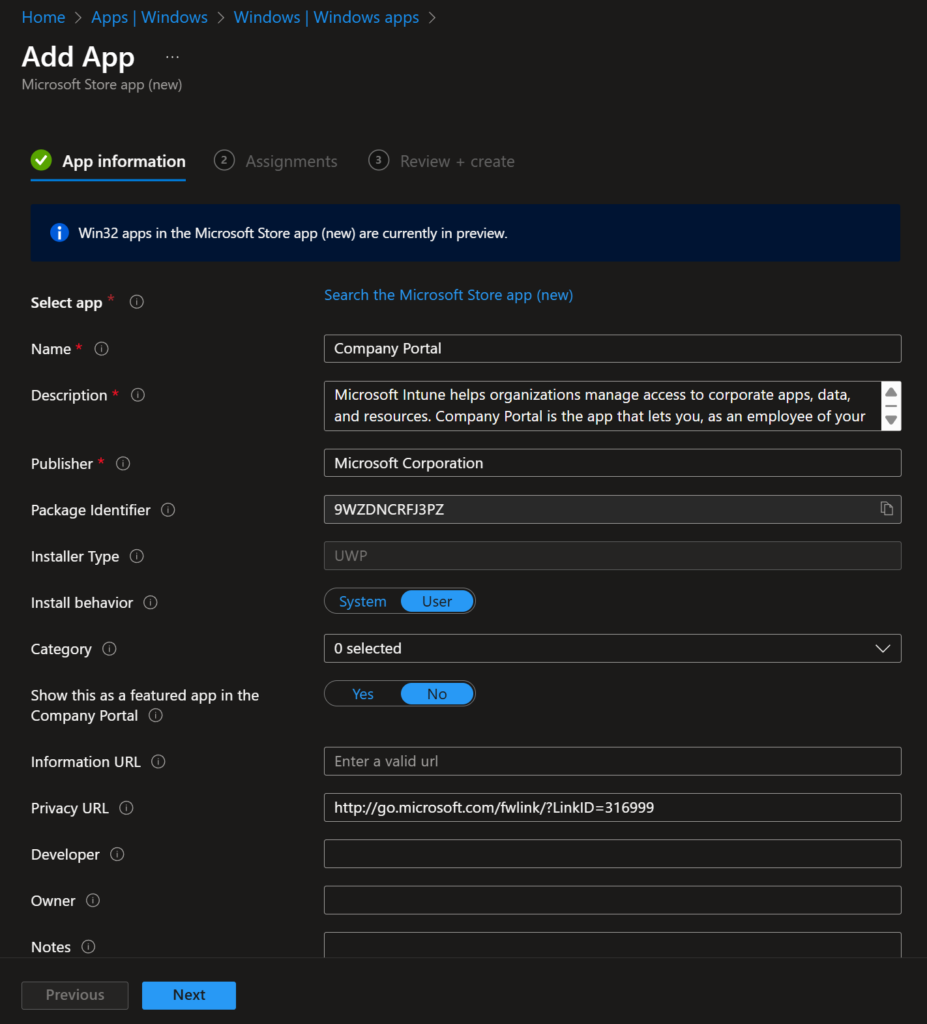
1. Go to Microsoft Intune Admin Center → Apps → Windows → Create → Microsoft Store app (new)
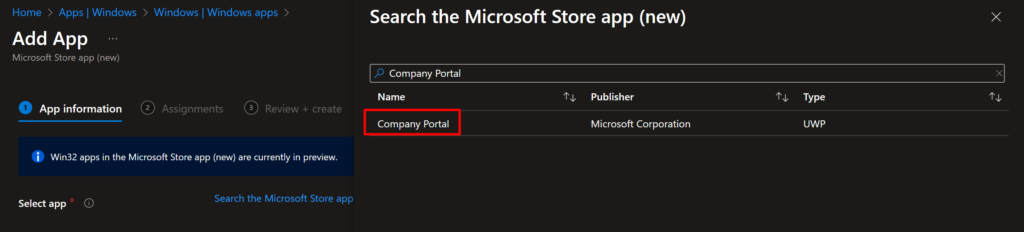
2. Search and select the Company Portal App
3. Select Next → Under Assignments, choose the desired group and create the app.
6. Step‑by‑Step: Deployment in Android Devices
1. Go to Microsoft Intune Admin Center → Apps → Android → Create → Managed Google Play app
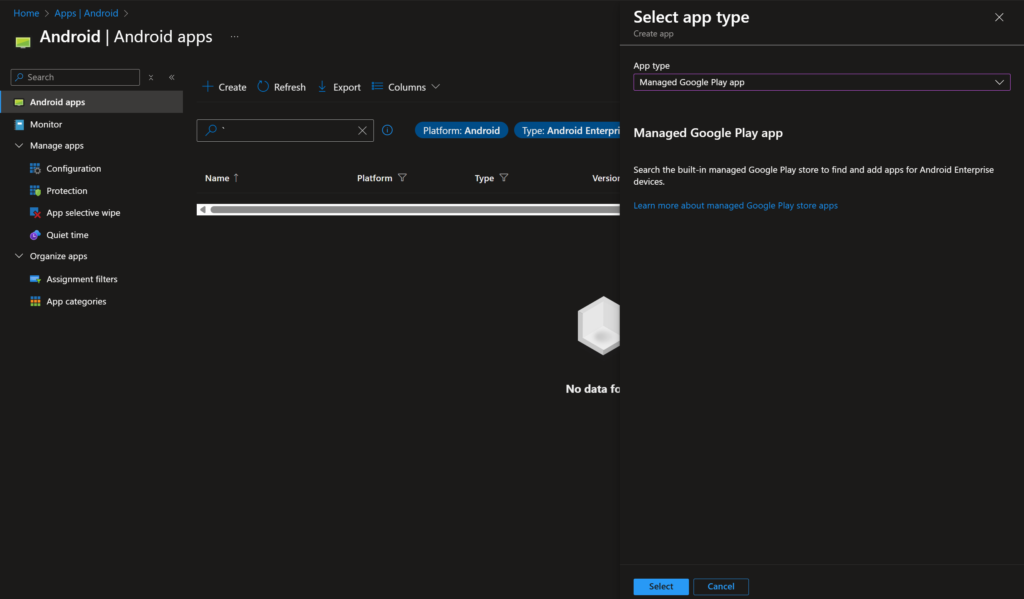
2. Search for the Company Portal app → Choose the Company Portal app and click Select.
You may need to approve the application first.
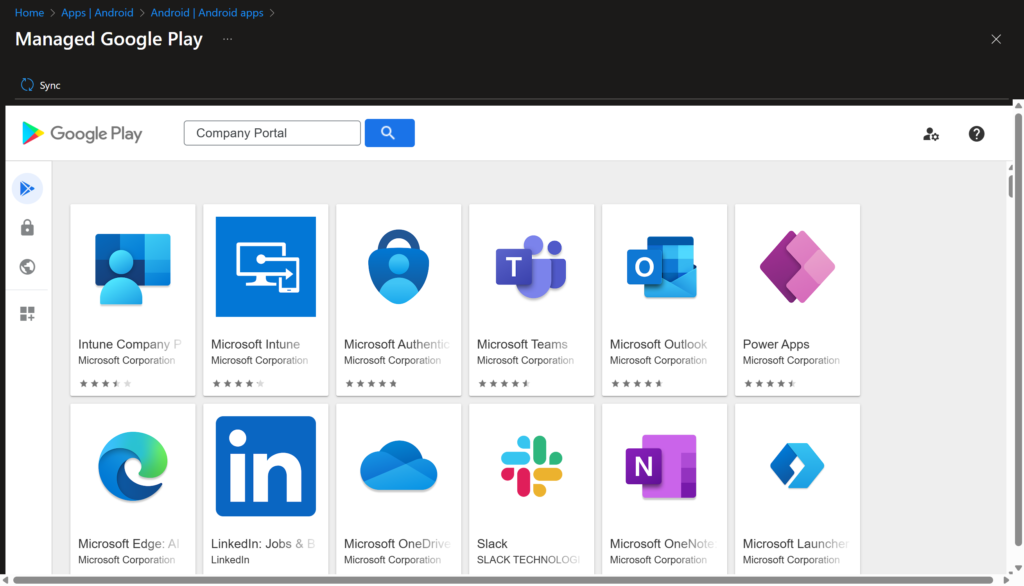
3. Go back and select the app and assign it to the desired group.
7. Step‑by‑Step: Deployment in iOS Devices
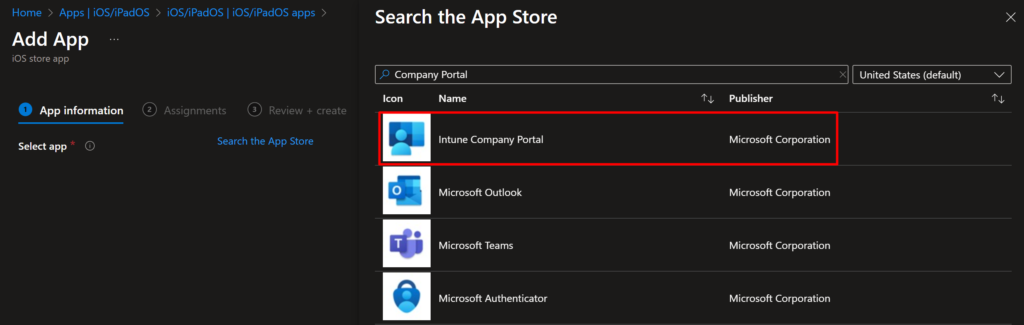
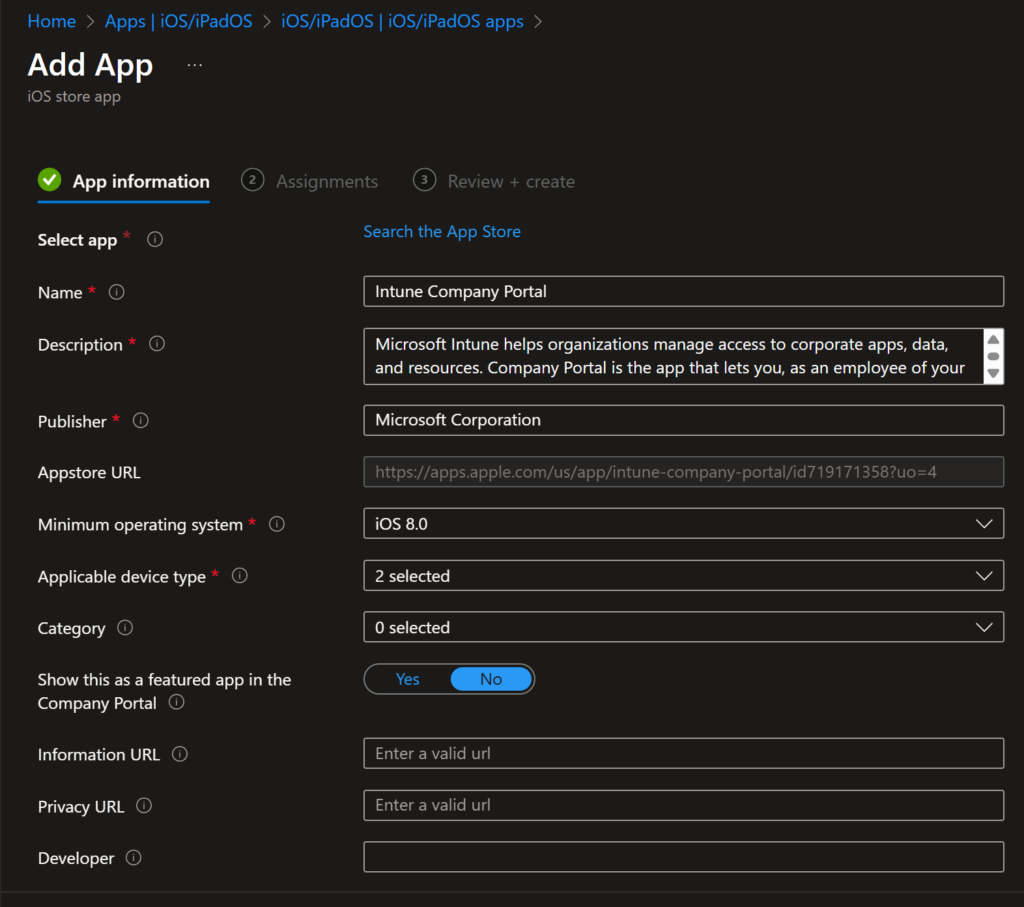
1. Go to Microsoft Intune Admin Center → Apps → iOS/iPadOS → Create → iOS store app → Click “Search the App Store” and search for “Intune Company Portal”.
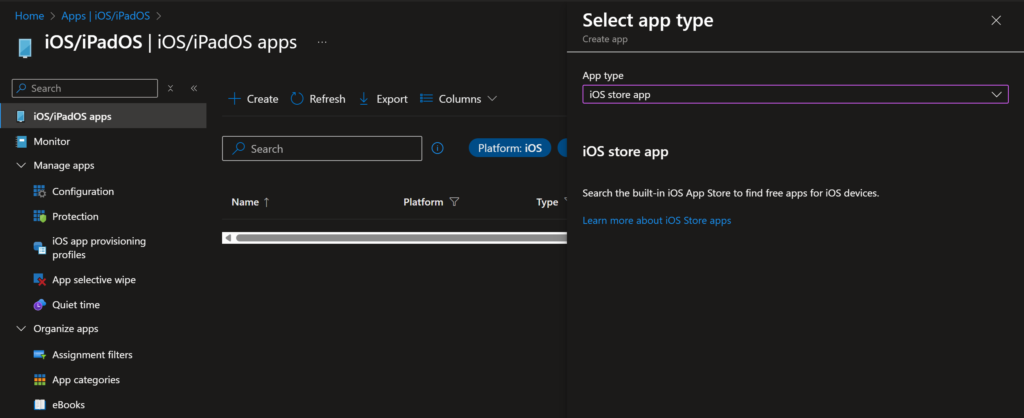
2. Assign the app to the desired group
8. Frequently Asked Questions
Users may not see the Company Portal app if it hasn’t been properly deployed or if their device isn’t in scope for enrollment. Retiring an old device can be done by a user in the Company Portal or by an administrator in the Intune console using the Retire remote action. To block personal (BYOD) devices, you configure enrollment restrictions and adjust your Entra ID device settings and MDM/MAM user scopes, ensuring only corporate‑owned devices can enroll.
8.1 Why can’t I see the Company Portal app?
There are several reasons the Company Portal might not appear on a user’s Windows device:
- Not Deployed or Assigned
The Company Portal must be added as a Microsoft Store app or Win32 app in Intune and assigned to the device or user group. If no assignment exists, the app won’t install. - Device Not Enrolled in Intune
Only Intune‑managed devices (MDM‑enrolled) receive the Company Portal automatically. Devices that haven’t enrolled via Settings → Accounts → Access work or school won’t get it. - Platform or OS Version Exclusions
Enrollment restrictions can block certain OS versions or platforms (e.g., unsupported Windows builds). Check Devices → Enrollment restrictions to ensure Windows 10/11 is allowed. - Tenant Configuration
Entra ID’s MDM user scope must include the user or device’s Entra ID group; otherwise auto‑enrollment—and thus portal deployment—will not occur.
8.2 How do I retire an old device from the portal?
Users can retire their own devices directly in the Company Portal app:
- Open Company Portal → Devices.
- Select the device to retire and choose Retire.
- Confirm to remove corporate data and MDM profiles; personal data remains intact on the device.
Administrators can retire devices in the Intune console:
- Go to Devices → All devices.
- Select the device and click Retire under Remote actions.
- Intune sends the retire command; the device is removed from management upon next check‑in, and corporate apps and profiles are wiped.
9. Conclusion & Next Steps
The Intune Company Portal delivers a seamless, user‑friendly enrollment hub that works consistently across Windows, iOS, and Android platforms, consolidating device registration, app deployment, compliance checks, and support into a single, branded app. Use this guide as a reference when you want to configure settings related to it and explore the various features that it offers.
References and Documentation
- Get the Intune Company Portal app
- Using the Intune Company Portal website
- Add and assign the Windows Company Portal app for Intune managed devices