Reinstall Android Apps in Intune using PowerShell and Graph API – Problem Fixed
Learn how to bulk reinstall Android apps in Microsoft Intune using the changeAssignments Graph API action and PowerShell – with a real-world explanation of why the app comes back after removal.
Table of Contents
The Observation That Started This
A while back Microsoft made a very useful feature available in Intune: the Remove apps and configuration remote action on Android devices (and iOS/iPadOS). With this action you can target an app specifically – or a configuration profile – and the app gets uninstalled… and after a while, it quietly comes back on its own.
At first glance this looks like a bug, since the remote action also has a Restore button. It is not. It is by design, and once you understand the mechanic behind it, you can actually use it intentionally to force a clean reinstall of an Android app – single device or in bulk.
That is exactly what this post is about.
What Is “Remove Apps and Configuration”?
Remove apps and configuration is a remote action in Intune that lets you temporarily uninstall apps and remove configuration profiles from a device. It is designed for troubleshooting – for example, when an app is stuck, misconfigured, or behaving unexpectedly and you want a clean slate without permanently touching the device’s assignments.
You can find it in the Intune admin center by navigating to:
Devices -> All devices -> [select Android or iOS device] -> Remove apps and configuration (at the top, at remote actions options/buttons)
From there you pick what you want to remove – apps, profiles, or both – and send the action.

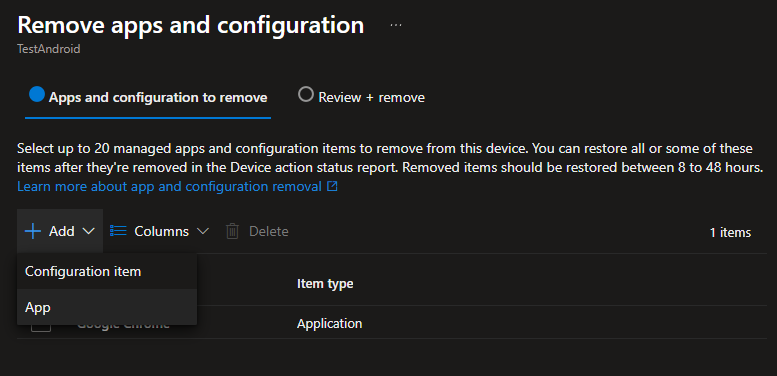


It supports the following platforms:
- Android Enterprise corporate-owned dedicated (COSU)
- Android Enterprise corporate-owned fully managed (COBO)
- Android Enterprise corporate-owned work profile (COPE)
- iOS/iPadOS
Note: This is not the same as permanently uninstalling an app by changing its assignment to “Uninstall”. The removal is temporary by design – which is exactly the mechanic we will use here.
Why Does the App Come Back? The Auto-Restore Mechanic
This is the part that trips people up – and also the part that makes this trick work.
According to Microsoft’s documentation:
“If no restore is initiated, Intune automatically reapplies the apps and configurations within 8-24 hours to ensure the device remains aligned with assignment intent.”
So the action is fundamentally temporary. Intune removes the app, marks it with a status of Removed in the monitoring page, and then – unless you manually restore it – re-evaluates the device’s assignments and reinstalls the app within 8-24 hours.
The device still belongs to the same groups, the app is still assigned as Required. Intune’s assignment engine eventually enforces that intent again, which is why the app “comes back.”
Practically speaking, you can use this intentionally to trigger a clean reinstall:
- Send the remove action for the app
- The app uninstalls from the device
- Intune auto-reapplies the assignment within 8-24h, reinstalling the app fresh
- If you need it faster, try to restart the device or manually restore from the monitoring page in the Intune portal
For a single device this is manageable from the portal. For multiple devices, you need automation.
The Graph API Behind It – changeAssignments
The “Remove apps and configuration” portal action is powered under the hood by the changeAssignments Microsoft Graph beta API action.
The endpoint is:
POST https://graph.microsoft.com/beta/deviceManagement/managedDevices/{managedDeviceId}/changeAssignments
The request body includes a deviceAssignmentItems array where each item specifies the itemId (the app or policy ID) and the itemType. For apps, itemType is "application".
A successful call returns HTTP 204 No Content – meaning the request was accepted by Intune and the action is queued.
The full API reference is here: changeAssignments action – Microsoft Graph beta
Graph Permissions Required
To call changeAssignments you need the following permission:
| Permission type | Required permission |
|---|---|
| Delegated (work or school account) | DeviceManagementManagedDevices.PrivilegedOperations.All |
| Application | DeviceManagementManagedDevices.PrivilegedOperations.All |
This is a privileged operation permission – not a standard read/write scope. Make sure you connect with it explicitly:
Connect-MgGraph -Scopes @(
    "DeviceManagementManagedDevices.ReadWrite.All",
    "DeviceManagementManagedDevices.PrivilegedOperations.All"
)
! Bulk Actions – Proceed Carefully
Stop and read this before running anything at scale.
Bulk PowerShell actions against production devices are powerful – and that cuts both ways. A wrong serial number file, a misconfigured scope, or targeting the wrong app can cause disruption across many devices simultaneously.
A few non-negotiable guardrails before you run this:
Use least privilege – always. The changeAssignments Graph action requires DeviceManagementManagedDevices.PrivilegedOperations.All. That is an elevated scope for a reason – do not connect with a Global Administrator account for routine operations. Create a dedicated service account with only the permissions this task actually needs.
For more on configuring RBAC in general: Intune – RBAC Custom roles
Test on one device first. Always. Run the script against a single known test device, verify the app uninstalls and confirm it reinstalls within the auto-restore window. Only then expand to your production list.
Review the results table after every run. The script collects per-device status and prints a summary at the end. Do not close the terminal without checking it. Keep the timestamped log file – it is your audit trail if something goes wrong.
Be deliberate about what you target. As noted in Microsoft’s documentation, removing apps tied to VPN or Wi-Fi connectivity could break the device’s path back to Intune, leaving it unable to receive the auto-restore. For standard Android Enterprise app reinstalls this is generally not a concern – but know what you are targeting before you run.
The Script – Reinstall Android Apps
The script is a clean, standalone PowerShell terminal script. You point it at a text file containing serial numbers (one per line), it fetches all Android apps from your tenant and lets you pick one, resolves the serials to Intune device IDs, and fires changeAssignments for each device.
You can also find it in my GitHub page here.
Set the two variables at the top before running:
$SerialNumberFilePath = "C:\Temp\serials.txt"   # One serial number per line
$LogPath              = "C:\Temp\AndroidAppReinstall_$(Get-Date -Format 'yyyyMMdd_HHmmss').log"
Here is the full script:
#Requires -Modules Microsoft.Graph.Authentication, Microsoft.Graph.DeviceManagement

<#
.SYNOPSIS
    Bulk reinstall an Android app on Intune-managed devices by triggering the
    changeAssignments remote action (equivalent to "Remove apps and configuration" in the portal).

.DESCRIPTION
    Reads a list of device serial numbers from a text file, resolves each to an
    Intune managed device ID, fetches all Android apps from the tenant, prompts
    the admin to pick one, and fires the changeAssignments Graph API call for
    every resolved device.

    Intune automatically reapplies the app assignment within 8-24 hours after
    removal, effectively reinstalling the app fresh.

.NOTES
    Required Graph permission: DeviceManagementManagedDevices.PrivilegedOperations.All,
    DeviceManagementApps.Read.All, DeviceManagementManagedDevices.ReadWrite.All
    Author : Paris Petsanas / systunation.com
#>

# ----------------------------------------------------------------
# SETTINGS - adjust before running
# ----------------------------------------------------------------
$SerialNumberFilePath = "C:\Temp\serials.txt"   # One serial number per line
$LogPath              = "C:\Temp\AndroidAppReinstall_$(Get-Date -Format 'yyyyMMdd_HHmmss').log"
# ----------------------------------------------------------------

#region Helpers

function Write-Log {
    param([string]$Message, [string]$Level = "INFO")
    $entry = "[$(Get-Date -Format 'u')] [$Level] $Message"
    Write-Host $entry -ForegroundColor $(switch ($Level) {
        "INFO"    { "Cyan"   }
        "SUCCESS" { "Green"  }
        "WARN"    { "Yellow" }
        "ERROR"   { "Red"    }
        default   { "White"  }
    })
    Add-Content -Path $LogPath -Value $entry -Encoding UTF8
}

function ConvertTo-SafeFilterString {
    param([string]$InputString)
    # Strip single quotes to prevent OData filter injection
    return $InputString -replace "'", ""
}

#endregion

#region Graph Connection

Write-Log "Checking Microsoft Graph connection..."
try {
    $ctx = Get-MgContext
    if ($null -eq $ctx) {
        Write-Log "No active session found - connecting..."
        Connect-MgGraph -Scopes @(
            "DeviceManagementManagedDevices.ReadWrite.All",
            "DeviceManagementManagedDevices.PrivilegedOperations.All",
            "DeviceManagementApps.Read.All"
        ) | Out-Null
        Write-Log "Connected to Microsoft Graph." "SUCCESS"
    } else {
        Write-Log "Already connected as: $($ctx.Account)" "SUCCESS"
    }
} catch {
    Write-Log "Failed to connect to Microsoft Graph: $($_.Exception.Message)" "ERROR"
    exit 1
}

#endregion

#region Validate serial file

if (-not (Test-Path -Path $SerialNumberFilePath)) {
    Write-Log "Serial number file not found: $SerialNumberFilePath" "ERROR"
    exit 1
}

$serials = Get-Content -Path $SerialNumberFilePath -Encoding UTF8 |
           Where-Object { $_ -match '\S' } |
           ForEach-Object { $_.Trim() }

if ($serials.Count -eq 0) {
    Write-Log "Serial number file is empty." "ERROR"
    exit 1
}

Write-Log "Loaded $($serials.Count) serial number(s) from file."

#endregion

#region Fetch Android apps

Write-Log "Fetching Android apps from Intune..."
try {
    $appsResponse = Invoke-MgGraphRequest -Method GET `
        -Uri "https://graph.microsoft.com/beta/deviceAppManagement/mobileApps" `
        -ErrorAction Stop

    $androidApps = $appsResponse.value | Where-Object {
        $_.'@odata.type' -match 'android'
    } | Select-Object displayName, id | Sort-Object displayName

    if ($androidApps.Count -eq 0) {
        Write-Log "No Android apps found in this tenant." "WARN"
        exit 1
    }

    Write-Log "Found $($androidApps.Count) Android app(s)." "SUCCESS"
} catch {
    Write-Log "Failed to fetch Android apps: $($_.Exception.Message)" "ERROR"
    exit 1
}

#endregion

#region App selection menu

Write-Host ""
Write-Host "=====================================================" -ForegroundColor Cyan
Write-Host "  Available Android Apps" -ForegroundColor Cyan
Write-Host "=====================================================" -ForegroundColor Cyan

for ($i = 0; $i -lt $androidApps.Count; $i++) {
    Write-Host "  [$($i + 1)] $($androidApps[$i].displayName)"
}

Write-Host ""
$selection = Read-Host "Enter the number of the app to reinstall"

if (-not ($selection -match '^\d+$') -or
    [int]$selection -lt 1 -or
    [int]$selection -gt $androidApps.Count) {
    Write-Log "Invalid selection: '$selection'" "ERROR"
    exit 1
}

$selectedApp = $androidApps[[int]$selection - 1]
Write-Log "Selected app: '$($selectedApp.displayName)' | ID: $($selectedApp.id)"

#endregion

#region Resolve serials to Intune device IDs

Write-Log "Resolving serial numbers to Intune managed device IDs..."

$deviceIds = [System.Collections.Generic.List[string]]::new()

foreach ($serial in $serials) {
    $safeSerial = ConvertTo-SafeFilterString -InputString $serial
    try {
        $dev = Invoke-MgGraphRequest -Method GET `
            -Uri "https://graph.microsoft.com/beta/deviceManagement/managedDevices?`$filter=serialNumber eq '$safeSerial'" `
            -ErrorAction Stop

        if ($dev.value -and $dev.value.Count -gt 0) {
            $deviceIds.Add($dev.value[0].id)
            Write-Log "Resolved: $safeSerial -> $($dev.value[0].id)"
        } else {
            Write-Log "Device not found for serial: $safeSerial" "WARN"
        }
    } catch {
        Write-Log "Error resolving serial '$safeSerial': $($_.Exception.Message)" "ERROR"
    }
}

if ($deviceIds.Count -eq 0) {
    Write-Log "No devices resolved. Nothing to do." "WARN"
    exit 1
}

Write-Log "Resolved $($deviceIds.Count) of $($serials.Count) device(s)."

#endregion

#region Confirmation

Write-Host ""
Write-Host "=====================================================" -ForegroundColor Yellow
Write-Host "  Summary" -ForegroundColor Yellow
Write-Host "=====================================================" -ForegroundColor Yellow
Write-Host "  App    : $($selectedApp.displayName)"
Write-Host "  Devices: $($deviceIds.Count) resolved"
Write-Host ""
$confirm = Read-Host "Proceed with changeAssignments for all $($deviceIds.Count) device(s)? (Y/N)"

if ($confirm -notmatch '^[Yy]$') {
    Write-Log "Action cancelled by user." "WARN"
    exit 0
}

#endregion

#region Send changeAssignments

Write-Log "Sending changeAssignments remote action..."

$results = [System.Collections.Generic.List[PSCustomObject]]::new()
$counter = 0

foreach ($deviceId in $deviceIds) {
    $counter++
    Write-Log "#$counter/$($deviceIds.Count) - Processing device: $deviceId"

    try {
        $uri  = "https://graph.microsoft.com/beta/deviceManagement/managedDevices('$deviceId')/changeAssignments"
        $body = @{
            deviceAssignmentItems = @(
                @{
                    itemId   = $selectedApp.id
                    itemType = "application"
                }
            )
        } | ConvertTo-Json -Depth 4

        $null = Invoke-MgGraphRequest -Method POST -Uri $uri -Body $body `
            -ContentType "application/json" -ErrorAction Stop

        Write-Log "Device $deviceId - action sent successfully." "SUCCESS"
        $results.Add([PSCustomObject]@{
            DeviceId = $deviceId
            Status   = "Requested"
            Message  = "OK"
        })
    } catch {
        Write-Log "Device $deviceId - failed: $($_.Exception.Message)" "ERROR"
        $results.Add([PSCustomObject]@{
            DeviceId = $deviceId
            Status   = "Error"
            Message  = $_.Exception.Message
        })
    }
}

#endregion

#region Results summary

Write-Host ""
Write-Host "=====================================================" -ForegroundColor Cyan
Write-Host "  Results" -ForegroundColor Cyan
Write-Host "=====================================================" -ForegroundColor Cyan

$results | Format-Table -AutoSize

$succeeded = ($results | Where-Object { $_.Status -eq "Requested" }).Count
$failed    = ($results | Where-Object { $_.Status -eq "Error" }).Count

Write-Log "Completed. Succeeded: $succeeded | Failed: $failed"
Write-Log "Log saved to: $LogPath"
Breaking Down the Key Parts
Serial File and Logging
At the top of the script you set $SerialNumberFilePath to your text file of serial numbers – one per line. The $LogPath is auto-stamped with date and time so you get a new log file every run. Both the console and the log file receive the same output, so you have a full audit trail of what was sent and what failed.
Input Sanitization
Every serial number read from the file passes through ConvertTo-SafeFilterString before being inserted into an OData filter. This strips single quotes from the input, which prevents a raw user value from breaking or manipulating the filter string. Small detail, but important when you are processing a file that could contain unexpected characters.
Fetching Android Apps
The script calls deviceAppManagement/mobileApps on the beta endpoint and filters the response client-side for entries whose @odata.type contains "android". This covers Managed Google Play apps, Line of Business Android apps, and Android Enterprise system apps in one shot.
App Selection Menu
Rather than requiring you to know the app’s GUID ahead of time, the script prints a numbered list and lets you pick by number at runtime. The selected app name and ID are confirmed in the log before anything is sent.
Serial to Device ID Resolution
Intune’s changeAssignments endpoint needs the Intune Device ID – not the serial number. The resolution loop queries managedDevices filtered by serialNumber for each entry in your file. Devices that are not found are logged as warnings and skipped. You see a resolved count vs total count before the confirmation prompt so you know exactly what will be targeted.
Confirmation Gate
Before sending anything, the script prints a summary and asks for explicit Y/N confirmation. This is not optional – bulk actions against production devices should always have a human checkpoint.
The changeAssignments Call
For each resolved device ID the script POSTs to:
https://graph.microsoft.com/beta/deviceManagement/managedDevices('{deviceId}')/changeAssignments
with a body of:
{
  "deviceAssignmentItems": [
    {
      "itemId": "<app-guid>",
      "itemType": "application"
    }
  ]
}
HTTP 204 back means Intune accepted the request. The result per device (Requested or Error) is collected and printed in a summary table at the end.
How to Monitor the Result
After running the script, head to the Intune admin center to track the outcome per device.
Navigate to: Devices -> All devices -> [select Android or iOS device] -> Overview
At the top of the device overview pane, select Remove apps and configuration. This opens the monitoring page for that device where you can see the below useful info:
| Column | What it tells you |
|---|---|
| Name | The app targeted |
| Action | Remove or Restore |
| Status | In Progress / Removed / Restored / Error |
| Status detail | Additional error context when populated |
| Started | Timestamp the action was initiated |
Once the status shows Removed, the app is off the device. Intune will automatically restore it within 8-24 hours when it re-evaluates the device’s assignments. If you want to speed this up you have two options: use the Restore button on this monitoring page to push the restore immediately, or trigger a device restart to make the device check in sooner and pick up the re-applied assignment.
Wrapping Up
The “Remove apps and configuration” action in Intune is not just a troubleshooting click – it is a supported, reversible mechanism to trigger an app reinstall on Android Enterprise devices. The auto-restore behavior that makes the app “come back” is Intune enforcing its own assignment intent, which is the whole point.
The script in this post automates that trigger in bulk: reads serials from a file, shows you a live app list to pick from, resolves everything to device IDs, and fires the Graph API action with a confirmation gate and full logging.
As always – test first, scope your RBAC properly, and always review your results.
Happy automating!
References and Documentation
- Remote device action: Remove apps and configuration – Microsoft Intune
- changeAssignments action – Microsoft Graph beta
- Use role-based access control and scope tags for distributed IT – Microsoft Intune
Other Interesting Posts