Easy Way to Bulk Import Users to Entra ID Group Using PowerShell and Microsoft Graph API
Learn how to bulk import users to Entra ID group using PowerShell and Microsoft Graph API. Import from a text file, skip existing members and ready.

Table of Contents
Why Automate This?
If you have ever had to onboard a wave of users into an Entra ID group manually – whether it is for a migration, a new project rollout, an org restructure or an application of a policy – you already know how painful that gets. Clicking through the Azure portal one user at a time is not a real option when you are dealing with 50, 200, or 500 accounts. You could also use the bulk way that Microsoft suggests, but PowerShell is always simpler and faster.
In this post we will see how to utilize a PowerShell script that talks directly to Microsoft Graph, reads your UPN list from a text file, skips users who are already members, and adds everyone else.
What Does This Script Do?
The script connects to Microsoft Graph and does the following end to end:
- Reads a plain text file with one UPN per line
- Resolves the target Entra ID group by display name or Object ID
- Processes each user individually in a simple loop
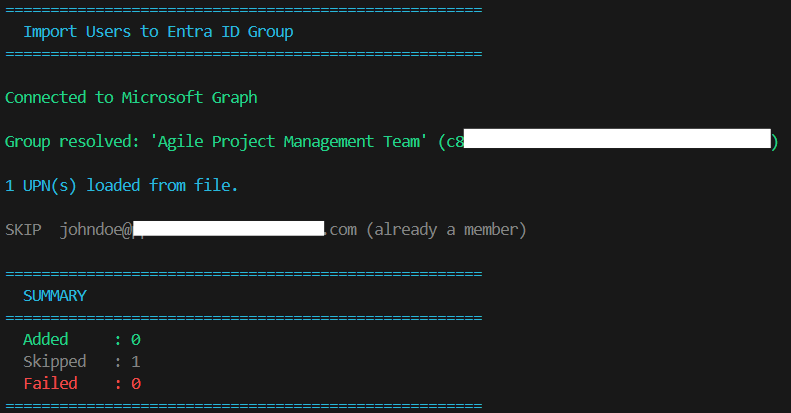
- Checks if the user is already a member before attempting to add them
- Adds new users one by one using the
New-MgGroupMembercmdlet - Shows clean colored output for each user (OK/SKIP/FAIL)
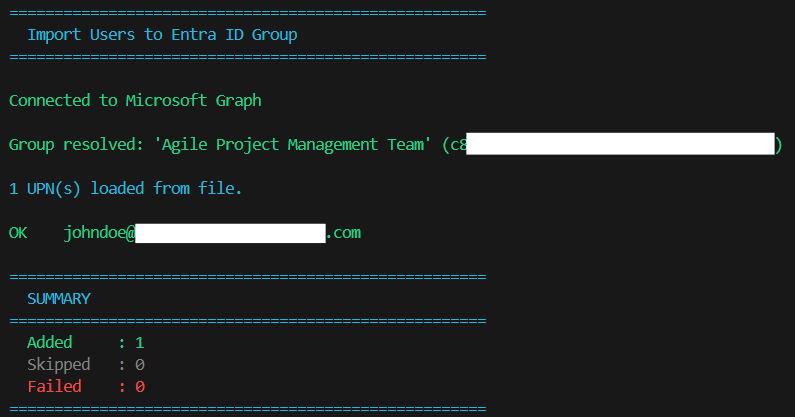
- Displays a final summary with counts of added, skipped, and failed users
Requirements
Before running the script, make sure you have:
- PowerShell 5.1 or PowerShell 7+
- Microsoft Graph PowerShell SDK (the script installs it automatically if missing)
- A plain text file with one UPN per line – for example
C:\Temp\usr.txt - An account with permission to manage group membership in Entra ID
Graph API Permissions
When you run Connect-MgGraph, you will be prompted to consent to the following delegated permissions:
| Permission | Why it is needed |
|---|---|
Group.ReadWrite.All | Read the group and add members |
User.Read.All | Resolve UPNs to Object IDs |
These are delegated permissions – the script runs in the context of your signed-in account.
The Script
Here is the full script (also available on my GitHub):
#=====================================================================
# Import Users to Entra ID Group via Microsoft Graph API
# Blog  : systunation.com
# Author: Paris
# Notes : Reads UPNs from a text file and adds them to an Entra ID
#         group one by one. Skips users who are already members.
#=====================================================================

#-----------------------------------------
# Settings - edit before running
#-----------------------------------------
$InputTxtPath = "C:\Temp\usr.txt"    # One UPN per line
$GroupName    = "TestUserGroup"   # Target Entra ID group display name
# $GroupId    = ""                   # Uncomment and set to use Object ID directly

#-----------------------------------------
# Prerequisites
#-----------------------------------------
Write-Host "=====================================================" -ForegroundColor Cyan
Write-Host "  Import Users to Entra ID Group                     " -ForegroundColor Cyan
Write-Host "=====================================================" -ForegroundColor Cyan
Write-Host ""

try {
    if (-not (Get-Module -ListAvailable -Name Microsoft.Graph.Groups)) {
        Write-Host "Installing Microsoft.Graph module..." -ForegroundColor Yellow
        Install-Module Microsoft.Graph -Scope CurrentUser -Force -AllowClobber
    }
} catch {
    Write-Host "Failed to install Microsoft.Graph module: $_" -ForegroundColor Red
    exit
}

#-----------------------------------------
# Connect to Microsoft Graph
#-----------------------------------------
try {
    Connect-MgGraph -Scopes "Group.ReadWrite.All", "User.Read.All" -NoWelcome -ErrorAction Stop
    Write-Host "Connected to Microsoft Graph" -ForegroundColor Green
    Write-Host ""
} catch {
    Write-Host "Failed to connect to Microsoft Graph: $_" -ForegroundColor Red
    exit
}

#-----------------------------------------
# Resolve target group
#-----------------------------------------
try {
    if ($GroupId) {
        $resolvedGroupId = $GroupId
    } elseif ($GroupName) {
        $match = Get-MgGroup -Filter "displayName eq '$($GroupName -replace "'", "''")'" -ConsistencyLevel eventual -ErrorAction Stop
        if     ($match.Count -eq 0) { throw "No group found: '$GroupName'" }
        elseif ($match.Count -gt 1) { throw "Multiple groups named '$GroupName'. Use -GroupId instead." }
        $resolvedGroupId = $match.Id
        Write-Host "Group resolved: '$GroupName' ($resolvedGroupId)" -ForegroundColor Green
        Write-Host ""
    } else {
        throw "Provide either -GroupId or -GroupName."
    }
} catch {
    Write-Host "Failed to resolve group: $_" -ForegroundColor Red
    exit
}

#-----------------------------------------
# Read UPNs from file
#-----------------------------------------
try {
    if (-not (Test-Path $InputTxtPath)) { throw "File not found: $InputTxtPath" }

    $upns = Get-Content $InputTxtPath -ErrorAction Stop |
            ForEach-Object { $_.Trim() } |
            Where-Object   { $_ -ne '' } |
            Select-Object  -Unique

    Write-Host "$($upns.Count) UPN(s) loaded from file." -ForegroundColor Cyan
    Write-Host ""
} catch {
    Write-Host "Failed to read input file: $_" -ForegroundColor Red
    exit
}

#-----------------------------------------
# Add members one by one
#-----------------------------------------
$added   = 0
$skipped = 0
$failed  = 0

foreach ($upn in $upns) {
    try {
        $user = Get-MgUser -UserId $upn -ErrorAction Stop

        # Skip if already a member
        $isMember = Get-MgGroupMember -GroupId $resolvedGroupId -Filter "id eq '$($user.Id)'" -ErrorAction SilentlyContinue
        if ($isMember) {
            Write-Host "SKIP  $upn (already a member)" -ForegroundColor DarkGray
            $skipped++
            continue
        }

        New-MgGroupMember -GroupId $resolvedGroupId -DirectoryObjectId $user.Id -ErrorAction Stop
        Write-Host "OK    $upn" -ForegroundColor Green
        $added++
    } catch {
        Write-Host "FAIL  $upn — $($_.Exception.Message)" -ForegroundColor Red
        $failed++
    }
}

#-----------------------------------------
# Summary
#-----------------------------------------
Write-Host ""
Write-Host "=====================================================" -ForegroundColor Cyan
Write-Host "  SUMMARY" -ForegroundColor Cyan
Write-Host "=====================================================" -ForegroundColor Cyan
Write-Host "  Added     : $added" -ForegroundColor Green
Write-Host "  Skipped   : $skipped" -ForegroundColor DarkGray
Write-Host "  Failed    : $failed" -ForegroundColor Red
Write-Host "=====================================================" -ForegroundColor Cyan
Sample Output
Frequently Asked Questions
Does this work for both Security Groups and Microsoft 365 Groups?
Yes, with one difference. For Microsoft 365 Groups, only users can be members. For Security Groups, you can also add devices, service principals, and other groups. The script targets users via UPN so it works for both group types.
Can I use an Object ID instead of a group display name?
Yes – just set the $GroupId variable instead of $GroupName. This skips the group lookup call entirely and is the safer option if you have similarly named groups in your tenant.
Wrapping Up
Bulk importing users to an Entra ID group does not need to be a manual job. With this script you can take a raw UPN list from a spreadsheet or export, drop it in a text file, and have it processed in minutes.
If you have questions or run into issues in your environment, drop them in the comments below.
References:
- Microsoft Graph – Add group members
- Microsoft Graph – List group members
- Microsoft Entra version 2 cmdlets for group management
Other Interesting Posts: