

Import devices to an Entra ID group – The incredible way
In this post we will discuss on how to import devices to an Entra ID group easily using PowerShell.
Table of Contents
Import Devices to an Entra ID Group
Sometimes importing multiple members to Entra ID groups requires significant manual work like exporting CSVs, using templates, or clicking through the Azure portal for each device. A more efficient and convenient approach is to automate this process using PowerShell and the Microsoft Graph SDK.
The scripts use the modern Microsoft.Graph PowerShell module (replacing the deprecated AzureAD module) to add devices to Entra ID groups programmatically. The core cmdlet is New-MgGroupMember, which requires two key parameters: the Group ID of the target group and the Directory Object ID of the member being added.
How the scripts work:
- Authentication: Connect to Microsoft Graph with Connect-MgGraph using appropriate scopes (
Group.ReadWrite.All,Device.Read.All,DeviceManagementManagedDevices.Read.All) - Group Lookup: Use Get-MgGroup with a filter to find the target Entra ID group by display name and retrieve its Object ID
- Device Discovery:
- Get-MgDeviceManagementManagedDevice retrieves the Intune managed device information (using either device name or serial number)
- This provides the Azure AD Device ID (now called Entra Device ID)
- Device Object ID Resolution: Use Get-MgDevice with the Entra Device ID to get the Directory Object ID needed for group membership
- Membership Check: Query existing group members with Get-MgGroupMember to avoid duplicate additions
- Add Member: Finally, use New-MgGroupMember to add the device to the group if it’s not already a member
Both scripts include input validation to ensure the device list file exists before processing, and provide detailed console output to track progress through each device.
Below are two scripts: one identifies devices by device name (deviceNames.txt), and the other uses serial numbers (devicesSerials.txt).
You can find all the scripts in my GitHub page too.
Entra ID Group Creation
Lets create a test group to import our devices.
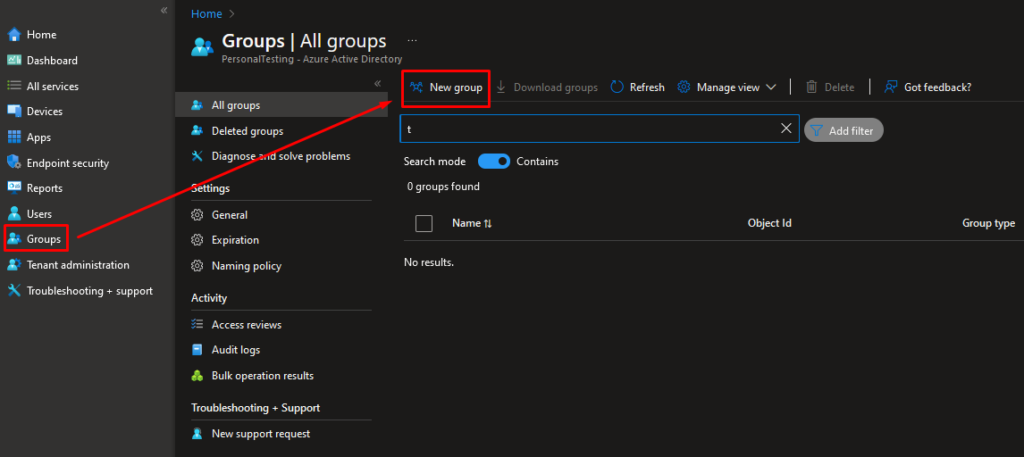
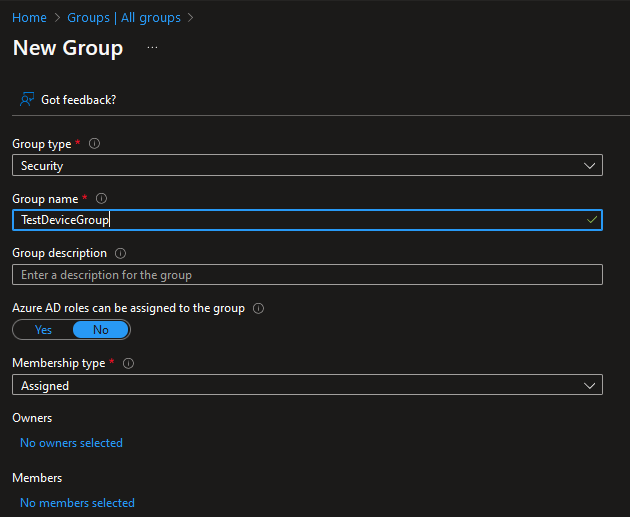
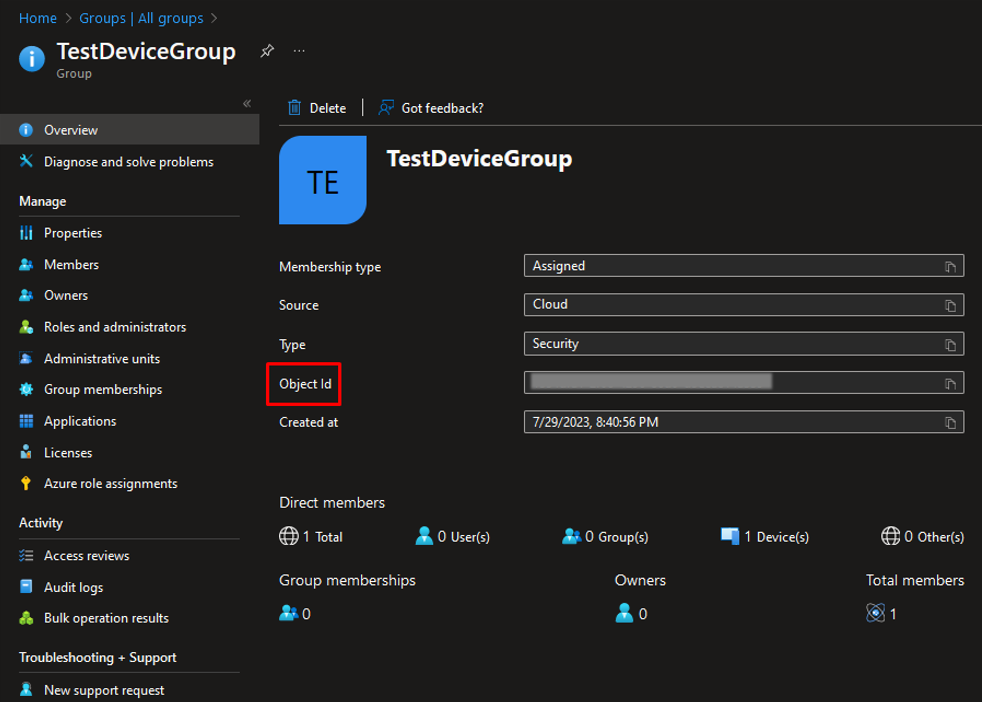
In the Overview pane of the group we can find the Object ID of the group.
Import members using Device Name
The script to import devices to a group using device name is shown below:
Connect-MgGraph -Scopes "Group.ReadWrite.All", "Device.Read.All", "DeviceManagementManagedDevices.Read.All"

$devicesPath = "C:\Temp\deviceNames.txt"
if (-not (Test-Path $devicesPath)) {
    Write-Warning "Device list not found at: $devicesPath"
    exit
}
$devices = Get-Content -Path $devicesPath

$group = Read-Host -Prompt "Give the group name: "
try{
    $groupObject = Get-MgGroup -Filter "displayName eq '$group'"
    $groupObjectID = $groupObject.Id
    Write-Host "Group Object ID: $groupObjectID"
}
catch{
    Write-Output "Entra ID Group does not exist or insufficient right"
    Start-Sleep -Seconds 3
    exit
}

foreach ($device in $devices){
    Write-Host "-------------------------"
    Write-Host "Going to import device: $device"
    $IntuneDevice = Get-MgDeviceManagementManagedDevice -Filter "deviceName eq '$device'"

    if ($null -ne $IntuneDevice){
        $EntraDeviceID = $IntuneDevice.AzureADDeviceId
        Write-Host "Device Entra ID: $EntraDeviceID"
        $DeviceObject = Get-MgDevice -Filter "deviceId eq '$EntraDeviceID'"
        $DeviceObjectID = $DeviceObject.Id
        Write-Host "Device Object ID: $DeviceObjectID"
    }
    else{
        Write-Output "Device does not exist"
        continue
    }

    $isDeviceMemberOfGroup = Get-MgGroupMember -GroupId $groupObjectID -All | Where-Object {$_.AdditionalProperties.displayName -like "*$($device)*"}

    if($isDeviceMemberOfGroup -eq $null) {
        Write-Host "Adding the device $device to group $group"
        New-MgGroupMember -GroupId $groupObjectID -DirectoryObjectId $DeviceObjectID
    }
    else{
        Write-Host "Device already member"
    }
}
Import members using Serial Numbers
The script to import devices to a group using device serial is shown below:
Connect-MgGraph -Scopes "Group.ReadWrite.All", "Device.Read.All", "DeviceManagementManagedDevices.Read.All"

$serialsPath = "C:\Temp\deviceSerials.txt"
if (-not (Test-Path $serialsPath)) {
    Write-Warning "Serials list not found at: $serialsPath"
    exit
}
$serials = Get-Content -Path $serialsPath

$group = Read-Host -Prompt "Give the group name: "
try{
    $groupObject = Get-MgGroup -Filter "displayName eq '$group'"
    $groupObjectID = $groupObject.Id
    Write-Host "Group Object ID: $groupObjectID"
}
catch{
    Write-Output "Entra ID Group does not exist or insufficient right"
    Start-Sleep -Seconds 3
    exit
}

foreach ($serial in $serials){
    Write-Host "-------------------------"
    Write-Host "Going to import device with serial: $serial"
    $IntuneDevice = Get-MgDeviceManagementManagedDevice -Filter "serialNumber eq '$serial'"

    if ($null -ne $IntuneDevice){
        $DeviceName = $IntuneDevice.DeviceName
        $EntraDeviceID = $IntuneDevice.AzureADDeviceId
        Write-Host "Device Name: $DeviceName"
        Write-Host "Device Entra ID: $EntraDeviceID"
        $DeviceObject = Get-MgDevice -Filter "deviceId eq '$EntraDeviceID'"
        $DeviceObjectID = $DeviceObject.Id
        Write-Host "Device Object ID: $DeviceObjectID"
    }
    else{
        Write-Output "Device does not exist"
        continue
    }

    $isDeviceMemberOfGroup = Get-MgGroupMember -GroupId $groupObjectID -All | Where-Object {$_.AdditionalProperties.displayName -like "*$($DeviceName)*"}

    if($isDeviceMemberOfGroup -eq $null) {
        Write-Host "Adding the device $DeviceName to group $group"
        New-MgGroupMember -GroupId $groupObjectID -DirectoryObjectId $DeviceObjectID
    }
    else{
        Write-Host "Device already member"
    }
}
References and documentation:
Check the below posts to find out more interesting relevant topics:



Amazing work! Saved me a ton of time not having to convert device names to Object IDS then import using the CSV method! Thanks!
Hi Gary! Always great to hear when a script saves real time in the field. Thanks for the comment!