
Windows Hello for Business on Shared Devices: Why It Breaks Down and What to Use Instead
If you manage shared devices with Microsoft Intune, chances are you’ve run into this frustrating wall: you deploy Windows Hello for Business, everything looks fine in the portal, and then a user sits down at a shared PC and simply cannot enroll. No biometrics prompt, no PIN setup, nothing. The option is just… gone.
This isn’t a misconfiguration on your end. It’s by design — and once you understand why, the limitation makes complete sense. In this post, I’ll walk you through the technical reasons Windows Hello for Business fundamentally cannot work on shared devices, and then cover the real alternatives you should be deploying instead.
Table of Contents
What Windows Hello for Business Actually Is (Under the Hood)
Before we talk about the shared device problem, let’s make sure we understand what WHfB is doing at a technical level, because this is the key to understanding the limitation.
Windows Hello for Business is a certificate- or key-based authentication method that replaces the traditional password with an asymmetric key pair. According to Microsoft’s documentation on how WHfB works, when a user enrolls, two things happen: a public/private key pair is generated, the private key is bound to the device’s TPM (Trusted Platform Module), and the corresponding public key is registered with Microsoft Entra ID (formerly Azure AD) or Active Directory, depending on your deployment model.
What actually happens at sign-in — and why offline still works
This is a part that trips up a lot of admins, so it’s worth being precise. When a user signs in with WHfB on an Entra ID-joined device, the authentication flow documented in the Microsoft WHfB authentication article works like this:
- The user provides their gesture (PIN or biometric), which unlocks the private key stored in the TPM.
- The Cloud Authentication provider (Cloud AP) requests a nonce from Microsoft Entra ID.
- The TPM signs that nonce using the user’s private key, and the signed nonce is returned to Entra ID.
- Entra ID validates the signature against the registered public key, and if successful, issues a Primary Refresh Token (PRT) back to the device. The PRT is encrypted to the device’s transport key and cached locally by LSASS.
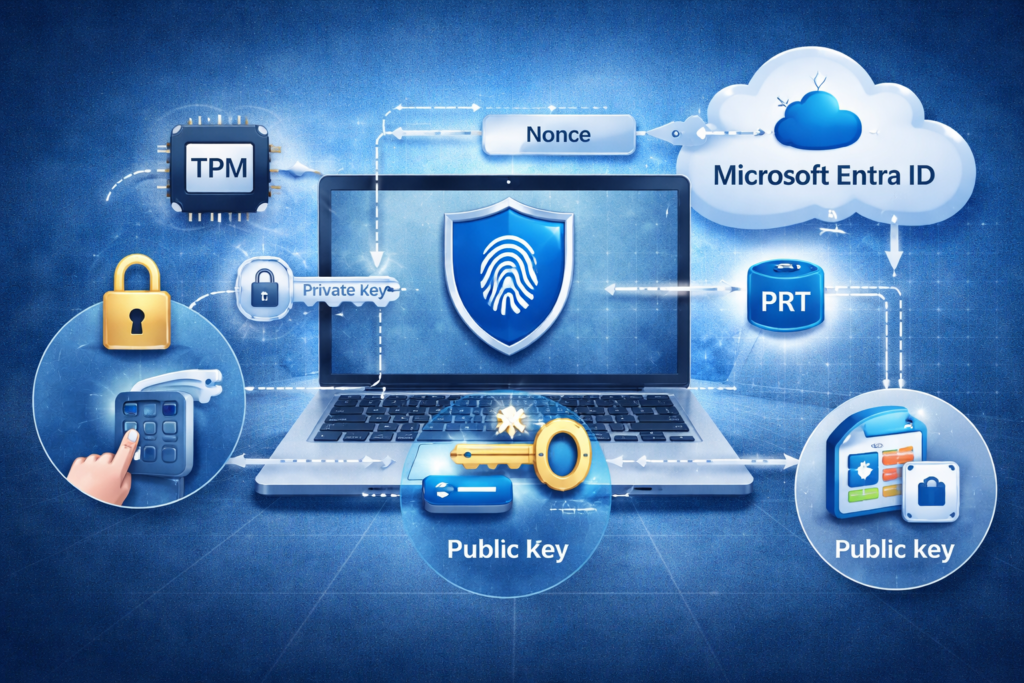
That last part — the PRT — is the key to understanding offline sign-ins. The PRT is a long-lived session token stored on the device. On subsequent sign-ins, including offline ones, Windows uses the cached PRT rather than going back to Entra ID. The gesture (PIN or biometric) still unlocks the TPM locally every single time, but a live round-trip to Entra ID only happens when the PRT needs to be established or refreshed, not on every unlock.
So the process is as follows: the TPM-to-Entra-ID challenge/response establishes and periodically refreshes the session. Day-to-day sign-ins use the locally cached PRT. The gesture is always local, and always hardware-backed.
The PIN doesn’t authenticate to Azure — it authenticates to the TPM, which holds the private key, which was used to establish the session with Entra ID. As Microsoft’s FAQ puts it, the TPM protects the key material from attackers who want to capture and reuse it.
This design is extremely secure. But it has a direct implication for shared devices.
The TPM Credential Slot Problem
Here’s the core issue: a TPM chip can only store a limited number of Hello credential sets, and this creates a hard ceiling on how many users can enroll WHfB on a single device.
Microsoft’s own documentation is explicit on this. As stated in the Windows Hello for Business FAQ on Microsoft Learn: “The maximum number of supported enrollments on a single device is 10. This lets 10 users each enroll their face and up to 10 fingerprints. For devices with more than 10 users, or for users that sign in to many devices, the use of FIDO2 security keys is recommended.”
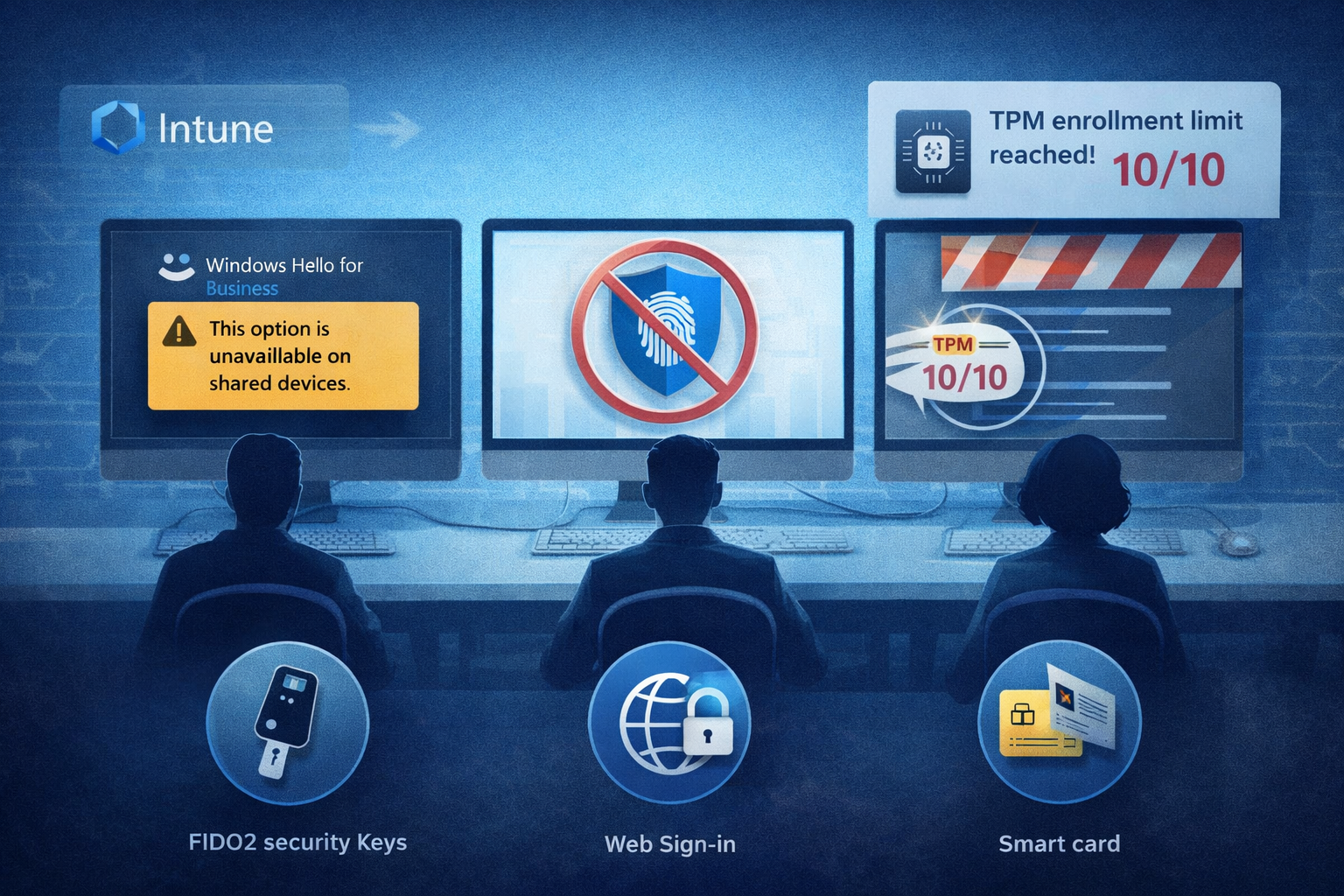
So the ceiling is 10 enrollments per device. It’s worth being precise here: WHfB is not completely non-functional on shared devices. Technically, up to 10 users can enroll and use it. The problem is that this limit makes it impractical for any real shared device scenario, for a few reasons.
First, most shared devices — hotdesks, factory terminals, lab machines, shared kiosks — are cycled through by far more than 10 people. The moment user number 11 sits down, they simply cannot enroll. Second, even for the lucky first 10, there’s no graceful operational path: when do you purge old credentials? How do you handle the case where an employee leaves, a slot is consumed, and a new user can’t enroll because the TPM is full? Third, the management overhead of tracking TPM slot occupancy across a fleet of shared devices is entirely disproportionate to the value WHfB provides in that context.
Microsoft’s SharedPC configuration template addresses this by disabling Windows Hello by default. This isn’t a bug — it’s a deliberate design decision. The Shared PC technical reference on Microsoft Learn documents all the settings automatically applied in SharedPC mode, and disabling WHfB is one of them precisely because the TPM slot limit makes it unsuitable for high-turnover environments. You can also see how this maps to Intune settings in the Windows shared device settings reference.
If you’ve deployed the SharedPC configuration profile in Intune and wondered why the Hello enrollment screen never appears, this is your answer. The policy is doing exactly what it’s supposed to do.
Why You Can’t Simply Engineer Around This
Some admins wonder whether you could work around the 10-slot limit — maybe by scripting credential cleanup, or using software-backed key storage instead of the TPM. Neither approach holds up under scrutiny.
Scripting credential purges is operationally fragile. You’d need to know which TPM slots are occupied, identify which accounts are no longer active on that device, and clean them up before the 10th slot fills. That’s a lot of moving parts for a problem that FIDO2 keys solve elegantly by design.
The software fallback option is worse. The entire security guarantee of Windows Hello for Business rests on the private key being hardware-bound. Microsoft’s documentation confirms that the private key is stored locally and protected by the TPM, and cannot be exported. While WHfB can technically fall back to software-based key storage if no TPM is available, this is explicitly not the recommended approach — it removes the hardware security guarantees and defeats the purpose of deploying WHfB in the first place. You’d essentially be storing a private key on disk, which is exactly what modern authentication is trying to move away from.
The Real Alternatives for Shared Devices
Now that you understand why WHfB doesn’t scale on shared devices, let’s talk about what actually works. You have three realistic options, each with different trade-offs.
Option 1: FIDO2 Security Keys (The Gold Standard)
FIDO2 hardware security keys — YubiKey, Thales, Token2, and others — solve the shared device problem elegantly because the authentication credential lives on the key itself, not in the device’s TPM. When a user plugs in their key and authenticates, the device’s TPM is not involved at all. This means any number of users can log into the same shared PC — each person carries their own credential on their key, and there’s no slot limit on the device side.
Microsoft explicitly backs this approach. Their passwordless guidance for shared devices states that for shared devices, FIDO2 security keys are the recommended path. The WHfB FAQ reiterates this directly, pointing admins to FIDO2 for any environment with more than 10 users per device.
To deploy this in your tenant, you need two things. On the Entra ID side, enable FIDO2 (Passkey) as an authentication method under Entra ID → Authentication Methods → Policies, as described in Microsoft’s guide to enabling passkeys for your organization. On the device side, push a Device Configuration profile via Intune to enable the FIDO2 credential provider at the Windows sign-in screen — the exact steps are documented in Enable FIDO2 security key sign-in to Windows.
One important caveat: according to Microsoft’s documentation, when signing in to a Windows device using a security key that contains multiple Microsoft Entra accounts, the device defaults to the last account added to the key. For shared devices, the intent is always one key per person — not one key shared among multiple users. FIDO2 keys also work in Hybrid Entra ID-joined environments, which gives them an edge over Web Sign-In in mixed on-premises/cloud scenarios.
Option 2: Web Sign-In (The Software Path)
Web Sign-In is a feature for Entra ID-joined devices that replaces the traditional Windows lock screen with a web-based authentication flow. According to Microsoft’s Web Sign-In documentation, it was introduced in Windows 10 with support for Temporary Access Pass only, and has since expanded in Windows 11 22H2 (with KB5030310) to support Microsoft Authenticator app sign-in, SAML-P federated identities, and more.
You enable it through an Intune Settings Catalog policy, and it works well for scenarios where you can’t justify the hardware cost of FIDO2 keys. With the Microsoft Authenticator passkey integration, the experience is reasonably smooth: scan a QR code shown on the Windows lock screen, approve on your phone, and you’re in.
The trade-offs are real though, and Microsoft documents them clearly. Web Sign-In requires an active internet connection — there is no cached credential fallback of the kind WHfB provides via the PRT. If the device is offline, users cannot sign in. This makes it unsuitable for environments with connectivity gaps such as factory floors, remote sites, or offline-capable kiosks. It also does not support Hybrid Entra ID-joined or domain-joined devices — this is strictly a cloud-native feature.
Option 3: Smart Cards / Certificate-Based Authentication
In environments that already have a PKI infrastructure and smart card readers deployed, certificate-based authentication (CBA) remains a valid option. The Windows 11 security book on Microsoft Learn acknowledges smart cards as a supported authentication path for Entra ID-joined devices via Microsoft Entra certificate-based authentication. It’s hardware-based like FIDO2, it supports Hybrid environments, and it has a long track record in regulated industries.
The operational overhead is higher — certificates need to be managed, renewals handled, and PKI maintained. But if you’re already running this stack, smart cards are a natural fit for shared devices.
Choosing the Right Option for Your Environment
The decision comes down to your network topology, budget, and Hybrid vs. cloud-native setup.
If you’re fully Entra ID-joined and reliably connected, Web Sign-In is the lowest-cost starting point. If you need offline capability, have a Hybrid environment, or are managing more than a handful of shared devices, FIDO2 security keys are the proper investment — they work everywhere WHfB would work, without the TPM slot ceiling, and they carry Microsoft’s explicit recommendation for this exact scenario. If you already have a PKI and smart card infrastructure, lean on what you’ve already built.
What you should not do is try to stretch Windows Hello for Business onto a shared device fleet by working around the 10-slot limit. Even if you manage it operationally, you’re fighting the architecture instead of using the right tool. The SharedPC template disables WHfB for good reason — trust the recommendation.
Summary
Windows Hello for Business is a fantastic authentication method for dedicated devices, and if you haven’t deployed it across your 1:1 endpoints yet, you should. But it doesn’t scale on shared devices: each enrollment consumes a TPM slot, the ceiling is 10 per device, and there’s no clean operational path for managing that in a high-turnover environment.
The gesture (PIN or biometric) always validates locally against the TPM. But the full challenge-response flow with Entra ID happens to establish and refresh a PRT, which is then cached for offline use — so WHfB is not “online only,” but it does require connectivity for the initial session establishment. Microsoft’s SharedPC configuration template disables WHfB to handle the slot limit proactively, and the recommended alternative for shared devices is FIDO2 security keys, which move the credential storage from the device TPM to the key itself — eliminating the per-device limit entirely.
References
- How Windows Hello for Business works — Microsoft Learn
- How Windows Hello for Business authentication works — Microsoft Learn
- Windows Hello for Business FAQ — Microsoft Learn
- Windows Hello for Business policy settings — Microsoft Learn
- Shared PC technical reference — Microsoft Learn
- Windows shared device settings in Microsoft Intune — Microsoft Learn
- Enable passkeys (FIDO2) for your organization — Microsoft Learn
- FIDO2 security key sign-in to Windows — Microsoft Learn
- Web Sign-In for Windows devices — Microsoft Learn
- Passwordless for shared devices (Microsoft 365 Education) — Microsoft Learn
- Windows 11 security book: Passwordless sign-in — Microsoft Learn

Great article! Thank you.