
Waiting for 100 ages – Force restart and chill
Force restart but why? Building on our previous guide to scheduling restart notifications with Intune, this post addresses what to do when users continually ignore the notification or close their lids without rebooting—leaving systems unpatched and vulnerable. We’ll explore how to detect devices’ last reboot time and enforce a forced restart via Intune remediation ensuring your laptops stay healthy and secure.
Table of Contents
Introduction
In our last article, we discovered how to schedule restart notifications in Intune so users can get a reminder to restart. Yet many end users still simply close their laptop lids or put their devices to sleep/hibernation instead of restarting, leaving critical updates—in both Windows and third-party software—stuck in limbo and systems increasingly vulnerable to security threats. Without a full reboot, Windows Update cannot complete installation of patches that fix zero-day exploits, apply firmware improvements, or enforce new security baselines. Moreover, when laptops only enter sleep mode, device health degrades over time: memory leaks persist, performance slows, and compliance policies report non-compliance long past scheduled maintenance windows .
To address this, we need an automated mechanism that not only notifies users but forces a reboot once a device’s last restart exceeds a defined threshold (for example, 7 days) . By querying each machine’s Win32_OperatingSystem.LastBootUpTime property (this is the method that we are going to use) or Event Log entries, we can detect stale reboots and invoke a scripted restart via Intune remediation. In this post, we’ll explore how to implement such a solution—balancing user prompts (to minimize disruption) with hard enforcement (to guarantee patch compliance) . Let’s dive in and ensure your fleet stays both up-to-date and secure.
This detection & remediation script approach is intended only for outlier cases—where specific users consistently fail to restart their devices for an extended period—and is not recommended for broad deployment across your entire fleet. Use it sparingly to address extreme scenarios rather than as a universal reboot policy.
Detecting Last Reboot Time and Restarting
You can find the scripts below in my GitHub page too.
Before enforcing a restart, we need to detect which machines haven’t rebooted recently. The following PowerShell detection script:
- Logs its progress to a central file.
- Checks the device’s last boot time.
- Compares it against a 7-day threshold.
- Exits with code 0 if no action is required (reboot occurred within the last week) or 1 if remediation should run.
# Detection Script: Check if a full restart has occurred in the last 7 days

# Define log file path
$LogFilePath = "C:\ProgramData\Microsoft\IntuneManagementExtension\Logs\RestartDetectionLog.txt"

Start-Transcript -Path $LogFilePath

# Function to write to log file
function Write-Log {
    param ([string]$message)
    try {
        $timestamp = Get-Date -Format "yyyy-MM-dd HH:mm:ss"
        Write-Host "$timestamp - $message"
    } catch {
        Write-Host "Error writing to log: $_"
    }
}

# Write script start to log
Write-Log "Restart Detection Script Started"

# Check last restart time
try {
    $lastBootTime = (Get-CimInstance -ClassName Win32_OperatingSystem).LastBootUpTime
    $currentTime = Get-Date
    $daysSinceRestart = ($currentTime - $lastBootTime).Days

    if ($daysSinceRestart -lt 7) {
        Write-Log "Device restarted within the last 7 days. Days since restart: $daysSinceRestart"
        exit 0 # No remediation needed
        Stop-Transcript
        Write-Host "Device restarted within the last 7 days. Days since restart: $daysSinceRestart"
    } else {
        Write-Log "Device not restarted in the last 7 days. Remediation required."
        exit 1 # Remediation required
        Stop-Transcript
        Write-Host "Device not restarted in the last 7 days. Remediation required."
    }
} catch {
    Write-Log "Error during restart check: $_"
    exit 1 # Remediation required on error
    Stop-Transcript
    Write-Host "Error during restart check: $_"
}
You could also enhance the above script with extra information at the last Write-Host in order to return useful information for the device, like the last restart date, the exact days since the last restart etc. Check this post that follows a similar approach for gathering information using a detection script.
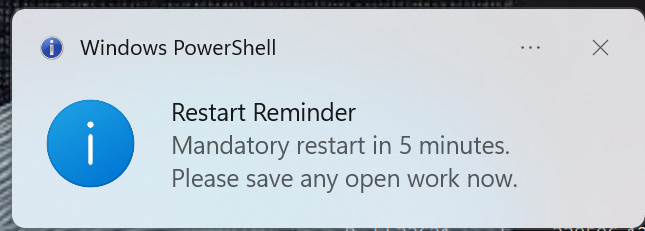
Once the detection script flags a device as needing a reboot (i.e. it hasn’t restarted in over seven days), the remediation script takes over. The goal here is to gently but firmly prompt the user—displaying a toast notification that warns of an impending restart in five minutes and encourages them to save any open work—before automatically forcing a reboot. This ensures critical updates apply without relying on users to manually restart their machines.
# Remediation Script: Show a toast notification then force restart

# Define log file path
$LogFilePath = "C:\ProgramData\Microsoft\IntuneManagementExtension\Logs\RestartRemediationLog.txt"

Start-Transcript -Path $LogFilePath

# Function to write to log file
function Write-Log {
    param ([string]$message)
    try {
        $timestamp = Get-Date -Format "yyyy-MM-dd HH:mm:ss"
        Write-Host "$timestamp - $message"
    } catch {
        Write-Host "Error writing to log: $_"
    }
}

# Function to show toast notification
function Show-ToastNotification {
    param (
        [int]$CountdownMinutes = 5
    )
    try {
        Add-Type -AssemblyName System.Windows.Forms
        Add-Type -AssemblyName System.Drawing

        $notifyIcon = New-Object System.Windows.Forms.NotifyIcon
        $notifyIcon.Icon = [System.Drawing.SystemIcons]::Information
        $notifyIcon.Visible = $true

        $message = "Mandatory restart in 5 minutes.`n" +
                   "Please save any open work now."

        # Show balloon tip for 30 seconds (30000 ms)
        $notifyIcon.ShowBalloonTip(30000, "Restart Reminder", $message, [System.Windows.Forms.ToolTipIcon]::Info)
        Write-Log "Toast notification shown with message: $message"

        # Optionally keep the icon visible for the toast duration
        Start-Sleep -Seconds 30
        $notifyIcon.Dispose()
    } catch {
        Write-Log "Error showing toast notification: $_"
    }
}

# Write script start to log
Write-Log "Restart Remediation Script Started"

# Show notification: device will restart in 5 minutes
Show-ToastNotification -CountdownMinutes 5

# Wait for 5 minutes before forcing reboot
Start-Sleep -Seconds 300
Write-Log "Countdown complete, initiating restart"
Stop-Transcript
Write-Host "Countdown complete, initiating restart"

# Force a restart
try {
    Restart-Computer -Force
} catch {
    Write-Log "Restart-Computer command failed: $_. Scheduling via shutdown.exe"
    shutdown.exe /r /t 60 /f
}
As always, ALWAYS test before deploying!
User Experience & Toast Prompts
After the detection script detects that the user has not performed a restart withing 7 days, a notification like the below will appear, indicating that a restart will be performed in 5 minutes.
We could also utilize the PowerShell App Deployment Toolkit (PSADT) (I am gonna try and create a dedicated post about PSADT and how to utilize it in Intune) to achieve the ultimate user experience.
Best Practices & Considerations
Implementing an automated, forced-restart policy requires careful tuning to avoid unnecessarily disrupting users while still ensuring timely patch application and system health. Start by selecting a reasonable reboot interval—seven days is often recommended because it aligns with weekly Patch Tuesday cycles and gives users ample time to save work without leaving vulnerabilities unpatched . You may choose a longer interval (such as 14 days) for initial pilots to gather data before tightening to seven days for your broader fleet .
Next, account for Windows’ Fast Startup feature, which hibernates the kernel session rather than performing a full shutdown. Because Win32_OperatingSystem.LastBootUpTime remains unchanged after a hybrid shutdown, relying solely on LastBootUpTime can misinterpret hibernation events as reboots. To detect true cold boots, combine WMI’s LastBootUpTime query with Event Log checks for Event ID 6005 (“Event log service started”) and 6006 (“Event log service stopped”) . Alternatively, consider disabling Fast Startup via a mobile device configuration profiles so that every shutdown equals a full restart, improving patch reliability .
When it comes to user experience, always precede forced reboots with clear, actionable notifications and a grace period—five minutes is a practical minimum—so users have time to save work and close applications . Schedule your detection scripts to run during off-peak hours, reducing the likelihood of interrupting active users.
You could also aim to allow a single deferral option within the toast notification: if a user chooses to postpone the reboot, grant a short extension (for instance, one hour) before enforcing the restart. This compromise respects user workflows while keeping patch compliance on track (requires a different approach than the one mentioned above).
References and Documentation
Other Interesting Posts