Easy way to remove devices from Entra ID group
Discover an effective way to remove devices based on serial number from an Entra ID group.
Managing device membership in Microsoft Entra ID groups is essential for maintaining security, ensuring compliance, and enforcing organizational policies at scale. Manually removing devices one by one is time-consuming and error-prone, especially when dealing with hundreds or thousands of managed endpoints. Fortunately, the Microsoft Graph PowerShell SDK enables you to automate group-membership operations—such as removing specific devices—directly from scripts without touching the Entra ID portal.
In this post, we’ll walk through a concise PowerShell script that uses Connect-MgGraph, queries managed devices via Get-MgDeviceManagementManagedDevice, and invokes Remove-MgGroupMemberByRef to batch-remove devices based on serial numbers. We’ll also cover the exact Graph API permissions your account or service principal needs—drawn from the official Graph permissions reference—to ensure seamless execution. By the end, you’ll have an effective, repeatable method to keep your Entra ID groups clean, organized, and aligned with your device-management policies.

Table of Contents
Permissions Required to run the script
To successfully authenticate and execute the device-removal script against Microsoft Graph, your user account or service principal must hold four key permissions:
- DeviceManagementManagedDevices.Read.All, which allows the script to query Intune’s managed-device inventory;
- Device.Read.All (or Directory.Read.All), to look up the corresponding Entra ID device objects by their IDs;
- Group.Read.All (or Directory.Read.All), so the script can resolve the target group’s object ID; and
- GroupMember.ReadWrite.All, which grants the ability to remove members from that group.
When you callConnect-MgGraph -Scopes, be sure to request all of these scopes in one batch so that each cmdlet—Get-MgDeviceManagementManagedDevice,Get-MgDevice,Get-MgGroup, andRemove-MgGroupMemberByRef—can run without permission errors.
Script Logic
The script logic follows a clear, linear flow: it first authenticates to Microsoft Graph using Connect-MgGraph, acquiring an OAuth token so subsequent SDK calls can run under the proper context. Next, it loads the list of device serial numbers from a UTF-8 text file in the public directory, counts them, and prompts the administrator for the Entra ID group name.
With total devices known, the script enters a foreach loop: for each serial it queries Intune’s managed-device inventory via Get-MgDeviceManagementManagedDevice (filtered by SerialNumber) to retrieve the azureADDeviceId. It then resolves the actual Azure AD object ID through Get-MgDevice (filtered by deviceId), and looks up the group’s object ID using Get-MgGroup (filtered by display name).
Finally, it calls Remove-MgGroupMemberByRef with the group ID and directory object ID to remove the device from the specified group. Built-in try/catch blocks ensure any errors—such as missing devices or API failures—are logged per serial without interrupting the overall batch operation.
Let’s remove devices from an Entra ID group
In this chapter, you’ll see the full PowerShell script that automates the removal of devices from an Entra ID group based on their serial numbers. We’ll walk through each section of the code so you understand how it connects to Microsoft Graph, reads your list of devices, and processes each removal in a reliable, repeatable way.
Always test the script with one device first before running it against your entire list.
Check my GitHub page regularly to track updates and grab the latest version of the script.
<#
.SYNOPSIS
    Removes devices by serial number from an Entra ID group.

.DESCRIPTION
    Connects to Microsoft Graph, reads a list of serial numbers from
    "C:\Temp\serials.txt", prompts for a target group name, and then
    iterates through each serial number to remove the corresponding device
    from the specified Entra ID group. Logs progress and errors to the host.
#>

Write-Host "=== Device Removal Script Starting ===" -ForegroundColor Cyan

Write-Host "Step 1: Connecting to Microsoft Graph..." -ForegroundColor Cyan
Connect-MgGraph
Write-Host "Connected to Microsoft Graph" -ForegroundColor Green

Write-Host "Step 2: Reading serial numbers file..." -ForegroundColor Cyan
$serialFile = "C:\Temp\serialsToRemove.txt"
if (-Not (Test-Path $serialFile)) {
    Write-Host "ERROR: Serial file not found at $serialFile" -ForegroundColor Red
    Exit 1
}
$Serials = Get-Content -Path $serialFile
Write-Host "Loaded $($Serials.Count) serial numbers" -ForegroundColor Green

Write-Host "Step 3: Prompting for target group..." -ForegroundColor Cyan
Write-Host "Please enter the name of the Entra ID group to remove members from:" -ForegroundColor Yellow
$group = Read-Host

Write-Host "Step 4: Preparing to remove $($Serials.Count) device(s) from group '$group'" -ForegroundColor Cyan
Start-Sleep -Seconds 1

$totalDevices = $Serials.Count
$counter      = 1

foreach ($Serial in $Serials) {
    Write-Host "Processing device $counter of $totalDevices : Serial='$Serial'" -ForegroundColor DarkCyan
    try {
        # Lookup managed device by serial
        $mgDevice = Get-MgDeviceManagementManagedDevice -Filter "SerialNumber eq '$Serial'" -ErrorAction Stop | Select-Object -ExpandProperty azureADDeviceId

        Write-Host "Found Entra ID Device ID: $mgDevice" -ForegroundColor Gray

        # Lookup Entra ID device object
        $aadDevice = Get-MgDevice -Filter "deviceId eq '$mgDevice'" -ErrorAction Stop | Select-Object -ExpandProperty Id

        Write-Host "Found Directory Object ID: $aadDevice" -ForegroundColor Gray

        # Lookup group object
        $groupObj = Get-MgGroup -Filter "DisplayName eq '$group'" -ErrorAction Stop | Select-Object -ExpandProperty Id

        Write-Host "Found Group Object ID: $groupObj" -ForegroundColor Gray

        # Remove device from group
        Remove-MgGroupMemberByRef -GroupId $groupObj -DirectoryObjectId $aadDevice -ErrorAction Stop
        Write-Host "Successfully removed device" -ForegroundColor Green
    }
    catch {
        Write-Host "Error removing serial '$Serial' from group '$group'" -ForegroundColor Red
        Write-Host "$($_.Exception.Message)" -ForegroundColor Red
    }

    $counter++
}

Write-Host "=== Script complete: Processed $($counter - 1) device(s) ===" -ForegroundColor Cyan
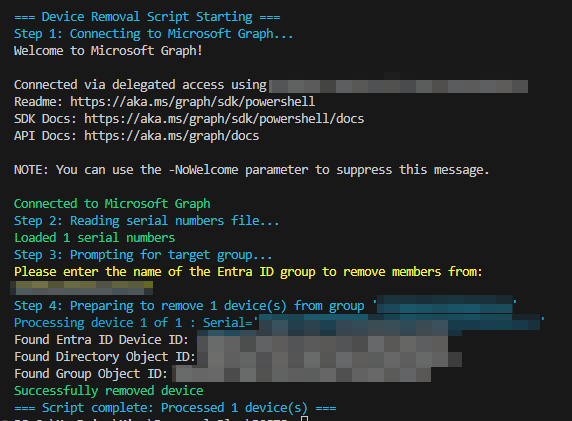
Example execution is presented below:
References and Documentation
- Manage groups
- List group members
- Remove-MgGroupMemberByRef
- Microsoft Entra version 2 cmdlets for group management
- Get-MgDeviceManagementManagedDevice
- Get-MgGroup
- Microsoft Graph permissions reference
- Connect-MgGraph
Other Interesting Posts