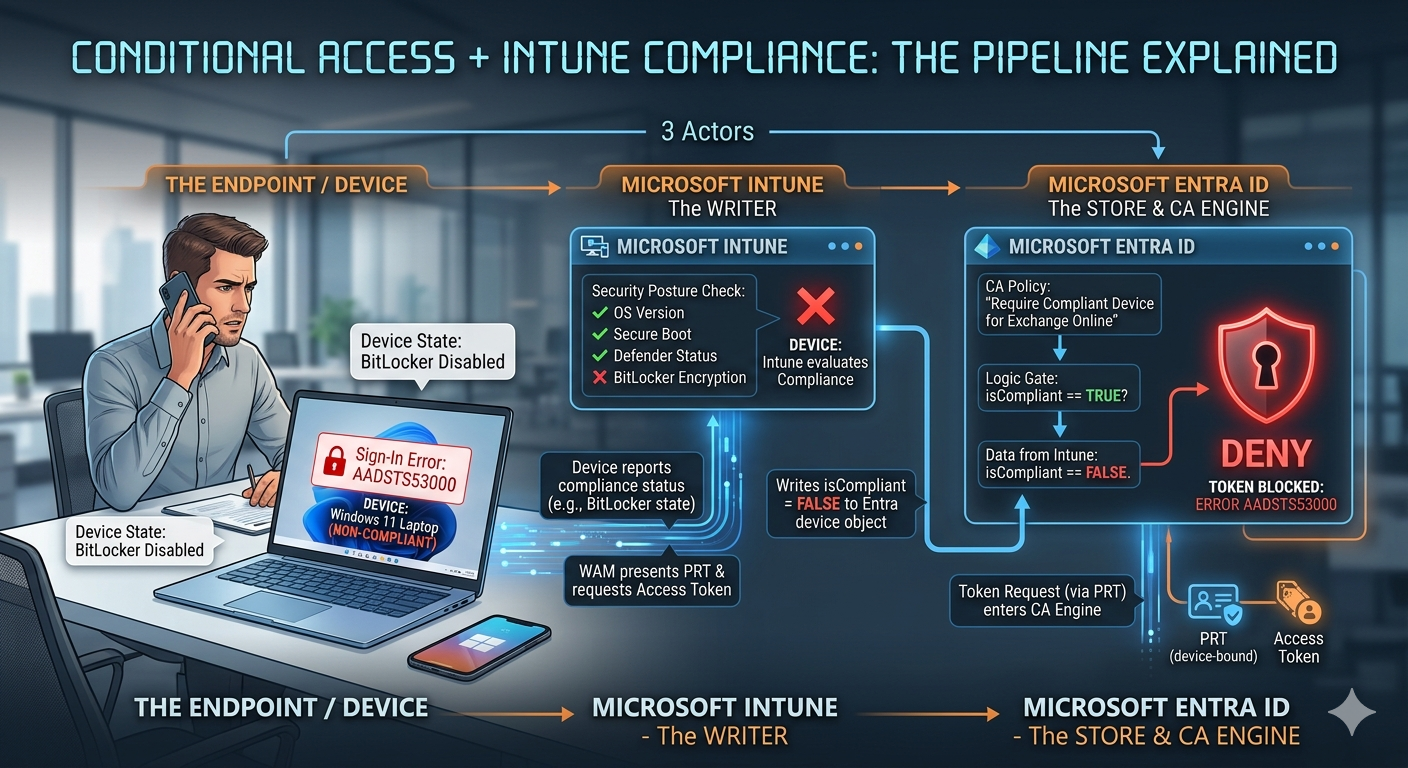
Entra ID Conditional Access policies, Intune compliance, error AADSTS53000 and token flow. Every admin has heard these words but its not always clear how all these work together.
It’s 14:30 on a Tuesday. A user calls the helpdesk – Outlook stopped working mid-session. Nothing changed on their device, no prompt appeared, no warning. Just AADSTS53000 and a silent sign-in failure. You check Intune: the device is now showing “Not Compliant” – BitLocker disabled. That single compliance flag, somewhere in the pipeline between Intune and Entra ID, just killed their access token.
This post traces exactly how that happens, end-to-end – the same way you’d trace a packet through a firewall. Device – Intune – Entra ID – PRT – access token – Conditional Access decision. No hand-waving, no “just create a CA policy and it works.”
Table of Contents
The 3 actors in the story
Before touching tokens, define the roles clearly.
Microsoft Intune is the compliance evaluator. It pushes configuration to devices, collects device state reports, and evaluates compliance policies – publishing the binary result – compliant or not compliant – back to the Intune service. It then writes that state to the Entra ID device object. Intune does not participate in token issuance. Its job ends when it updates Entra.
Microsoft Entra ID is the identity plane. It issues Primary Refresh Tokens (PRTs) and access tokens, and runs the Conditional Access engine that decides whether a token request succeeds or fails. The compliance signal it uses comes from Intune’s write – not from the device directly, and not evaluated at token time.
The client OS and token broker is the “what is going on” on the endpoint. On Windows, Cloud Authentication Provider (CloudAP) handles the PRT and passes it to apps via the Web Account Manager (WAM). On iOS, Android, and macOS, the Microsoft Authenticator app or Company Portal plays the equivalent role.
The important architectural point: these three actors are decoupled. CA doesn’t call Intune when a token is requested. It reads a compliance state already written to the Entra device object. Intune is the writer, Entra is the store, CA is the reader. Understanding this decoupling explains most “why is my compliant device still blocked?” support tickets.
Step 0 – Device identity: where it all starts
Compliance can’t flow anywhere if there’s no device identity in Entra ID.
For a typical corporate Windows endpoint:
Entra join or hybrid join creates a device object in Entra ID with a unique deviceId. This is what everything else anchors to.
MDM enrollment in Intuneconnects the OS to the Intune service so policies and compliance rules can apply. Intune creates its own device record, linked to the same Entra device via matching identifiers.
Ownership tagging (Corporate vs. Personal) is optional but useful for filtering CA behaviour and compliance policy scope.
At this point Entra knows the device exists; Intune knows how to manage it. Neither knows yet whether the device is compliant.
Step 1 – How Intune evaluates compliance
Compliance evaluation in Intune is primarily a validation layer – it checks whether a device meets the rules you define and reports the result. It does not configure settings the way a configuration profile does. However, this is not universally read-only.
Microsoft explicitly documents that some compliance settings – notably password and PIN requirements – result in active enforcement on the device, even if a configuration policy is more lenient. The distinction to keep in mind for troubleshooting remains valid: a compliance policy failing does not mean a configuration profile failed to deploy. They are separate pipelines. But saying compliance is purely passive would be an oversimplification.
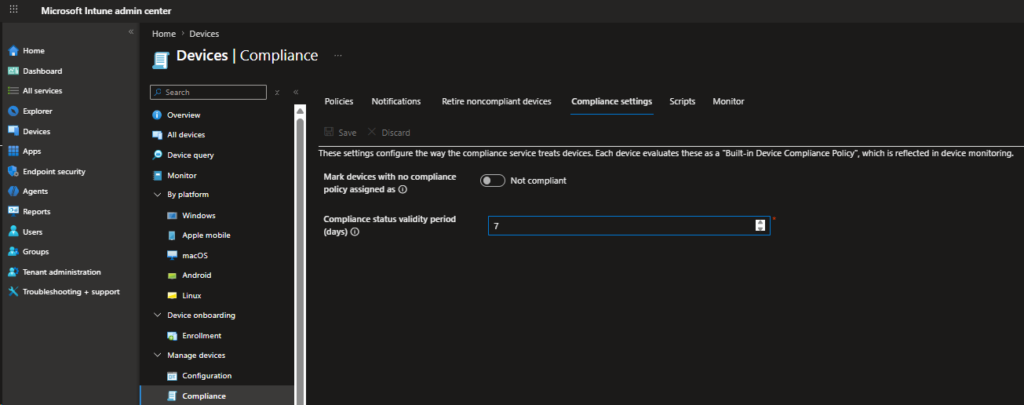
Mark devices with no compliance policy assigned as – this defaults to Compliant in every tenant. If you’ve never assigned a real compliance policy to a device group, those devices pass CA freely. Check this setting before assuming your “require compliant device” CA policy is doing anything meaningful.
Compliance status validity period (days) – if a device doesn’t check in within this window, Intune automatically marks it non-compliant. The default is 30 days, but organizations sometimes tighten this to 7 or fewer, which creates problems for devices that are powered off, rarely used, or on long leave.
Security posture check: Go to Intune > Devices > Compliance > Compliance policy settings right now. If Mark devices with no compliance policy assigned as is set to Compliant and you haven’t verified all devices have a policy assigned, your “require compliant device” CA policy has a silent gap.
Platform-specific compliance policies define the actual rules: minimum OS version, BitLocker encryption, Secure Boot state, Defender status, firewall, passcode requirements, jailbreak/root detection, Microsoft Defender for Endpoint risk score, and custom compliance scripts for anything not natively supported.
Grace period – a frequently misunderstood mechanism, and one that directly affects CA behaviour. By default, the “Mark device noncompliant” action in every compliance policy is set to fire at 0 days – meaning the device is marked non-compliant in Entra immediately when a rule is violated, and CA blocks token issuance straight away. The grace period is how you delay that. When you set the “Mark device noncompliant” action to fire after X days instead of 0, the device enters an “In grace period” state in Intune reports during those X days – and critically, CA does not block during this window.
Entra has not yet received a non-compliant signal, so token issuance continues normally. Only after the grace period expires without remediation does Intune write the non-compliant state to Entra and CA enforcement kicks in. This makes grace period a legitimate and intentional soft-landing tool – commonly used for scenarios like BitLocker encryption completing post-enrolment, where a short 1-2 hour grace period gives the encryption process time to finish before the device would otherwise be flagged. The tradeoff is a deliberate security window where a technically non-compliant device still has access, so size the grace period accordingly.
Step 2 – How compliance flows from Intune into Entra ID
This is the section most posts skip entirely. Here’s what actually happens.
When Intune’s compliance evaluation produces a result, it writes that result to the Entra ID device object. This updates the isCompliant property on the device object in Entra’s directory.
This write is not triggered by the user. It’s not triggered by a token request. It happens on Intune’s schedule, after the device reports its compliance status back to the Intune service.
The critical implication: there is propagation latency.
After a device remediates and Intune marks it compliant, the Entra device object may not reflect this immediately. The sequence is:
Device re-evaluates compliance
    ↓
Device reports new state to Intune service
    ↓
Intune service writes updated isCompliant to Entra device object
    ↓
CA reads updated state on next token request
In practice this propagation takes 5 to 30 minutes, sometimes longer. A user who fixes their non-compliant setting and immediately tries to access a resource will still get AADSTS53000 during this window – even though Intune already shows them as compliant. This is the most common source of “Intune says compliant, but still blocked” helpdesk tickets.
To accelerate propagation: trigger a manual sync from Company Portal on the device, or use the “Sync” button in the Intune device blade. This triggers a device check-in, which can accelerate compliance re-evaluation when device properties have changed.
There is no separate “compliance token.” Compliance state is written by Intune to the Entra device object, where CA consumes it during token evaluation. Everything CA does with compliance flows through that device object.
Step 3 – PRT 101: how device and user get into the session
On a Windows device joined or registered with Entra:
The user signs into Windows (password, Windows Hello for Business, etc.).
CloudAP sends a signed request to Entra ID using the device’s private key and the user’s credential or gesture.
Entra ID validates the signature and issues a Primary Refresh Token (PRT) – a device-bound JSON Web Token that contains user and device claims, including the deviceId.
The PRT is cached on the device, valid for 90 days, and renewed by the CloudAP plugin approximately every 4 hours during active use. If the device is offline or inactive for more than 14 days, the PRT expires.
The PRT is the root of SSO on Windows. Every time an app needs a token, the broker (WAM) presents the PRT to Entra’s token endpoint and exchanges it for an access token scoped to that resource. This is the exchange where Conditional Access evaluates your policies.
On mobile platforms (iOS, Android), the Microsoft Authenticator app or Company Portal acts as the broker and plays the equivalent role. The mechanics differ but the principle is the same: there’s a device-bound artifact tied to the Entra device object, and CA evaluates against it.
For native apps on iOS/Android that use MSAL or are configured to use the authentication broker, the broker (Microsoft Authenticator/Company Portal) passes the device identity correctly. However, if a user accesses a cloud app via a mobile web browser (like Safari or Chrome), the browser may not pass device context to Entra by default. On iOS, Safari requires the Microsoft Enterprise SSO plug-in to be deployed via MDM. On Android, Chrome requires a certificate provisioned by the Microsoft Authenticator app. Without these configurations, the browser session has no device identity and CA treats it as an unknown device – even if the device itself is enrolled and compliant.
This explains the classic helpdesk ticket: My phone is compliant in Company Portal, but Safari blocks me with AADSTS53000.
Step 4 – Token request: where Entra ID Conditional Access enters
Whenever an app needs access to a resource – Exchange Online, SharePoint, Graph, Teams, your own API – it asks the broker for a token. The flow:
App – broker: “I need an access token for resource X.”
Broker presents the PRT (or initiates an interactive flow) to Entra’s token endpoint.
If all policies pass: Entra issues an access token for the requested resource.
If a policy fails: Entra either prompts (MFA step-up) or refuses to issue a token entirely.
The compliance signal CA uses is the isCompliant value on the device object identified by the deviceId embedded in the PRT. CA doesn’t ask Intune. It reads what Intune has already written.
Step 5 – “Require device to be marked as compliant”: what CA actually checks
When a CA policy has the grant control Require device to be marked as compliant:
CA extracts the deviceId from the authentication context – for device-based sign-ins, this comes from the PRT.
CA reads the current isCompliant state of that device object in Entra.
If isCompliant = true: the grant control passes and CA continues evaluating any other controls (MFA, sign-in risk, etc.).
If isCompliant = false: CA refuses to issue a token and returns: AADSTS53000: Device is not in required device state: compliant. Conditional Access policy requires a compliant device, and the device is not compliant.
The CA engine reads the state stored in Entra, which Intune continuously updates. You can’t fake it from the device side.
Step 6 – What happens when compliance changes after tokens are issued
Compliance is not static, and access tokens don’t auto-expire when it changes. Here’s the actual behaviour:
Existing access tokens keep working until they expire. The default Entra access token lifetime is variable – Microsoft assigns a random value between 60 and 90 minutes (75 minutes on average) to spread renewal load. However, this baseline changes significantly depending on whether CAE is active.
The CAE complication – and why the security window is larger than most people think:
For CAE-capable client/resource pairs – which includes Outlook, Teams, SharePoint, and OneDrive by default – Entra issues long-lived tokens of up to 28 hours instead of the standard 60-90 minutes. The reasoning is sound: since CAE can revoke tokens in near-real-time when critical events occur, a longer base lifetime reduces unnecessary renewal traffic. But here’s the problem for compliance: CAE does not trigger on compliance changes (covered in the next section). This means a device that loses compliance while running Outlook in a CAE-aware session could retain a valid access token for up to 28 hours before the next renewal forces CA re-evaluation. The security window is not “roughly 1 hour” – in a standard M365 deployment it can be significantly longer.
At the next renewal, CA re-evaluates. When the broker uses the PRT or refresh token to get a new access token, Conditional Access runs again against the current compliance state. If the device is now non-compliant, Entra refuses to issue the new token. The user gets AADSTS53000 and may be prompted to sign in – at which point the interactive flow also fails for the same reason.
What this means for your security posture: There is a window – potentially spanning the full access token lifetime, which can be up to 28 hours in CAE sessions – between a device losing compliance and access being blocked. If you need faster revocation, the levers available are:
Sign-in frequency (CA session control): forces re-authentication at defined intervals, which re-runs CA and closes the window regardless of token lifetime.
Token Protection: strengthens the guarantee that tokens can only be used from the device they were issued to (see next section).
Continuous Access Evaluation (CAE): provides near-real-time session control for supported critical events – but read the important caveat below.
Current CAE documentation does not list compliance-state changes as a CAE trigger. This is a widely misunderstood limitation. CAE currently reacts to critical user events: account disable, password change, session revocation, high-risk location changes. Intune compliance state changes are not among the documented CAE revocation triggers.
A device that goes non-compliant will not have its CAE session invalidated – and because CAE extends token lifetimes to up to 28 hours, the exposure window without intervention is larger than in a non-CAE deployment. Don’t rely on CAE to make compliance enforcement real-time. Use sign-in frequency if you need to close this gap.
Token Protection: tying tokens tighter to compliant devices
Token Protection is a Conditional Access session control that enforces device-bound sign-in tokens, initially released for Exchange Online, SharePoint Online, and Teams. Microsoft continues to expand workload and platform support – check the current docs before planning your rollout, as coverage has been broadening.
When enabled:
Entra issues refresh tokens that are cryptographically bound to the specific device that requested them.
When an app presents a token, Entra checks both: is this token coming from the device it was bound to, and does that device pass CA?
If an attacker steals and replays a token from a different machine, it fails the device binding check – even if the token was stolen from a compliant device.
Token Protection doesn’t change how compliance state flows from Intune into Entra. What it changes is the guarantee that when a token passes the compliance check, it’s genuinely being used from the compliant device you think it is – not from stolen credentials presented on an unmanaged endpoint.
Note: Token Protection support continues to expand across workloads and platforms. Always verify current coverage against the MS Learn docs before enforcing in production.
End-to-end timeline: from enrollment to blocked token
Here’s everything stitched into a single realistic scenario.
Scenario: Windows 11 corporate laptop, Autopilot-provisioned
Day 0 – Join and enroll Device is Autopilot-provisioned, Entra joined, and MDM-enrolled in Intune. Intune deploys the configuration profiles and a Windows compliance policy requiring BitLocker, Defender active, and minimum OS build.
Day 0 – First sign-in and compliance evaluation User signs into Windows. CloudAP gets a PRT from Entra, bound to the device’s deviceId. Device evaluates the compliance policy, reports Compliant to Intune. Intune writes isCompliant = true to the Entra device object. Both records align.
Day 0 – Accessing Exchange Online Outlook requests a token via WAM. WAM presents the PRT to Entra. CA policy (Require compliant device for Exchange Online) evaluates: device object found from PRT, isCompliant = true, grant control passes. Entra issues an access token. Outlook opens.
Day 7 – BitLockergets disabled At the next compliance check-in cycle – which for Windows devices runs approximately every 8 hours – the compliance policy detects BitLocker is off. Device reports non-compliant to Intune. Intune marks the device Not Compliant and writes isCompliant = false to the Entra device object. Note: up to 8 hours may pass between the user disabling BitLocker and Intune detecting it.
Day 7 – Token renewal attempt For a non-CAE session, Outlook silently attempts to renew its access token every 60-90 minutes. For a CAE-enabled session (the default for Exchange Online), the existing token may be valid for up to 28 hours. Either way, when the next renewal attempt hits Entra, CA re-evaluates: isCompliant = false. Grant control fails. Entra returns AADSTS53000, does not issue a new token.
Day 7 – User experience Outlook shows a sign-in error or prompts for authentication. Interactive sign-in also fails – CA still blocks, regardless of credentials, because the device state hasn’t changed. From the user’s perspective: “Outlook suddenly stopped working.” From the token pipeline perspective: compliance flipped in Intune, Entra picked it up, CA blocked renewal.
How to troubleshoot this in real tenants
When a user hits AADSTS53000, here’s the decision flow to follow:
User reports AADSTS53000 / Outlook / SharePoint blocked
        │
        ▼
Entra ID → Sign-in logs
→ Find the failed sign-in
→ Open Conditional Access tab
→ Which policy applied? Which grant control failed?
        │
        ▼
Is the failure "Require device to be marked as compliant"?
        │
        ├─ YES
        │      ▼
        │   Check Entra device object: Devices → [device] → isCompliant?
        │      │
        │      ├─ Entra shows NOT Compliant
        │      │      ▼
        │      │   Check Intune device blade → Compliance state + per-setting detail
        │      │      │
        │      │      ├─ Intune shows Compliant → sync lag → trigger manual sync, wait 15 min
        │      │      └─ Intune shows Not Compliant → identify failing setting, remediate
        │      │
        │      └─ Entra shows Compliant but still blocked
        │             ▼
        │          Run dsregcmd /status on device
        │          Check: AzureAdJoined = YES, AzureAdPrt = YES, AzureAdPrtUpdateTime is recent
        │          If PRT is stale or missing → PRT issue, not compliance issue
        │          Use CA "What If" to simulate exact user/device/app combination
        │
        └─ NO → different CA policy or grant control → check which one
Key places to look:
Intune – Devices – Compliance – overall state and per-setting breakdown. Use this to see exactly which rule is failing, not just that the device is non-compliant.
Entra ID – Sign-in logs – Conditional Access tab – shows which policies evaluated, which passed, which failed, and why. Filter on error code 53000.
Also check this post “Sign-in Audit Logs – One of the hidden shiny gems” to learn how to utilize sign-in audit Logs and Get-MgAuditLogSignIn to get information related to users, devices, sign-ins and many more.
CA – What If – simulate a sign-in for a specific user, device, app, and location to understand expected CA outcomes before and after changes.
dsregcmd /status – run on the Windows device. Confirms join state (AzureAdJoined), PRT health (AzureAdPrt = YES), and PRT freshness (AzureAdPrtUpdateTime). If the PRT is absent or stale, compliance is irrelevant – fix the PRT first.
Common gotchas that break the flow
These patterns explain the majority of production incidents:
No effective compliance policy assigned The tenant-wide setting marks unassigned devices as Compliant, you’ve deployed a CA policy, and you assume it’s working. Check: Intune – Devices – Compliance – Compliance policy settings.
Compliance validity period too aggressive Set to 1-3 days on devices that check in irregularly (shared devices, rarely-powered-on laptops, devices carried by field workers). These get silently marked non-compliant outside business hours and users arrive at 09:00 to blocked access.
Sync lag misread as a persistent failure Device remediates, Intune shows Compliant, user still blocked. Everyone assumes the CA policy is broken. It’s propagation lag. Trigger a sync and wait.
Grace period misconfigured or misunderstood Grace period genuinely delays CA enforcement – during the window, CA does not block. That’s by design and useful (e.g. BitLocker encrypting post-enrolment). The gotcha is when the grace period is set too long and becomes an unintentional security gap: non-compliant devices retain access for days or weeks because nobody reviewed the noncompliance action schedule. Audit your “Mark device noncompliant” action timing across all compliance policies and make sure the grace period is intentional and sized appropriately.
Wrong grant control configured CA policy requiring Hybrid Joined instead of Compliant, or combining requirements with AND logic when OR is needed (e.g., compliant OR hybrid joined is a common pattern for mixed environments).
Unsupported platform or app scenario Teams Rooms, Android AOSP devices, and certain shared device configurations have specific CA limitations documented by Microsoft. Token Protection is not yet supported on all platforms. Verify platform support before enforcing.
Device code flow blocked unintentionally Printer/scanner workflows, Teams Room devices, or kiosk scenarios using device code flow get blocked by “require compliant device” because there’s no device context in that flow. Use CA conditions to scope policies correctly, or use dedicated CA policies for these scenarios.
How compliance optionally surfaces inside tokens
In most deployments your apps don’t see compliance directly – CA uses it internally and either issues or denies the token. But you can surface device context into tokens if you need it at the application layer:
Optional claims on access/ID tokens – configure on the app registration in Entra to include claims like deviceid.
Claims mapping policies for SAML – you can project an iscompliant claim into SAML tokens for apps that need to make their own authorization decisions based on device compliance state.
This doesn’t change how CA makes decisions. It’s an additional signal for the application layer to consume after the token has already been issued – useful for apps that need to enforce their own per-feature access control beyond what CA provides at the token boundary.
Reading Time: 6minutesThe ability to find and manage local administrators on Intune-managed devices in essential to ensure effective management and protection of endpoints. Why is this so crucial? Local administrators wield significant power over their devices, from installing software and changing settings to accessing all files on the system. While this level of access is necessary for…
Reading Time: 3minutesIn this short post, we will explore how to view discovered apps on Intune devices. In addition, we will develop a script to obtain the above apps. Discovered apps via Intune Portal Discovered apps in Intune are a list of all the apps that are detected on Intune-enrolled devices in a tenant. This includes both…
Reading Time: 7minutesA common operational requirement in Intune is to rename devices at scale, yet Intune does not provide a native bulk rename capability for existing devices. This post introduces a practical, production-ready PowerShell solution that uses Microsoft Graph to safely and consistently rename Intune-managed devices. The script is designed for real-world tenant usage, focusing on correctness,…
Reading Time: 3minutesIn todays post we will discuss about Intune device cleanup rules. One of Intune’s lesser-known but incredibly useful features is the Cleanup Rules functionality. These rules act as the unsung heroes of device management, quietly maintaining the cleanliness and efficiency of your Intune environment. In this article, we’ll demystify Intune Cleanup Rules, exploring how they…
Reading Time: 6minutesIn today’s digital workplace, efficient disk space management is crucial for maintaining optimal performance and productivity on Windows devices. While Microsoft Intune offers various configuration profiles to manage storage, savvy IT professionals are turning to more dynamic and customizable solutions. Enter the power of remediation scripts – a game-changing approach to automated disk space management….
Reading Time: 7minutesIn the ever-evolving landscape of device management, system administrators play a pivotal role in ensuring that devices are used efficiently and securely within their organizations. A key part of this role involves monitoring who is accessing which devices and when. Specifically, for those managing devices with Microsoft Intune, identifying the last logged-in user on a…