2 easy ways to correct the primary user in Intune
In this post, we’ll look at 2 simple ways to correct the primary user of a device in Intune:
- Graph API Script – This method queries device details from Microsoft Graph and updates the primary user automatically. You can determine the correct user either:
- by checking the latest compliance policy report (quick method), or
- by analyzing sign-in logs (more thorough, but slower).
- Detection-Only Remediation Script – This approach doesn’t change anything directly. Instead, it reports the user currently logged on at the time the script runs. You can then use this information to verify and update the primary user manually if needed.
All the script can be found in my GitHub page.
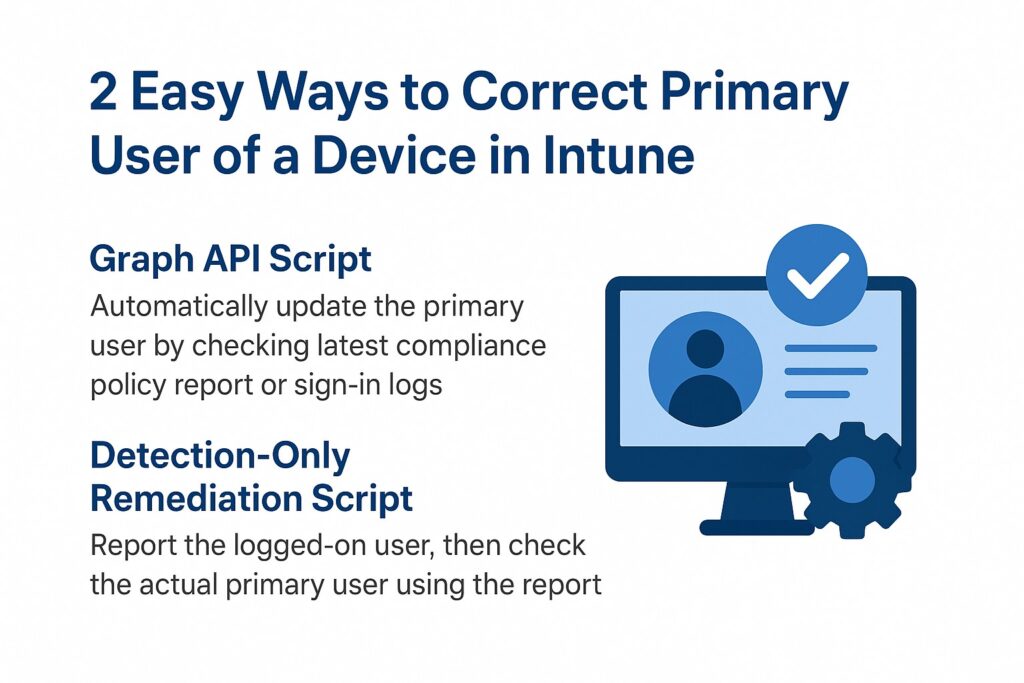
Table of Contents
Always test these scripts on a single, non-production device before applying them broadly. Behavior may vary depending on your environment, Intune configuration, and Graph API changes. Proceed with caution when scaling to multiple devices in production.
Graph API Script
Microsoft Graph API scripts offer a simple yet powerful way to automate tasks in Intune and the broader Microsoft 365 ecosystem. By connecting to Graph, administrators can query device and user information, make updates, and enforce policies at scale. These scripts help reduce manual effort, improve consistency, and provide deep visibility into the environment—all with just a few lines of PowerShell.
Recent Sign-In Logs Script
The script below demonstrates how to automatically correct the primary user of an Intune-managed Windows device by analyzing recent sign-in activity. It connects to Microsoft Graph, retrieves the device’s sign-in logs from the past 30 days, and identifies the user who most frequently signed into the device. If that user differs from the current primary user in Intune, the script updates the assignment accordingly. This approach ensures that device ownership stays aligned with actual usage, reducing administrative overhead and improving accuracy in reporting and licensing.
# Purpose:
#   Determine the most likely primary user for Intune-managed Windows devices by analyzing recent sign-in logs,
#   then update the Intune primary user if it differs. Uses Microsoft Graph PowerShell SDK.
# Prerequisites:
#   - Microsoft Graph PowerShell SDK installed
#   - Required scopes and admin consent: Device.ReadWrite.All, DeviceManagementManagedDevices.ReadWrite.All, Directory.Read.All, AuditLog.Read.All
#   - Test in non-production when using beta endpoints

# Create log directory if it doesn't exist
# ensures a local folder exists to store transcript logs; avoids failures when starting transcript.
$logPath = "C:\Temp"
if (-not (Test-Path $logPath)) {
    New-Item -ItemType Directory -Path $logPath -Force
}

# Start transcript logging with timestamp in filename
# Start-Transcript captures console output and helps troubleshoot run results later.
$timestamp = Get-Date -Format "yyyyMMdd_HHmmss"
$logFile = Join-Path $logPath "UserDeviceAffinity_$timestamp.log"
Start-Transcript -Path $logFile -Force

try {
    Write-Host "Script started at $(Get-Date)"
    Write-Host "Connecting to Microsoft Graph..."

    # Validate required Graph API permissions and connect
    # Connect-MgGraph establishes an authenticated session that subsequent Get-/Invoke-MgGraphRequest calls use.
    $requiredScopes = @(
        "Device.ReadWrite.All",
        "DeviceManagementManagedDevices.ReadWrite.All",
        "Directory.Read.All",
        "AuditLog.Read.All"
    )
    Connect-MgGraph -Scopes $requiredScopes

    Write-Host "Successfully connected to Microsoft Graph"
    Write-Host "Retrieving Windows devices from Intune..."

    # Get all Windows devices in Intune - using filter for performance
    # only process company-owned Windows devices to avoid personal devices (managedDeviceOwnerType eq Company)
    $devices = Get-MgDeviceManagementManagedDevice -Filter "operatingSystem eq 'Windows' and managedDeviceOwnerType eq 'Company'"
    Write-Host "Found $($devices.Count) Windows company-owned devices to process"

    # Process each device
    foreach ($device in $devices) {
        # Device header and basic metadata for traceability
        # prints device name/serial/last sync to help correlate log entries with the Intune console.
        Write-Host "`n----------------------------------------"
        Write-Host "Processing device: $($device.DeviceName)" -ForegroundColor Cyan
        Write-Host "Serial Number: $($device.SerialNumber)"
        Write-Host "Last Sync: $($device.LastSyncDateTime)"

        $deviceId = $device.Id
        $azureDeviceId = $device.AzureADDeviceId

        # Query sign-in logs for last 30 days
        # Comment:
        #   - Uses Audit Log sign-in events to determine which user(s) used the device recently.
        #   - Limits the time window to 30 days to avoid scanning an excessive number of records.
        #   - The sign-in logs are grouped by UserId and the most frequent signer is assumed to be the primary user.
        Write-Host "Querying sign-in logs for the past 30 days..."
        $startDate = (Get-Date).AddDays(-30).ToString("yyyy-MM-ddTHH:mm:ssZ")
        $signinLogs = Get-MgAuditLogSignIn -Filter "deviceDetail/deviceId eq '$azureDeviceId' and createdDateTime ge $startDate"

        if ($signinLogs) {
            Write-Host "Found $($signinLogs.Count) sign-in events"

            # Group by user and sort to get most frequent user
            # Group-Object by UserId builds counts per user; Sort-Object chooses the top candidate.
            $userCounts = $signinLogs | Group-Object -Property UserId | Sort-Object Count -Descending
            $mostFrequentUser = $userCounts[0].Name

            # Get user details for better logging
            # Resolve the Graph user object for nicer UPN output in logs and to obtain the user id if needed.
            $mostFrequentUserDetails = Get-MgUser -UserId $mostFrequentUser
            Write-Host "Most frequent user: $($mostFrequentUserDetails.UserPrincipalName) with $($userCounts[0].Count) sign-ins"

            # Get current primary user details
            # Read the device's current primary user from Intune to compare with the candidate.
            $primaryUser = (Get-MgDeviceManagementManagedDeviceUser -ManagedDeviceId $deviceId).Id
            $primaryUserDetails = Get-MgUser -UserId $primaryUser
            Write-Host "Current primary user: $($primaryUserDetails.UserPrincipalName)"

            # Check if update is needed
            # Comment:
            #   - If the most frequent sign-in user differs from the current primary user, update via Graph.
            #   - The update uses the beta deviceManagement managedDevices/{id}/users/$ref endpoint.
            #   - Note: This operation may require elevated privileges and beta API behavior may change.
            if ($primaryUser -ne $mostFrequentUser) {
                Write-Host "Updating primary user..." -ForegroundColor Yellow

                # Use Graph API beta endpoint to update primary user
                # Note: This endpoint might change when moving to v1.0
                $uri = "https://graph.microsoft.com/beta/deviceManagement/managedDevices/$deviceId/users/`$ref"
                $json = @{ "@odata.id" = "https://graph.microsoft.com/beta/users/$mostFrequentUser" } | ConvertTo-Json

                # Perform the update
                Invoke-MgGraphRequest -Method POST -Uri $uri -Body $json
                Write-Host "Successfully updated device $($device.DeviceName) primary user to $($mostFrequentUserDetails.UserPrincipalName)" -ForegroundColor Green
            } else {
                Write-Host "No update needed - correct primary user already set" -ForegroundColor Green
            }
        } else {
            # No sign-ins found for this device within the configured window
            # In this case, the script does not update the primary user and logs the lack of events.
            Write-Host "No sign-ins found for device $($device.DeviceName) in the last 30 days" -ForegroundColor Yellow
        }
    }

    Write-Host "`nScript completed successfully at $(Get-Date)" -ForegroundColor Green
} catch {
    # Enhanced error handling with more details
    # Comment:
    #   - Provides time, error message, script line, and command to make troubleshooting easier.
    #   - Graph API calls can fail due to permissions, throttling, or network issues.
    Write-Host "An error occurred at $(Get-Date):" -ForegroundColor Red
    Write-Host "Error Message: $($_.Exception.Message)" -ForegroundColor Red
    Write-Host "Line Number: $($_.InvocationInfo.ScriptLineNumber)" -ForegroundColor Red
    Write-Host "Command: $($_.InvocationInfo.MyCommand)" -ForegroundColor Red
} finally {
    # Ensure transcript is stopped even if the script errors
    # Stop-Transcript finalizes the log file and flushes output to disk.
    Stop-Transcript
}
Latest Compliance Policy User Script
This script automates the correction of a device’s primary user in Intune by leveraging compliance report data. It queries the LastContact field from the getDevicePoliciesComplianceReport endpoint to identify which user most recently reported compliance on the device. That user is assumed to be the current active owner, and if they differ from the existing Intune primary user, the script updates the assignment accordingly. This method is efficient, as it avoids scanning large sign-in logs, and provides a quick way to align Intune records with real-world device usage.
# Top-level: describe purpose and prerequisites
# Purpose:
#   - Determine the most-recent user associated with a device by using Intune compliance report "LastContact"
#   - If that user differs from the device's current Intune primary user, update the primary user to the most recent reporter.
# Prerequisites:
#   - Microsoft Graph PowerShell SDK installed and available (Connect-MgGraph, Invoke-MgGraphRequest, Get-MgUser, etc.)
#   - Admin consent for scopes used: Device.ReadWrite.All, DeviceManagementManagedDevices.ReadWrite.All, Directory.Read.All, AuditLog.Read.All
#   - Script executed with sufficient rights; beta Graph endpoints are used (test in non-production)
# Notes:
#   - Script writes a transcript log to C:\Temp by default
#   - Uses device management report endpoint getDevicePoliciesComplianceReport to get per-device "LastContact" timestamps

# Create log directory if it doesn't exist
$logPath = "C:\Temp"
if (-not (Test-Path $logPath)) {
    New-Item -ItemType Directory -Path $logPath -Force
}

# Start transcript logging with timestamp in filename
$timestamp = Get-Date -Format "yyyyMMdd_HHmmss"
$logFile = Join-Path $logPath "UserDeviceAffinity_$timestamp.log"
Start-Transcript -Path $logFile -Force

try {
    # Script start timestamp and initial connect info
    Write-Host "Script started at $(Get-Date)"
    Write-Host "Connecting to Microsoft Graph..."

    # Validate required Graph API permissions and connect
    # we collect scopes into $requiredScopes then call Connect-MgGraph.
    # This will prompt for consent if necessary and create an OAuth session used for subsequent Invoke-MgGraphRequest calls.
    $requiredScopes = @(
        "Device.ReadWrite.All",
        "DeviceManagementManagedDevices.ReadWrite.All",
        "Directory.Read.All",
        "AuditLog.Read.All"
    )
    Connect-MgGraph -Scopes $requiredScopes

    # Successfully connected message and device retrieval
    # we fetch only Windows devices using a server-side filter to keep the dataset smaller.
    Write-Host "Successfully connected to Microsoft Graph"
    Write-Host "Retrieving Windows devices from Intune..."

    # Get all Windows devices in Intune - using filter for performance
    # only process company-owned Windows devices to avoid personal devices
    $devices = Get-MgDeviceManagementManagedDevice -Filter "operatingSystem eq 'Windows' and managedDeviceOwnerType eq 'Company'"
    Write-Host "Found $($devices.Count) Windows devices to process"

    # Process each device
    foreach ($device in $devices) {
        # Separator and device header info for readability in logs
        Write-Host "`n----------------------------------------"
        Write-Host "Processing device: $($device.DeviceName)" -ForegroundColor Cyan
        Write-Host "Serial Number: $($device.SerialNumber)"
        Write-Host "Last Sync: $($device.LastSyncDateTime)"

        $deviceId = $device.Id

        # Get device compliance states (report)
        # we first retrieve the device->user relations (managedDevices/{id}/users) so we can correlate relation rows
        Write-Host "Retrieving compliance states (report query)..." -ForegroundColor Cyan
        $uri = "https://graph.microsoft.com/beta/deviceManagement/managedDevices/$deviceId/users"
        $deviceUsers = (Invoke-MgGraphRequest -Uri $uri -Method GET -ErrorAction SilentlyContinue).value

        if ($deviceUsers) {
            # Build POST payload for getDevicePoliciesComplianceReport
            # This POST returns a schema+values result where LastContact contains the timestamp per policy row.
            #   - We filter by deviceId and common PolicyPlatformType values to reduce noise
            #   - The report returns rows under 'Values' and accompanying 'Schema' describing column order
            $filterValue = "(DeviceId eq '$deviceId') and ((PolicyPlatformType eq '4') or (PolicyPlatformType eq '5') or (PolicyPlatformType eq '6') or (PolicyPlatformType eq '8') or (PolicyPlatformType eq '100'))"
            $body = @{
                select  = @()
                skip    = 0
                top     = 50
                filter  = $filterValue
                orderBy = @("PolicyName asc")
                search  = ""
            } | ConvertTo-Json -Depth 5

            # POST to the reports endpoint that returns Schema + Values
            $reportUri = "https://graph.microsoft.com/beta/deviceManagement/reports/getDevicePoliciesComplianceReport"
            try {
                $reportResp = Invoke-MgGraphRequest -Uri $reportUri -Method POST -Body $body -ErrorAction Stop
            } catch {
                Write-Host "Failed to run compliance report query for device $($device.DeviceName) (id: $deviceId): $($_.Exception.Message)" -ForegroundColor Red
                continue
            }

            # Validate report result exists
            if (-not $reportResp -or -not $reportResp.Values) {
                Write-Host "No report rows returned for device $($device.DeviceName)" -ForegroundColor Yellow
                continue
            }

            # Map Schema column names to numeric indices
            # Schema mapping lets us extract UserId / UPN / LastContact from each Values row without relying on hard-coded order
            $colIndex = @{}
            if ($reportResp.Schema) {
                for ($i = 0; $i -lt $reportResp.Schema.Count; $i++) {
                    $colName = $reportResp.Schema[$i].Column
                    $colIndex[$colName] = $i
                }
            }

            # Build a lookup of the most recent LastContact per user from the Values rows
            # iterates rows, extracts UserId/UPN/LastContact, normalizes datetime, and keeps the latest timestamp per key
            $userLatest = @{}  # key = UserId or UPN, value = datetime

            foreach ($row in $reportResp.Values) {
                # extract columns safely using the mapped indices
                $userId = $null; $upn = $null; $lastContact = $null
                if ($colIndex.ContainsKey("UserId")) { $userId = $row[$colIndex["UserId"]] }
                if ($colIndex.ContainsKey("UPN"))     { $upn    = $row[$colIndex["UPN"]] }
                if ($colIndex.ContainsKey("LastContact")) { $lastContact = $row[$colIndex["LastContact"]] }

                if (-not $lastContact) {
                    # skip rows without timestamp
                    continue
                }

                # normalize datetime
                try { $dt = [datetime]$lastContact } catch { continue }

                # prefer UserId as the key, fallback to UPN
                $key = $userId
                if (-not $key -and $upn) { $key = $upn }

                if ($key) {
                    if (-not $userLatest.ContainsKey($key) -or $dt -gt $userLatest[$key]) {
                        $userLatest[$key] = $dt
                    }
                }
            }

            # Build userComplianceStates by correlating deviceUsers with report lookup
            # Comment:
            #   deviceUsers may include relation-specific ids; the report may include UserId or UPN.
            #   For each device user we attempt multiple candidate matches (relation userId, userPrincipalName, relation id).
            #   If we find a match we resolve a canonical Azure AD id (if possible) and UPN for logging and later update.
            $userComplianceStates = @()
            foreach ($user in $deviceUsers) {
                # collect candidate keys that might match the report (UserId, UPN, the relation id)
                $candidates = @()
                if ($null -ne $user.userId) { $candidates += $user.userId }
                if ($null -ne $user.userPrincipalName) { $candidates += $user.userPrincipalName }
                if ($null -ne $user.id) { $candidates += $user.id }

                # find the first candidate that exists in the report's lookup
                $matchKey = $candidates | Where-Object { $userLatest.ContainsKey($_) } | Select-Object -First 1

                if ($matchKey) {
                    $last = $userLatest[$matchKey]

                    # resolve Azure AD id / UPN for logging and for the update operation
                    $resolvedId = $null
                    $resolvedUpn = $null

                    if ($matchKey -match '^[0-9a-fA-F\-]{36}$') {
                        # likely an Azure AD object id
                        $resolvedId = $matchKey
                        $u = Get-MgUser -UserId $resolvedId -ErrorAction SilentlyContinue
                        if ($u) { $resolvedUpn = $u.UserPrincipalName }
                    } else {
                        # treat as UPN, try to resolve to id
                        $resolvedUpn = $matchKey
                        $u = Get-MgUser -UserId $resolvedUpn -ErrorAction SilentlyContinue
                        if ($u) { $resolvedId = $u.Id }
                    }

                    # if still missing an ID, try using the deviceUsers relation id as a last resort
                    if (-not $resolvedId) { $resolvedId = $user.id }
                    if (-not $resolvedUpn) { $resolvedUpn = $user.userPrincipalName -or "" }

                    $userComplianceStates += [PSCustomObject]@{
                        UserId = $resolvedId
                        UserPrincipalName = $resolvedUpn
                        LastComplianceCheck = $last
                    }
                } else {
                    $display = $user.displayName -or $user.userPrincipalName -or $user.id
                    Write-Host "No LastContact row for user $display / id $($user.id) on device $($device.DeviceName)" -ForegroundColor Yellow
                }
            }

            # Fallback logic:
            # Comment:
            #   - If no deviceUsers matched but the report returned rows, fallback to the most-recent report row overall.
            #   - Try to resolve the report key to an Azure AD user id or UPN; if resolution fails, use the raw key for logging.
            # Fallback: if no deviceUsers matched but the report contains rows, pick the most-recent report row and resolve it
            if (($userComplianceStates.Count -eq 0) -and ($userLatest.Count -gt 0)) {
                $best = $userLatest.GetEnumerator() | Sort-Object Value -Descending | Select-Object -First 1
                $bestKey = $best.Name
                $bestDt = $best.Value

                $resolvedId = $null
                $resolvedUpn = $null
                if ($bestKey -match '^[0-9a-fA-F\-]{36}$') {
                    $resolvedId = $bestKey
                    $u = Get-MgUser -UserId $resolvedId -ErrorAction SilentlyContinue
                    if ($u) { $resolvedUpn = $u.UserPrincipalName }
                } else {
                    # bestKey likely a UPN
                    $resolvedUpn = $bestKey
                    $u = Get-MgUser -UserId $resolvedUpn -ErrorAction SilentlyContinue
                    if ($u) { $resolvedId = $u.Id }
                }

                if (-not $resolvedId) { $resolvedId = $bestKey }    # use bestKey if we cannot resolve
                if (-not $resolvedUpn) { $resolvedUpn = $bestKey }

                $userComplianceStates += [PSCustomObject]@{
                    UserId = $resolvedId
                    UserPrincipalName = $resolvedUpn
                    LastComplianceCheck = $bestDt
                }

                Write-Host "Fallback: using most-recent report user $resolvedUpn / $resolvedId with LastContact $bestDt" -ForegroundColor Cyan
            }

            if ($userComplianceStates -and $userComplianceStates.Count -gt 0) {
                # Select the most recent compliance-check user
                # pick the entry with the latest LastComplianceCheck datetime
                $mostRecentUser = $userComplianceStates |
                    Sort-Object -Property LastComplianceCheck -Descending |
                    Select-Object -First 1

                Write-Host "Found compliance LastContact for users:"
                $userComplianceStates | Format-Table -AutoSize

                # Get current primary user details from Intune
                # we fetch the managed device's current primary user via Get-MgDeviceManagementManagedDeviceUser
                #   and then resolve that id to a UserPrincipalName for clear logging.
                $primaryUser = (Get-MgDeviceManagementManagedDeviceUser -ManagedDeviceId $deviceId).Id
                $primaryUserDetails = Get-MgUser -UserId $primaryUser
                Write-Host "Current primary user: $($primaryUserDetails.UserPrincipalName)"

                # Check update decision
                # Comment:
                #   - Compare the managed device primary user id to the resolved mostRecentUser.UserId.
                #   - If different, POST to the device users/$ref endpoint to set the primary user (beta endpoint).
                #   - Log successes and failures; the update uses the beta Graph API path documented earlier.
                if ($primaryUser -ne $mostRecentUser.UserId) {
                    Write-Host "Updating primary user..." -ForegroundColor Yellow

                    $uri = "https://graph.microsoft.com/beta/deviceManagement/managedDevices/$deviceId/users/`$ref"
                    $json = @{
                        "@odata.id" = "https://graph.microsoft.com/beta/users/$($mostRecentUser.UserId)"
                    } | ConvertTo-Json

                    # Perform the update
                    Invoke-MgGraphRequest -Method POST -Uri $uri -Body $json
                    Write-Host "Successfully updated device $($device.DeviceName) primary user to $($mostRecentUser.UserPrincipalName)" -ForegroundColor Green
                } else {
                    Write-Host "No update needed - correct primary user already set" -ForegroundColor Green
                }
            } else {
                # No user compliance timestamps found for this device
                # if no LastContact rows matched for any device user and no fallback was possible, we log and skip updating this device.
                Write-Host "No users on device had LastContact timestamps" -ForegroundColor Yellow
            }
        } else {
            # No users associated with device
            # device has no associated users in Intune (no relation records); nothing to compare/update.
            Write-Host "No users associated with device $($device.DeviceName)" -ForegroundColor Yellow
        }
    }

    # Script completion summary
    # prints final timestamp; transcript will be stopped in finally block
    Write-Host "`nScript completed successfully at $(Get-Date)" -ForegroundColor Green
} catch {
    # Error handling and diagnostics
    # Comment:
    #   - Provide timestamped error messages, exception text, script line number and the failing command for easier troubleshooting.
    #   - Exceptions could arise from Graph call failures, network issues, or permission problems.
    Write-Host "An error occurred at $(Get-Date):" -ForegroundColor Red
    Write-Host "Error Message: $($_.Exception.Message)" -ForegroundColor Red
    Write-Host "Line Number: $($_.InvocationInfo.ScriptLineNumber)" -ForegroundColor Red
    Write-Host "Command: $($_.InvocationInfo.MyCommand)" -ForegroundColor Red
} finally {
    # Ensure transcript is stopped even if the script errors
    # Stop-Transcript call ensures the log file is finalized and can be reviewed after script execution.
    Stop-Transcript
}
Detection Only Remediations Script to get the currently logged in user
The Detection-Only Remediation Script is designed to identify the currently logged-in user on a Windows device without relying on Microsoft Graph. Instead, it runs locally and gathers information from sources like Windows Identity, WMI, dsregcmd, and the registry to provide a detailed summary of the active user session. This makes it a lightweight yet powerful tool for validation or reporting, helping administrators confirm who is actually using a device at the time the script runs.
<#
.SYNOPSIS
  Determine the currently logged-in user on this Windows device (local run) and print a detailed summary.
.NOTES
  - Designed to run locally on the endpoint; does not call Microsoft Graph.
  - Uses dsregcmd and WMI/CIM as data sources and includes fallbacks.
  - Writes a transcript log to C:\Temp for troubleshooting.
#>

# Create log directory and start transcript (consistent with other scripts)
# Ensures a local directory exists for logs and starts PowerShell transcript for debugging.
$logPath = "C:\Temp"
if (-not (Test-Path $logPath)) {
    New-Item -ItemType Directory -Path $logPath -Force | Out-Null
}
$timestamp = Get-Date -Format "yyyyMMdd_HHmmss"
$logFile = Join-Path $logPath "CheckLoggedInUser_$timestamp.log"
Start-Transcript -Path $logFile -Force

try {
    # Header
    # Prints a timestamped start message to indicate script execution.
    Write-Host "Starting local logged-in user check at $(Get-Date)" -ForegroundColor Cyan

    # Basic host info
    # Retrieves hostname and OS version for context in the summary.
    $hostname = $env:COMPUTERNAME
    $os = (Get-CimInstance -ClassName Win32_OperatingSystem -ErrorAction SilentlyContinue).Caption

    # Primary identity using .NET (returns DOMAIN\username for the interactive user)
    # Uses WindowsIdentity to get the current user's SAM account (e.g., DOMAIN\user) and SID.
    $winIdentity = [System.Security.Principal.WindowsIdentity]::GetCurrent()
    $samAccount = $winIdentity.Name          # e.g. CONTOSO\alice
    $sid = $winIdentity.User.Value

    # Use dsregcmd to extract AzureAd join state and device ID
    # Runs dsregcmd /status to get Azure AD join info and device ID if available.
    $dsreg = $null
    $isAzureAdJoined = $false
    $dsregDeviceId = $null
    try {
        $dsregRaw = dsregcmd /status 2>$null
        if ($dsregRaw) {
            $dsreg = $dsregRaw -split "`r?`n"
            # Parse common useful values
            # Parses the output to extract Azure AD join status and device ID.
            foreach ($line in $dsreg) {
                $trim = $line.Trim()
                if ($trim -match "AzureAdJoined\s*:\s*YES") { $isAzureAdJoined = $true }
                if ($trim -match "DeviceId\s*:\s*([0-9a-fA-F\-]{36})") { $dsregDeviceId = $matches[1].Trim() }
            }
        }
    } catch {
        # dsregcmd may not be present or available on older SKUs; ignore parsing errors
        # Silently handles cases where dsregcmd is not available.
    }

    # Additional fallback: Win32_ComputerSystem Username property
    # Uses WMI to get the username as a backup if .NET identity fails.
    $wmiUser = $null
    try {
        $wmiUser = (Get-CimInstance -ClassName Win32_ComputerSystem -ErrorAction SilentlyContinue).UserName
        if (-not $samAccount -and $wmiUser) { $samAccount = $wmiUser }
    } catch { }

    # Fallback: Query the Registry for the UPN of the logged-in user by comparing SAMName
    # Dynamically searches the IdentityStore registry for the logged-in user's UPN by matching SAMName.
    $registryUserUPN = $null
    try {
        Write-Host "Querying Registry for logged-in user's UPN dynamically..." -ForegroundColor Yellow
        $identityStoreBasePath = "HKLM:\SOFTWARE\Microsoft\IdentityStore\Cache"
        if (Test-Path $identityStoreBasePath) {
            # Get all SID-based folders under Cache
            # Enumerates SID folders in the registry cache.
            $sidFolders = Get-ChildItem -Path $identityStoreBasePath -ErrorAction SilentlyContinue
            Write-Host "Found $($sidFolders.Count) SID folders in IdentityStore Cache" -ForegroundColor Yellow

            foreach ($sidFolder in $sidFolders) {
                # Look for IdentityCache subfolder
                # Checks for the IdentityCache subfolder under each SID.
                $identityCachePath = Join-Path $sidFolder.PSPath "IdentityCache"
                if (Test-Path $identityCachePath) {
                    Write-Host "Checking IdentityCache in: $($sidFolder.Name)" -ForegroundColor Yellow
                    $identityKeys = Get-ChildItem -Path $identityCachePath -ErrorAction SilentlyContinue

                    foreach ($key in $identityKeys) {
                        try {
                            # Read SAMName and UserName from the registry key
                            # Retrieves SAMName and UserName values from each registry key.
                            $regProperties = Get-ItemProperty -Path $key.PSPath -ErrorAction SilentlyContinue
                            $samName = $regProperties.SAMName
                            $userName = $regProperties.UserName

                            Write-Host "Checking key: $($key.Name), SAMName: '$samName', UserName: '$userName'" -ForegroundColor Yellow

                            # Compare SAMName with the SAMAccount from other methods
                            # Compares the registry SAMName with the determined SAM account (handling domain prefixes).
                            $samAccountToCompare = $samAccount
                            if ($samAccount -and $samAccount.Contains('\')) {
                                $samAccountToCompare = $samAccount.Split('\')[1]  # Get just the username part
                            }

                            if ($samName -and ($samName -eq $samAccount -or $samName -eq $samAccountToCompare)) {
                                $registryUserUPN = $userName
                                Write-Host "Match found in Registry: SAMName='$samName', UserName='$userName'" -ForegroundColor Green
                                break
                            }
                        } catch {
                            Write-Host "Failed to read registry key: $($key.PSPath). Error: $($_.Exception.Message)" -ForegroundColor Red
                        }
                    }

                    if ($registryUserUPN) { break }
                }
            }
        }

        if (-not $registryUserUPN) {
            Write-Host "No matching SAM account found in registry. SAM Account to match: '$samAccount'" -ForegroundColor Yellow
        }
    } catch {
        Write-Host "Failed to query Registry for UPN dynamically: $($_.Exception.Message)" -ForegroundColor Red
    }

    # Update determination if Registry provided a user
    # Sets the determined user if registry query succeeded.
    if ($registryUserUPN -and -not $determinedUser) {
        $determinedUser = $registryUserUPN
        $method = "Registry (IdentityStore, dynamic)"
    }

    # Build details object with collected facts
    # Compiles all gathered information into a hashtable for the summary.
    $details = [ordered]@{
        HostName           = $hostname
        OS                 = $os
        SAMAccount         = $samAccount
        SID                = $sid
        AzureADJoined      = $isAzureAdJoined
        DSREG_DeviceId     = $dsregDeviceId
        RegistryUserUPN    = $registryUserUPN
    }

    # Decide best determination and method (update to prioritize registry UPN)
    # Prioritizes registry UPN, then SAM account as fallbacks.
    if ($details.RegistryUserUPN) {
        $determinedUser = $details.RegistryUserUPN
        $method = "Registry (IdentityStore, dynamic)"
    } elseif ($details.SAMAccount) {
        $determinedUser = $details.SAMAccount
        $method = "WindowsIdentity (SAM)"
    } else {
        $determinedUser = "<Unknown>"
        $method = "None"
    }

    # Final detailed summary
    # Builds and displays a formatted summary of all collected data.
    $finalOutput = @"
===== Logged-in user determination summary =====
Host:            $($details.HostName)
OS:              $($details.OS)
DeterminedUser:  $determinedUser
Method:          $method
SAM Account:     $($details.SAMAccount)
SID:             $($details.SID)
AzureAD Joined:  $($details.AzureADJoined)
DSREG DeviceId:  $($details.DSREG_DeviceId)
Registry UPN:    $($details.RegistryUserUPN)
===== End summary =====
"@

    Write-Host $finalOutput -ForegroundColor Cyan

} catch {
    # Error handling and diagnostics
    # Catches and displays any errors during execution.
    Write-Host "An error occurred during local determination: $($_.Exception.Message)" -ForegroundColor Red
} finally {
    # Ensure transcript is stopped even if the script errors
    # Stops the transcript to finalize the log file.
    Stop-Transcript
}

# Outputs the final summary again after transcript stop for visibility.
Write-Host $finalOutput
Final Remark
Correcting the primary user in Intune is essential to keep ownership, compliance, and reporting accurate. Whether you choose the automated approach with Graph API scripts or the lighter detection-only remediation script, each method has its place depending on your needs. The Graph API path is ideal when you want to automate updates and reduce manual work, while the remediation script is better suited for quick validation or troubleshooting scenarios. By combining these techniques, administrators can maintain cleaner device records, ensure licensing accuracy, and improve the overall Intune management experience.
References and Documentation
- Primary users on Microsoft Intune devices
- Microsoft Graph PowerShell
- Get started with the Microsoft Graph PowerShell SDK
- What are Microsoft Entra sign-in logs?