Easily block Personal Devices Enrollment in Intune
In this short post we will explore how to block personal devices enrollment and allow only corporate identified devices to enroll in an Intune tenant.
In modern device management, securing your environment starts with controlling what types of devices can enroll into your MDM solution. With Microsoft Intune, organizations often want to block personally owned Windows devices while allowing only corporate-owned devices to enroll.
However, misconfiguring this (or not configuring it at all) can lead to frustration and failed enrollments — especially when dealing with Autopilot or manually joined devices. This blog post outlines a proper way to enforce personal device restrictions, and how to allow exceptions.
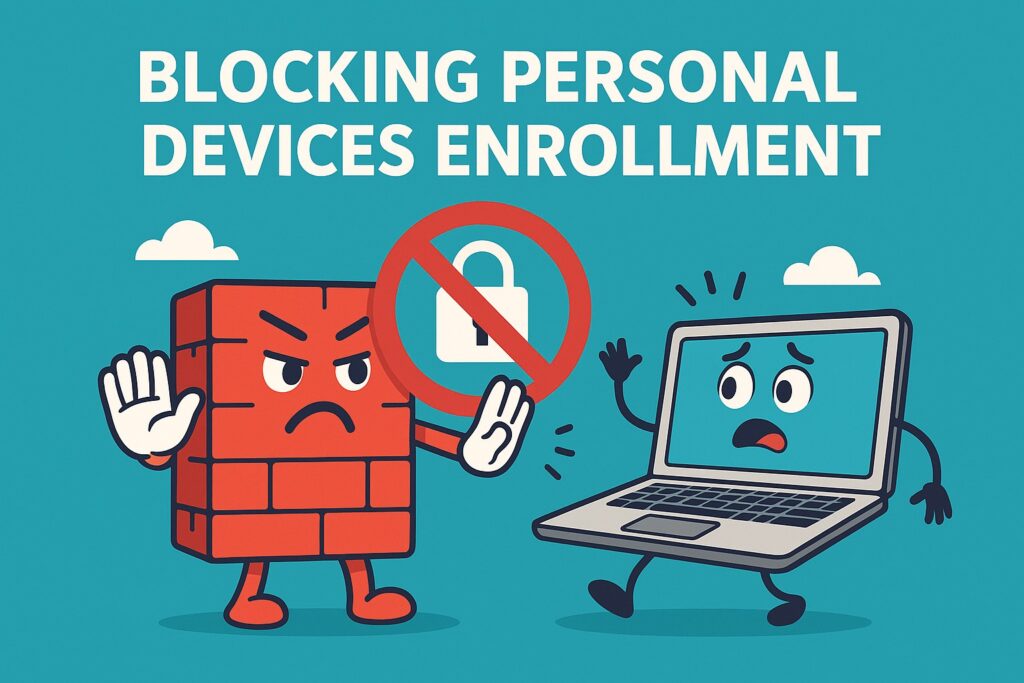
Table of Contents
The Challenge: Block Personal Devices Enrollment Without Blocking Corporate Ones
A common use case in Intune is to prevent users from enrolling their personal Windows 10/11 devices, unless they’re part of a corporate-approved onboarding process.
You might think uploading a device to Autopilot or joining it to Entra ID marks it as “corporate” — but that’s not the full story.
Why Block Personal Devices from Enrolling in Intune?
Blocking personal device enrollment in Microsoft Intune isn’t just a matter of preference — it’s a crucial security and compliance strategy for many organizations. Here’s why:
1. Protect Corporate Data
When personal (BYOD) devices are enrolled, they can gain access to sensitive company data — often without the same controls or visibility you’d have on corporate-owned hardware. Blocking personal enrollment helps ensure data stays within trusted, managed devices.
2. Reduce Attack Surface
Personal devices often lack corporate security configurations (e.g., disk encryption, antivirus, app restrictions). By preventing their enrollment, you reduce the risk of malware infections, data leaks, or compliance violations.
3. Maintain IT Control
Corporate devices can be pre-configured, monitored, and remotely wiped if lost or compromised. With personal devices, users might object to heavy-handed policies. Blocking personal enrollment ensures IT retains full control over every device in the ecosystem.
4. Simplify Compliance & Auditing
Regulations like GDPR, HIPAA, or ISO 27001 often require clear asset ownership, data protection, and device management. Blocking personal enrollment makes it easier to prove compliance during audits by showing only approved, managed endpoints are allowed.
5. Streamline Device Management
Managing a mix of corporate and personal devices creates complexity — different policies, support expectations, and ownership boundaries. Focusing only on corporate-owned devices simplifies device lifecycle management and reduces support costs.
Let’s Block Personal Devices
Here’s how you should approach this, step-by-step:
Step 1: Configure Platform Restrictions
Navigate to:
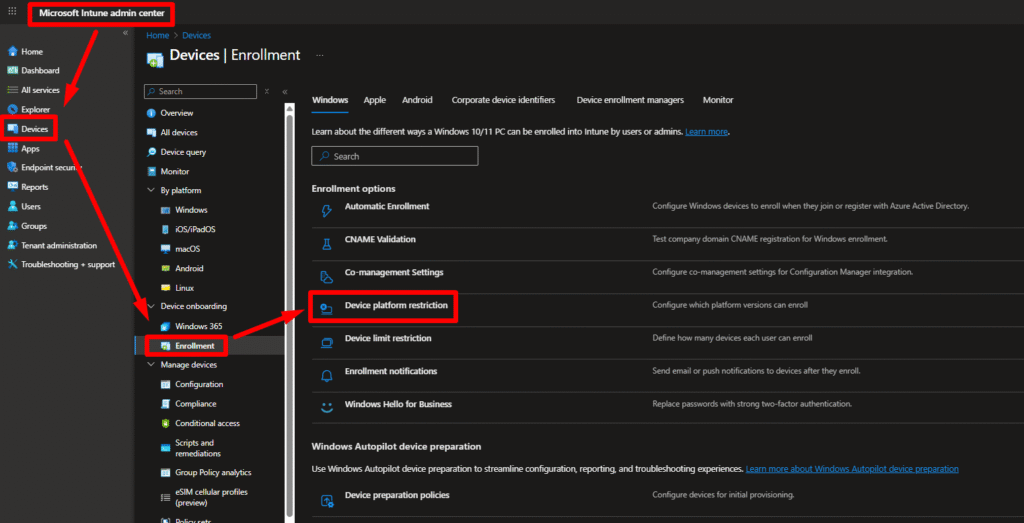
Microsoft Intune Admin Center > Devices > Enrollment > Enrollment restrictions > Device platform restrictions
- Create a new one with highest priority or modify the default policy.
- Set Personally owned to “Block” for Windows.
- Apply the restriction broadly (e.g., All Users or All Devices).
Below are presented the steps to block the enrollment of personal Windows devices:
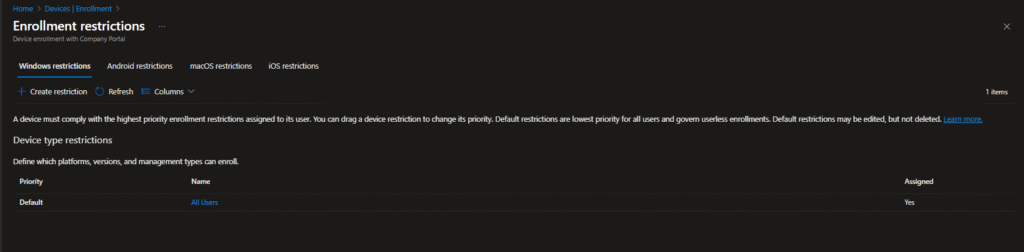
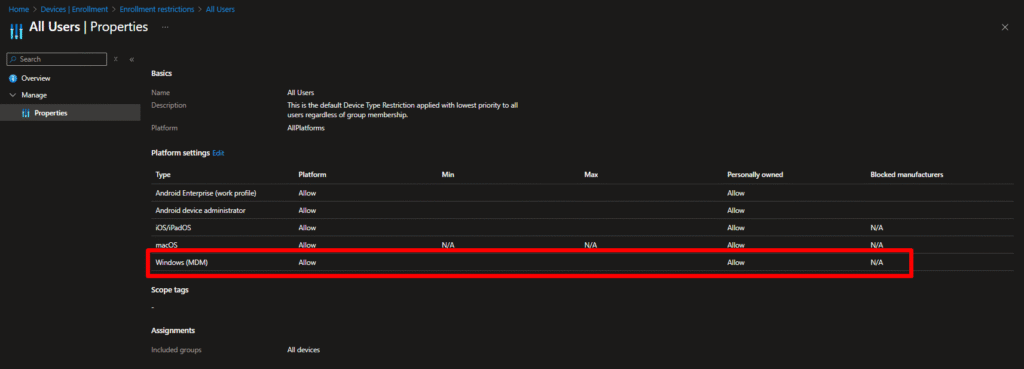
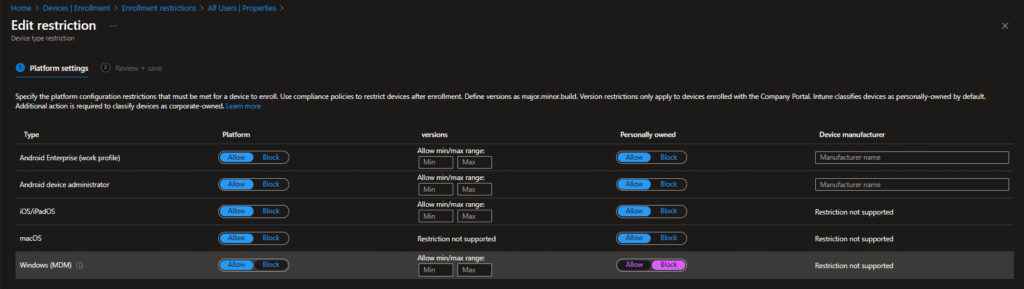
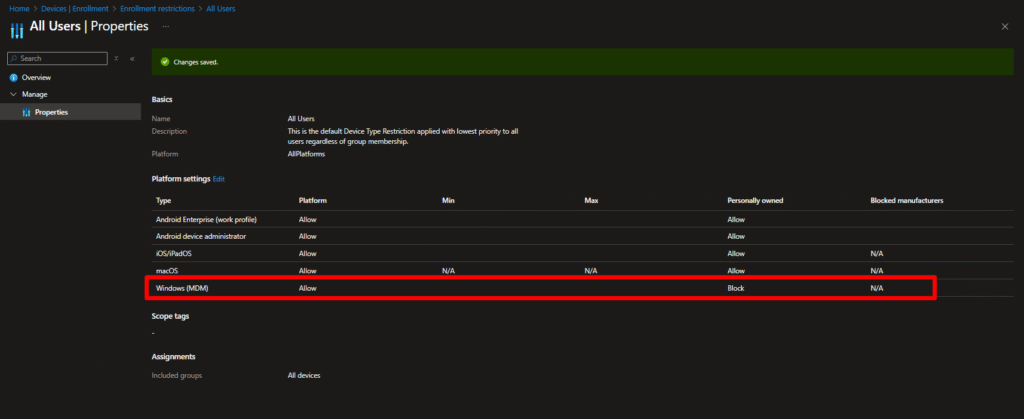
This ensures that only corporate-owned devices can enroll.
Step 2: Use Windows Autopilot
Use the Get-WindowsAutopilotInfo script to register the device with Autopilot (check also my other guide on Autopilot preparation):
- This script generated the device hardware hash. Upload it to Autopilot after the generation.
- Deploy Autopilot profiles to configure the enrollment experience.
- Make sure the device goes through OOBE with the Autopilot profile for Autopilot enrollment to succeed.
Devices enrolled through Autopilot are automatically treated as corporate-owned.
Step 3: Use Corporate Device Identifiers for Non-Autopilot Scenarios
For devices that (for specific reasons) you cannot extract the Hardware Hash:
- Go to Devices > Enroll devices > Corporate device identifiers
- Upload the serial numbers of those devices
- Intune will treat those devices as corporate, even if enrolled manually via Access Work or School
This is a key workaround when you can’t use Autopilot but still want to enforce corporate-only enrollment.
Important Note: You cannot exclude devices from a block policy using filters — so use allow policies with highest priority scoped to specific groups instead, in order to allow enrollment of personal devices e.g. for specific users.
Test Drive
If we apply the above policy and then try to enroll a device, that does not have the Hardware Hash uploaded, we get the error code “80180014” depicted in the below image.
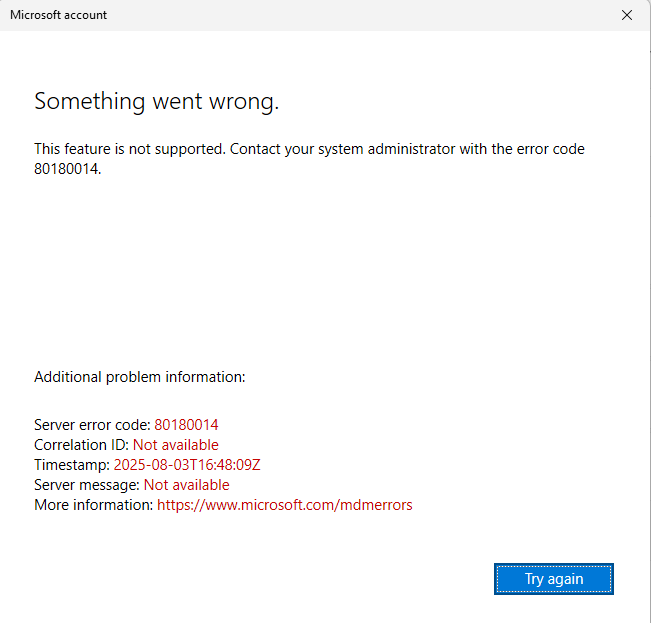
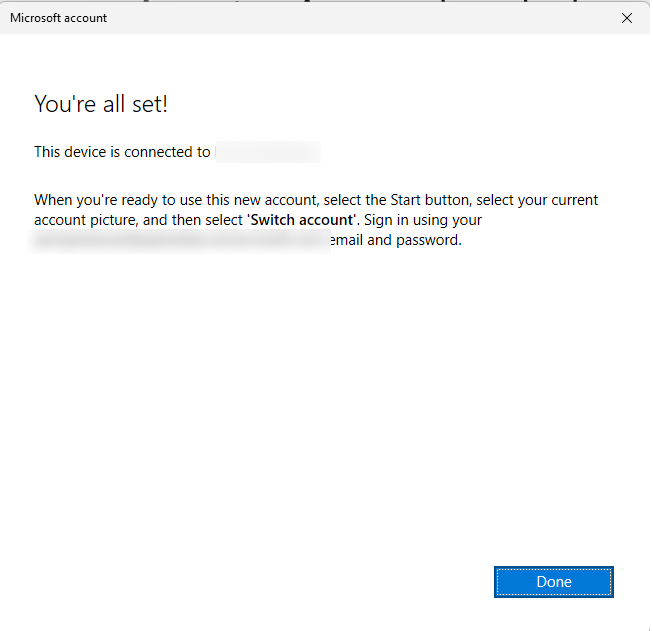
Now if we upload the Hardware Hash of the device into Autopilot and re-try to enroll the device again, we get a successful enrollment.
Conclusion
If your goal is to block personal devices in Intune while still allowing corporate-owned devices to enroll, the best route is:
- Use Device Platform Restrictions to block personal devices
- Use Windows Autopilot and Hardware Hash for corporate provisioning
- Use Corporate Device Identifiers for non-Autopilot corporate devices
This approach ensures a secure, compliant environment — without enrollment headaches.
References and Documentation
- What are enrollment restrictions?
- New Windows corporate device identifier feature with Microsoft Intune: Everything you need to know
- Manually register devices with Windows Autopilot
- Get-WindowsAutoPilotInfo
Other Interesting Posts