Mastering the amazing device extension attributes
In this practical, enterprise-grade guide we will explore how to tag devices for pilots, rings, and dynamic targeting using extension attributes. When you manage a large device estate in Microsoft Entra ID, the hardest part of “safe change” isn’t creating policies—it’s targeting the right subset of devices without turning group membership into a manual, error-prone process.
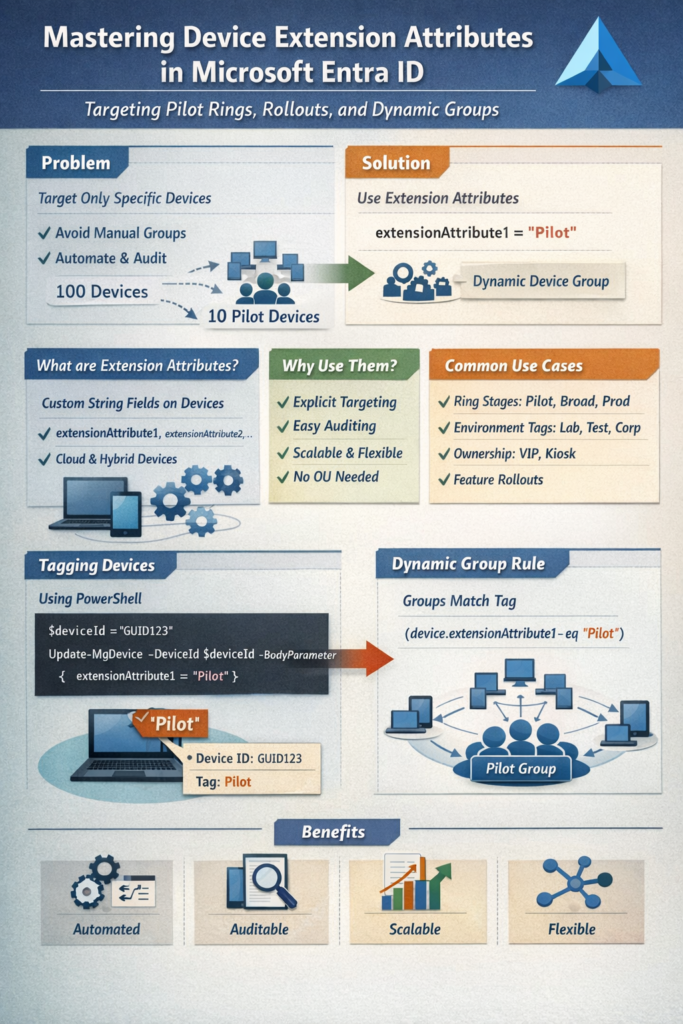
A proven enterprise pattern is:
- Tag the devices you want using device extension attributes (for example:
extensionAttribute1 = "Pilot"), then - Use a dynamic device group that includes only devices matching that tag.
Of course there are other ways too, but in this post we will explore device extension attributes and their usage.
This approach is scalable, auditable, and perfect for pilot rings, phased rollouts, controlled testing, or environment segmentation.
Table of Contents
What are device extension attributes?
Microsoft Entra device objects include an extensionAttributes property (based on the Microsoft Graph type onPremisesExtensionAttributes) that provides 15 predefined string fields:
extensionAttribute1…extensionAttribute15- Each attribute can store up to 1024 characters
- These are also commonly referred to as Exchange custom attributes 1–15
For devices, these attributes are managed in Entra during device creation or update.
Why use device extension attributes?
Dynamic groups don’t decide which devices are “special”—they only evaluate attributes. So the clean design is:
Explicitly mark devices → let the dynamic group evaluate the marker.
What you get with this pattern
- Explicit intent: “This device is Pilot” is a deliberate tag, not a naming trick.
- Auditability: You can answer “why is this device targeted?” by checking one attribute.
- Scalability: The group rule stays stable; only the tag changes as you expand rings.
- Less fragility: No dependency on OU placement, renames, or “PC-*” conventions.
- Supported in dynamic device rules:
device.extensionAttribute1..15are supported device properties for dynamic membership rules.
Common use cases
- Rollout rings:
Pilot→Broad→Prod - Environment tags:
Lab/Test/Corp - Ownership markers:
SharedKiosk,VIP,Loaner - Operational scopes:
MDE-Pilot,FeatureUpdate-24H2,Hardening-Ring1
Licensing note for dynamic groups
Dynamic membership groups require Microsoft Entra ID P1 licensing (for the tenant’s usage model). Microsoft’s guidance notes licensing is required for users participating in dynamic groups, while devices themselves don’t require licenses when the group is device-based.
Step 1 — Choose a tagging model (keep it boring and consistent)
Pick one attribute as your “ring” attribute (example: extensionAttribute1) and standardize values:
| Rollout stage | extensionAttribute1 |
|---|---|
| Pilot | Pilot |
| Early adopters | Broad |
| Production | Prod |
Why this works: the group logic never changes, only the value on devices.
Step 2 — Set extension attributes using Microsoft Graph PowerShell
You can find everything on my GitHub page too.
Permissions
To update devices with Microsoft Graph, you typically use Device.ReadWrite.All (and sometimes Directory.ReadWrite.All, depending on how you authenticate/operate).
Note: Microsoft Graph’s device update behavior includes constraints. For example, in app-only scenarios and for non-Windows devices, the app can update only
extensionAttributes.
Before you apply this approach broadly, always validate it in a safe test or pilot scope first. Even though extension attributes and dynamic groups are straightforward, a small mistake (wrong attribute number, wrong value, or an overly broad dynamic rule) can quickly expand targeting beyond what you intended. Start with a handful of non-critical test devices, confirm that the attribute is written correctly, verify group membership evaluation, and only then promote the same logic into production rings. Treat each rollout stage as a controlled checkpoint (Pilot → Broad → Prod), and only move forward once monitoring and user impact look clean.
Tag a single device (Pilot example)
# ===============================
# Tag a device for Pilot rollout
# (using Entra ID deviceId as input)
# ===============================

# Connect (admin consent required for the scopes)
Connect-MgGraph -Scopes "Device.ReadWrite.All","Directory.ReadWrite.All"

# Entra ID deviceId (GUID) - this is the "Device ID" property on the device object
# Example: d4fe7726-5966-431c-b3b8-cddc8fdb717d
$entraDeviceId = "d4fe7726-5966-431c-b3b8-cddc8fdb717d"

# Look up the device by deviceId (GUID)
$device = Get-MgDevice -Filter "deviceId eq '$entraDeviceId'"

if (-not $device) {
    throw "Device with deviceId '$entraDeviceId' not found in Microsoft Entra ID."
}

# If you want to be extra safe in case of unexpected duplicates:
if ($device.Count -gt 1) {
    throw "Multiple devices found for deviceId '$entraDeviceId'. This should not happen—verify the value."
}

$params = @{
    extensionAttributes = @{
        extensionAttribute1 = "Pilot"
    }
}

# IMPORTANT: Update-MgDevice requires the Entra object Id (device.Id), not the deviceId GUID
Update-MgDevice -DeviceId $device.Id -BodyParameter $params

Write-Host "Device '$($device.DisplayName)' (deviceId: $entraDeviceId) successfully tagged as Pilot."
The update itself is a standard Graph “update device” operation.
Step 3 — Read back extension attributes
In Graph PowerShell, extension attributes may surface under AdditionalProperties depending on the SDK version and selected properties.
Connect-MgGraph -Scopes "Device.Read.All","Directory.Read.All"

# Entra ID deviceId (GUID) - the "Device ID" property on the device object
$entraDeviceId = "d4fe7726-5966-431c-b3b8-cddc8fdb717d"

# Look up the device by deviceId
$device = Get-MgDevice -Filter "deviceId eq '$entraDeviceId'" | Select-Object *

if (-not $device) {
    throw "Device with deviceId '$entraDeviceId' not found in Microsoft Entra ID."
}

# Optional safety check
if ($device.Count -gt 1) {
    throw "Multiple devices found for deviceId '$entraDeviceId'. Verify the value."
}

# Output extension attributes
$device.AdditionalProperties["extensionAttributes"] | Format-List
Step 4 — Clear/remove an attribute value
If you want to remove a device from a ring, clear the attribute.
# Clear/remove a device extension attribute (using Entra ID deviceId as input)

$entraDeviceId  = "d4fe7726-5966-431c-b3b8-cddc8fdb717d"   # Device ID (GUID)
$attributeName  = "extensionAttribute1"

Connect-MgGraph -Scopes "Device.ReadWrite.All","Directory.ReadWrite.All"

# Look up the device by deviceId (GUID)
$device = Get-MgDevice -Filter "deviceId eq '$entraDeviceId'"

if (-not $device) {
    throw "Device with deviceId '$entraDeviceId' not found in Microsoft Entra ID."
}

# Optional safety check
if ($device.Count -gt 1) {
    throw "Multiple devices found for deviceId '$entraDeviceId'. Verify the value."
}

$params = @{
    extensionAttributes = @{
        $attributeName = ""
    }
}

# IMPORTANT: Update-MgDevice requires the Entra object Id (device.Id), not the deviceId GUID
Update-MgDevice -DeviceId $device.Id -BodyParameter $params

Write-Host "Attribute '$attributeName' cleared for device '$($device.DisplayName)' (deviceId: $entraDeviceId)."
Step 5 — Create the dynamic device group
Now the group becomes simple and deterministic.
Recommended membership rule (generic Entra devices)
(device.extensionAttribute1 -eq "Pilot")
This is officially supported syntax for device rules.
Useful variants (optional)
You can combine the tag with other device properties to keep targeting clean:
- Pilot + Windows only
(device.extensionAttribute1 -eq "Pilot") -and (device.deviceOSType -eq "Windows") - Pilot + company-owned
(device.extensionAttribute1 -eq "Pilot") -and (device.deviceOwnership -eq "Company")
Those properties are part of the supported device attribute set for dynamic rules.
Bulk tagging (the real-world version)
For pilots, you often start from a list (CSV) of device identifiers. Best practice: use Entra deviceId (GUID) where possible (it’s an explicit device property you can also use in rules).
Example CSV (devices.csv):
deviceId,ring
d4fe7726-5966-431c-b3b8-cddc8fdb717d,Pilot
11111111-2222-3333-4444-555555555555,Pilot
Bulk script:
Connect-MgGraph -Scopes "Device.ReadWrite.All","Directory.ReadWrite.All"

$csv = Import-Csv "C:\Temp\devices.csv" -Delimiter ","

foreach ($row in $csv) {
    $aadDeviceId = $row.deviceId
    $ringValue   = $row.ring

    $device = Get-MgDevice -Filter "deviceId eq '$aadDeviceId'"

    if (-not $device) {
        Write-Warning "DeviceId '$aadDeviceId' not found. Skipping."
        continue
    }

    $params = @{
        extensionAttributes = @{
            extensionAttribute1 = $ringValue
        }
    }

    Update-MgDevice -DeviceId $device.Id -BodyParameter $params
    Write-Host "Tagged $($device.DisplayName) ($aadDeviceId) => $ringValue"
}
Governance and best practices
- Define a taxonomy (allowed values) and stick to it:
Pilot,Broad,Prodbeatspilot-ring-1,test123,ParisLaptop. - Use one attribute per concept (don’t overload
extensionAttribute1with both “Ring” and “Location”). - Prefer stable identifiers (deviceId/objectId) in automation—
displayNameis human-friendly but not guaranteed unique. - Document your meaning: a 2-line internal doc like “extensionAttribute1 = RolloutRing” saves months later.
Summary
Device extension attributes are one of the cleanest ways to implement explicit device targeting in Entra ID:
- Tag devices with
extensionAttributeX - Create dynamic groups that evaluate
device.extensionAttributeX - Scale from 10 pilot devices to enterprise ring models without changing your group logic
Also, device extension attributes are useful for far more than just dynamic group creation for deployments. They can serve as lightweight device metadata that improves operational clarity across teams—for example: tagging environment (Lab, Corp), ownership or persona (Kiosk, Shared, VIP), support tier (Tier1, Tier2), location/cost center, migration waves, or even flags like “Exclude from baseline” for special cases.
In practice, they become an easy-to-audit “labeling system” on the Entra device object that you can query, report on, and automate through Graph—helping you standardize device classification and reduce ambiguity in day-to-day management.