Azure Function Intune Automation: An interesting Cloud-Only Architecture
This is Part 2 in the series on automating Intune device group membership beyond what dynamic rules can express using an Azure Function and Graph API. In Part 1, we covered the gap itself; this post walks through the actual Azure Function Intune automation architecture behind it: a cloud-only design that runs entirely inside the Entra ID tenant, with nothing installed on the endpoint.
In the last post we landed on the pattern this series is building: a scheduled job that reads Intune’s own device inventory through Microsoft Graph and populates (or removes) devices from a static group based on a condition, without anything running on the device itself. That’s a clean sentence to write. Actually running it means answering a handful of very concrete questions: where does this job run, how does it prove its identity to Graph, and what stops the credential it uses from becoming its own security problem. This post is those answers.
Table of Contents
Why cloud-only, and what that actually buys you
It’s worth separating two things that get confused in “automate based on installed software”: collecting the signal, and acting on it.
Acting on it (deciding a device qualifies, adding or removing it from a group) is always going to happen somewhere central, because group membership is a tenant-wide object, not a device-local one.
Collecting the signal is the part people assume needs a device-side script, and for this specific case, it doesn’t. Intune already inventories installed applications on every managed device as part of its normal check-in cycle, and that inventory is fully queryable through Graph’s detectedApps endpoint. So an Azure Function on a timer can just ask Graph “which devices currently have this installed,” the same question a remediation script running locally would have to answer itself, without deploying anything new to a single machine. We could also expand this one using Defender for Endpoint inventory, but that’s a more complex process for a later post.
That’s the whole argument for cloud-only in one line: if the fact you need already exists in Graph, adding a device-side script to also go collect it is redundant work with extra attack surface for no benefit.
This pattern isn’t just for installed software
Everything so far has used “has this app installed” as the running example, because it’s concrete and it’s the exact gap Part 1 opened with. But nothing about the architecture itself is specific to detectedApps. The Function doesn’t actually care what question it’s asking Graph, only that the answer comes back as a set of device IDs to diff against a group. Swap the Graph query, and the same timer, Managed Identity, Key Vault, and diffing logic works for any device fact Graph already knows about.
| Condition to group on | Where it comes from in Graph | Example use case |
|---|---|---|
| Installed application | deviceManagement/detectedApps | Gate a migration wave on an app being removed |
| Compliance state | managedDevices property complianceState | Pull non-compliant devices into a group for a follow-up campaign |
| OS version or build | managedDevices property osVersion | Track real adoption of a specific Windows or macOS release |
| Autopilot profile assignment status | deviceManagement/windowsAutopilotDeviceIdentities | Find devices still waiting on profile assignment |
| A value written by an entirely different system | extensionAttribute1-15 on the device object | The bridge pattern from Part 1, now automatable from the cloud too |
The only two things that actually change when you retarget this at a different property: the Graph query in the “find matching devices” step, and, occasionally, the app registration’s permission scope. DeviceManagementManagedDevices.Read.All already covers most fields on the managed device object, so compliance state or OS version need nothing extra.
The four pieces, and why each one exists
Four components make up the actual architecture, and each one has a single, specific job:
A timer-triggered Azure Function. Consumption plan, PowerShell 7.4, no endpoint dependency. This is the thing that wakes up on a schedule and does the work, currently every 2 days, tunable depending on how quickly you need group membership to reflect reality.
A system-assigned Managed Identity, scoped to Key Vault only. The Function’s own identity in Entra. It has exactly one job: read one secret from Key Vault. It cannot call Microsoft Graph, and it doesn’t need to.
An app registration with Application permissions, admin-consented once. This is the identity that actually has Graph permissions: for the installed-software example running through this series, that’s DeviceManagementManagedDevices.Read.All, Device.Read.All, GroupMember.ReadWrite.All, though exactly which permissions you need shifts with whatever property you’re actually targeting, per the table above. Its client secret lives in Key Vault, never in code, never on disk.
Microsoft Graph itself, the only thing that can see both Intune’s device inventory and Entra’s group membership at once, which is exactly why every design here routes through it rather than trying to bridge the two systems any other way.
Why keep an app registration and Key Vault in a single tenant
Here’s a fair question, since this is a single-tenant setup: a system-assigned Managed Identity can, in principle, be granted Graph API permissions directly, with no app registration, no client secret, and no Key Vault at all. Fewer moving parts, nothing to rotate. Why not just do that?
Two practical reasons kept the app registration and Key Vault in the design:
| Managed Identity direct | App Registration + Key Vault | |
|---|---|---|
| Credentials to manage | None | One secret, centrally rotated |
| Grantable via Entra admin center UI | No, requires a PowerShell script against Graph (New-MgServicePrincipalAppRoleAssignment) | Yes, native App registrations UI, same flow as any Graph integration |
| Identity tied to | The specific Function App resource | A standalone object, independent of which compute runs it |
| Blast radius if compute is redeployed/renamed | Permissions must be re-granted to the new identity | Secret and permissions are untouched; just point new compute at the same Key Vault |
| Auditability | Buried in the Function App’s own identity blade | A distinct, named object in Enterprise Applications with its own permission history |
None of these make Managed Identity a bad choice in general; for plenty of Azure-to-Azure scenarios it’s the obviously correct one. But for an identity that’s specifically meant to hold sensitive Graph permissions against Intune and group membership, having that permission set live on a portable, independently auditable object, rather than tied to one specific Function App’s lifecycle, is worth the one extra secret to manage. It’s a deliberate trade of a little convenience for a cleaner separation between “what runs the job” and “what has the permissions.”
There’s a bigger payoff to this separation too, arguably the most important one: because the app registration’s identity and its permissions aren’t tied to a specific Function App, this same pattern extends cleanly to a cross-tenant setup later, exactly the shape an MSP would need to manage a client’s Intune tenant from centralized tooling, without redesigning anything here.
If you want the simpler route instead: Managed Identity direct
Everything above explains why this series keeps the app registration and Key Vault. If you don’t care about cross-tenant portability and just want the fewest possible moving parts in a single tenant, the Managed-Identity-direct variant is a completely legitimate choice, and it’s worth showing what it actually looks like rather than only describing it in a comparison table.
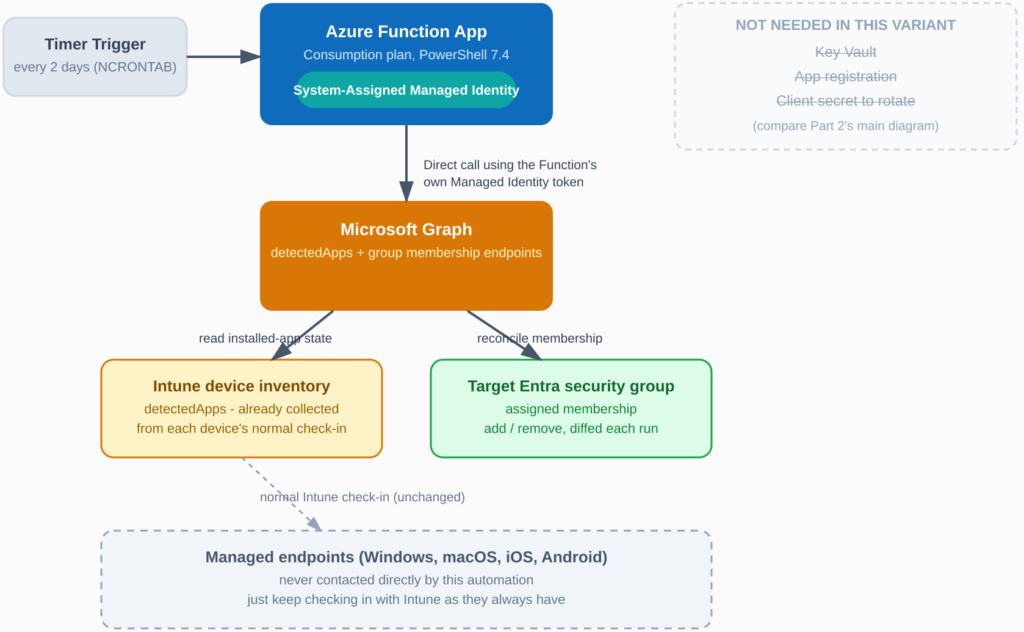
The flow collapses to three components instead of five: the timer, the Function with its Managed Identity, and Graph itself. No secret, nothing in Key Vault, nothing to rotate.
The catch is entirely in how you grant the permissions. A Managed Identity’s service principal doesn’t show up anywhere in the Entra admin center’s App registrations UI, so there’s no button to click for “add Graph permissions.” It has to be done with a script, once, using the Microsoft Graph PowerShell SDK:
Connect-MgGraph -Scopes "Application.Read.All", "AppRoleAssignment.ReadWrite.All"

# The Function App's Managed Identity, found by its service principal Object ID
# (Function App -> Identity -> System assigned -> Object (principal) ID)
$managedIdentityObjectId = "<managed-identity-object-id>"

# Microsoft Graph's own service principal is the same well-known app ID in every tenant
$graphServicePrincipal = Get-MgServicePrincipal -Filter "appId eq '00000003-0000-0000-c000-000000000000'"

$permissionsToGrant = @(
    "DeviceManagementManagedDevices.Read.All",
    "Device.Read.All",
    "GroupMember.ReadWrite.All"
)

foreach ($permissionName in $permissionsToGrant) {
    $appRole = $graphServicePrincipal.AppRoles | Where-Object { $_.Value -eq $permissionName -and $_.AllowedMemberTypes -contains "Application" }

    New-MgServicePrincipalAppRoleAssignment `
        -ServicePrincipalId $managedIdentityObjectId `
        -PrincipalId $managedIdentityObjectId `
        -ResourceId $graphServicePrincipal.Id `
        -AppRoleId $appRole.Id
}
Run once, by someone with sufficient Entra permissions (Privileged Role Administrator or Global Administrator), and the Function’s own identity can call Graph immediately afterward, no token request, no client secret step. Inside the Function, this collapses to just Connect-MgGraph -Identity (or the REST equivalent using the Managed Identity’s token endpoint directly), then calling Graph straight away.
This is a genuinely good choice if you’re automating a single tenant you control indefinitely and the portability argument doesn’t apply to you. The series itself continues with the app registration and Key Vault pattern in Part 3, since it’s the shape that also works if this ever needs to extend beyond one tenant, but both are documented here so you can pick based on what you actually need rather than what this series happened to build.
The architecture, end to end
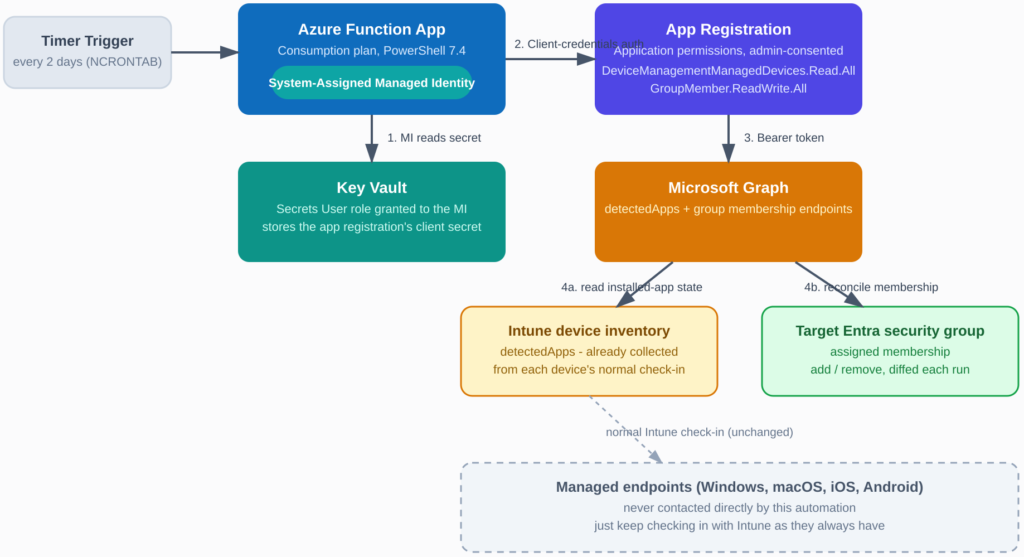
Reading the diagram left to right: the timer fires, the Function wakes up, its Managed Identity pulls the app registration’s secret from Key Vault, that secret is used in a standard OAuth2 client-credentials request to get a Graph token, and that token is what actually talks to Graph, querying detectedApps for the current installed-software state, then diffing that against the target group’s current membership and applying only the additions and removals actually needed.
The bottom of the diagram is deliberately the least interesting part, and that’s the point: managed endpoints just keep checking in with Intune exactly as they always have. Nothing about this automation changes what happens on the device side, which is the entire cloud-only argument made visual. detectedApps is simply which box this series happened to fill in first; any other row from the generalization table earlier slots into the same diagram unchanged.
Design decisions worth explaining
Why a 2-day schedule, not hourly. Intune’s own check-in cadence for a healthy device is around 8 hours by default, so running this Function more often than that doesn’t get you fresher data; it just burns Graph calls against data that hasn’t changed. A 2-day cadence was chosen here because the actual use case (gating a staged rollout) doesn’t need same-day reaction time; if your scenario does, tightening this is just a one-line change to the timer’s NCRONTAB schedule, not a redesign.
Why the diff happens before any write. The Function computes the full set of devices that should be in the group and the full set that currently are, and only acts on the difference. That’s what keeps repeated runs idempotent instead of blindly re-adding or flapping devices in and out.
What’s coming in Part 3
Part 3 is the implementation itself: setting up the app registration and its permissions, the Key Vault and Managed Identity wiring, the actual PowerShell running inside the Function, and, because this got built and tested for real rather than just designed on paper, the specific pitfalls that came up along the way.
Related reading: Entra ID Dynamic Groups Can’t Query Installed Software is Part 1 of this series, covering the gap this architecture solves