
The 5 Intune Remote Actions – A clear guide
The Intune remote actions are always a tricky part when managing devices with Intune. Wipe, Delete, Retire, Autopilot Reset or Fresh Start. What to select and when? That’s always an interesting question.
Managing Windows devices with Microsoft Intune means having the right tool for every situation. In today’s post, we’ll explore the remote actions available to IT administrators—Wipe, Delete, Retire, Autopilot Reset, and Fresh Start. We’ll explain what each action does, when you should use it, and highlight the differences in how they handle company data, personal data, and overall device management.
While there are plenty of posts addressing Intune remote actions, I wanted to create a single, comprehensive guide that covers every aspect in one place. In this article, you’ll find detailed explanations of each remote action, accompanied by useful diagrams (I tried to create a logical diagram of what action to choose)—available on my GitHub page—to help administrators quickly understand when and how to use each option.
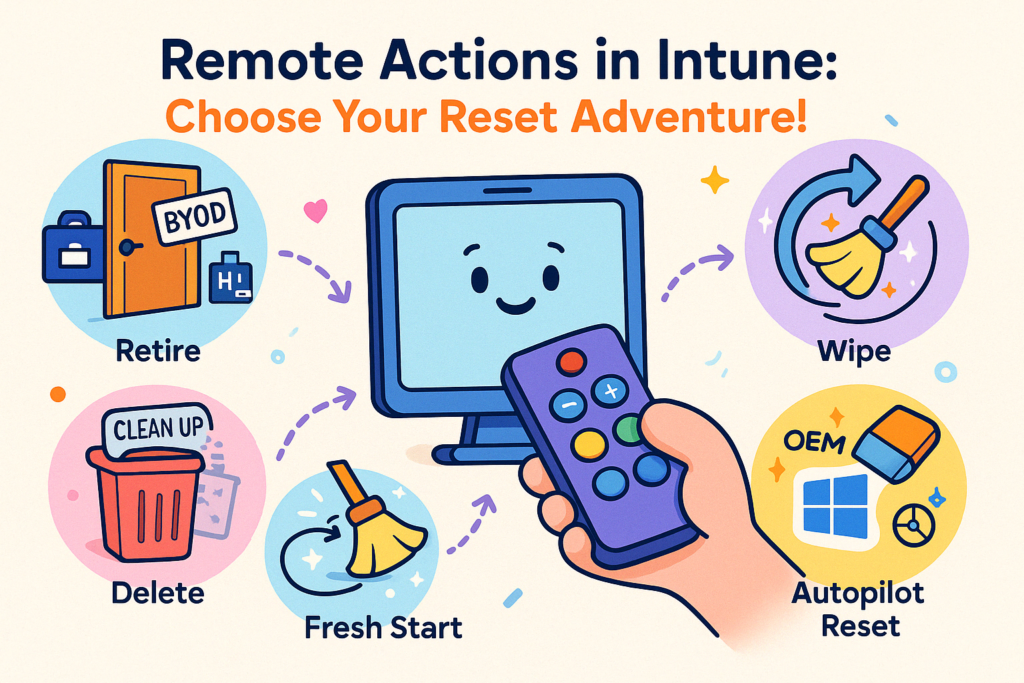
Table of Contents
A Brief Overview of Intune Remote Actions
Microsoft Intune provides various remote actions to:
- Remove corporate management settings and data from devices.
- Reset devices to their factory default state.
- Prepare devices for a new user without manual intervention.
These actions are particularly vital when managing devices in scenarios such as employee departures, device handovers, or recovery from compromised data. In this post, we dive deep into five major actions:
- Retire
- Delete
- Wipe
- Fresh Start
- Autopilot Reset
Each option plays a different role in how much data is removed, whether the device remains enrolled in management, and how quickly it can be redeployed.
Retire vs. Delete — Removing Management, Not Data
Retire
What It Does:
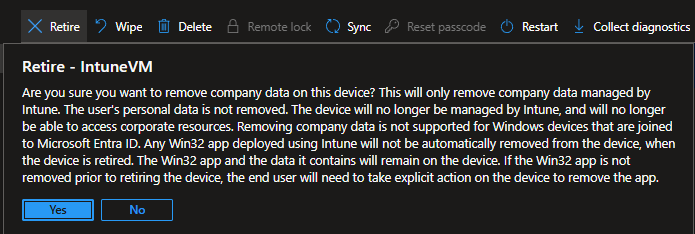
The Retire action is designed for situations where you want to remove management settings, corporate data, and profiles without disturbing a user’s personal data. When you issue a retire, Intune removes company apps, email profiles, Wi‑Fi/VPN configurations, and certificates from the device. However, the device continues to store the user’s local files and personal settings. The removal process occurs when the device next checks in with Intune.
When to Use:
- Ideal for BYOD (Bring Your Own Device) scenarios.
- Suitable when a company wants to end management (for instance, when an employee leaves) without wiping all personal content.
Delete
What It Does:
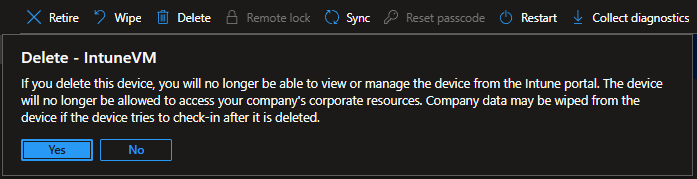
The Delete action works much like Retire, with one major difference: it immediately removes the device record from the Intune portal. This action also sends out a retire command, so that corporate data is removed when the device checks in next. However, any personal data remains untouched.
When to Use:
- Best when cleaning up stale or duplicate device records in your environment.
- Use Delete if you need to remove a device from Intune’s inventory right away but do not want to disturb user data.
Both options remove the device from management (or eventually do so) but retain personal data.
Wipe — The Complete Factory Reset
What It Does:
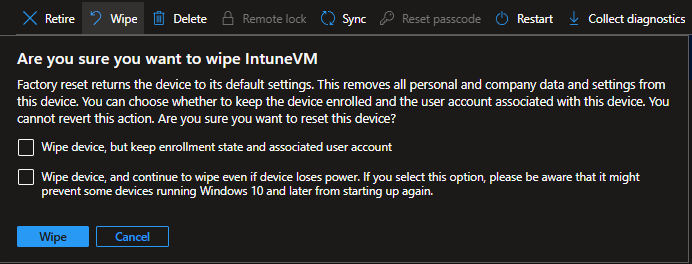
Wipe restores a device to its factory default state—often known as the Out-of-Box Experience (OOBE) in Windows. This action can remove:
- All user data (personal files, profiles, and apps if you opt not to retain them).
- All corporate settings and installed apps.
- The Intune management profile, thereby disassociating the device from your management console.
There are options within the wipe process:
- Wipe and Keep Enrollment State: Erases most of the data and apps but can preserve user accounts, retaining aspects of the corporate join (such as the Entra ID record). Policies will reapply on the next check-in.
- Wipe Completely: Deletes all data, apps, accounts, and settings, essentially giving you a fresh device.
When to Use:
- When the device must be completely reset, for instance, if a device is lost or stolen or needs to be fully prepared for another user.
- When security is a top priority and no residual data is acceptable.
Fresh Start — A Clean Windows Installation Without Bloatware
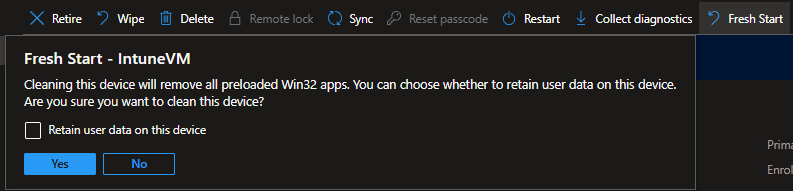
What It Does:
Fresh Start reinstalls Windows on a device, but it is notably different from a traditional wipe:
- Removes Pre-Installed OEM/Bloatware: It strips out manufacturer-installed applications and non-essential software.
- Preserves Personal Data (If Desired): You have the choice to retain user data (typically only preserving the contents of the user’s home folder), which means the user’s personal files can remain intact while apps and settings get removed.
- Applies a “Vanilla” Version of Windows: The device is reset to a clean state as per the default Microsoft Windows ISO image.
When to Use:
- When a device comes preloaded with unwanted OEM apps or demo software and you want to refresh it without a full wipe.
- When maintaining user data is important, yet you want to remove corporate and non-standard apps.
Autopilot Reset — Quick Reconfiguration for Reuse
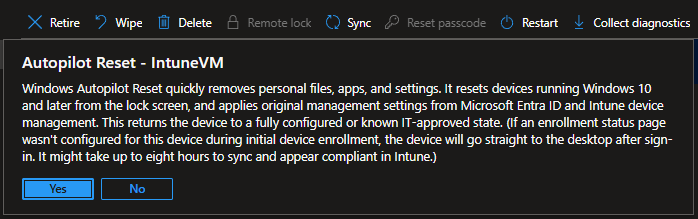
What It Does:
Autopilot Reset (sometimes called Autopilot Refresh) is tailored for scenarios where a device needs to be quickly repurposed:
- Removes Previous User Data and Settings: It wipes personal files, applications, and settings of the former user.
- Retains Device Identity and Enrollment: Unlike a full wipe, Autopilot Reset leaves the device’s Entra ID and Intune enrollment intact. This ensures that the device is immediately available for reconfiguration and redeployment.
- Maintains Key Configurations: Region/language settings, Wi‑Fi connections, and any assigned provisioning packages remain intact.
When to Use:
- When you’re reassigning a device to a new user within the organization.
- When minimizing downtime is crucial while still ensuring that remnants of the previous user’s data are removed.
- Particularly effective in corporate scenarios where devices remain under management.
Choosing the Right Action for Your Environment
When deciding which remote action to execute, consider the following factors:
- Device Ownership:
- Corporate-Owned: A complete wipe (with or without retaining enrollment) or Autopilot Reset can be appropriate if the device is to be reassigned.
- BYOD (Bring Your Own Device): Retire (or Delete) is ideal because it only removes corporate data and policies while leaving personal content unaffected.
- Data Security Needs:
- High Security: Use a full wipe to ensure no data remains, which is crucial for lost or stolen devices.
- Quick Turnover: If speed is of essence and the device stays under management, Autopilot Reset is more efficient.
- Device State and Performance Issues:
- Bloatware and Unwanted Apps: Fresh Start offers a way to clean up devices by installing a “vanilla” Windows while optionally keeping user data.
The choice should reflect both the management goals and user experience requirements of your organization.
Conclusion
Each remote action in Microsoft Intune has its unique purpose:
- Retire/Delete: Best for removing management from personal devices while leaving user data intact.
- Wipe: Ideal when a complete, secure factory reset is needed.
- Fresh Start: Perfect for refreshing devices by removing bloatware without a full wipe, optionally preserving user data.
- Autopilot Reset: Enables fast redeployment of corporate devices while retaining enrollment and essential settings.
Understanding these differences is key to applying the right procedure at the right time and ensuring a smooth, secure experience for both IT departments and end users.
References and Documentation
- Intune: What is Retire / Wipe / Delete / Fresh Start / Autopilot Reset
- Remote Actions in Intune
- What is Retire / Wipe / Delete / Fresh Start / Autopilot Reset in Microsoft Intune
- Understanding Intune Device Actions: Retire, Wipe, Delete, Fresh Start, and Autopilot Reset
- Intune Fresh Start vs. Wipe: The Best Choice for Device Management
- Official Documentation: Use remote actions to manage devices using Microsoft Intune
Other Interesting Posts