Pass Parameters to a PowerShell Script Packaged as an .intunewin Win32 App
Learn how to pass parameters to a PowerShell script inside an .intunewin package deployed via Intune Win32 app management – with real examples and gotchas.
A common question from Intune admins who package PowerShell scripts as Win32 apps is whether you can pass parameters at deploy time rather than hardcoding them inside the script. The answer is yes! This post covers exactly how to do it, with real-world use cases, working patterns, and the gotchas that will catch you if you’re not careful.
Table of Contents
Why Package a PowerShell Script as a Win32 App?
Intune has a native Platform Scripts feature for running PowerShell on devices. So why go through the effort of packaging a script as a Win32 app?
A few common reasons:
- Detection rules – Win32 apps support file, registry, and custom script detection. You can make Intune track whether the script has already run successfully and skip it on subsequent syncs.
- Dependencies – Win32 apps support dependency chains. You can ensure prerequisites are installed before your script fires.
- Bundled files – Your script may need additional files alongside it (config files, binaries, certificates). You can package everything into a single .intunewin.
- Return code control – Win32 apps give you full control over how exit codes are interpreted (success, soft reboot, hard reboot, retry).
None of these are available with the Platform Scripts feature. And once you go down the Win32 path, you’ll immediately run into the question: how do I get values into the script without rebuilding the package every time something changes?
That’s where the Install command field comes in.
How Parameters Actually Get Passed
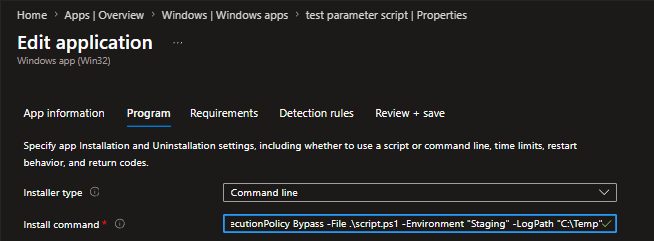
When you configure a Win32 app in Intune, the Install command field is a free-text command line. This is not just a path to your installer – it is the full command that the Intune Management Extension (IME) will execute on the device, inside the extracted package folder.
That means you write it exactly like you would in a terminal:
powershell.exe -ExecutionPolicy Bypass -File .\YourScript.ps1 -ParameterName "Value"
Intune extracts the .intunewin contents to a temp folder and runs this command from within it. Your .ps1 file just needs to be inside the package – everything after -File .\YourScript.ps1 is passed directly to the script as arguments.
Note: The IME runs Win32 apps in the SYSTEM context by default (unless you switch to User context). Any parameters you pass via the Install command are baked into the app configuration at the Intune portal level – they are not dynamic per-user or per-device at runtime.
Real-World Use Cases
A few scenarios where this pattern is genuinely useful:
- Environment-based configuration – You have one script that installs a configuration agent. You create two Win32 apps – one for Production and one for Staging – using the same .intunewin but passing a different -Environment parameter in each app’s Install command. No duplicate scripts.
- Registry value injection – A script that writes a registry key. The key path is the same, but the value differs between device groups. Pass the value as a parameter instead of duplicating the script.
- Log path or output target – Your script writes logs or output somewhere. Pass -LogPath as a parameter so you can control the destination from Intune without touching the script.
- Feature flags – A deployment script that supports a -Mode parameter (e.g., Install, Configure, Repair). You package once and create multiple Win32 apps for each mode.
Pass Parameters Pattern 1 – Simple Named Parameters
This is the most common pattern. Your script has a param() block at the top, and you pass values via the Install command.
The script (inside the .intunewin):
# Configure-Agent.ps1
param(
    [string]$Environment = "Production",  # Default value if not passed
    [string]$LogPath = "C:\ProgramData\Logs"
)

# Create log directory if it doesn't exist
New-Item -ItemType Directory -Path $LogPath -Force | Out-Null

# Write to log
$timestamp = Get-Date -Format "yyyy-MM-dd HH:mm:ss"
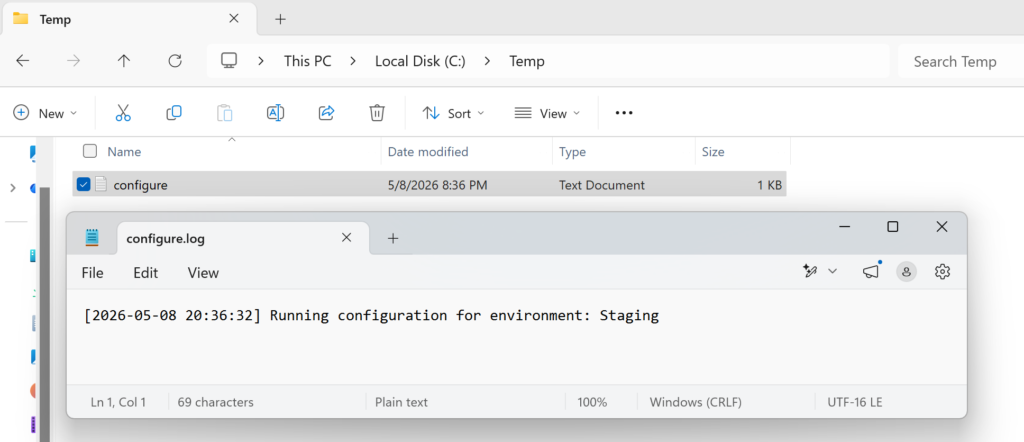
"[$timestamp] Running configuration for environment: $Environment" | Out-File "$LogPath\configure.log" -Append

# Your logic here
if ($Environment -eq "Staging") {
    # Apply staging-specific configuration
    Write-Host "Applying Staging configuration..."
} else {
    # Apply production configuration
    Write-Host "Applying Production configuration..."
}

exit 0  # Always return an explicit exit code for Intune
The Install command in Intune (for the Staging app):
powershell.exe -ExecutionPolicy Bypass -File .\Configure-Agent.ps1 -Environment "Staging" -LogPath "C:\ProgramData\MyApp\Logs"
The Install command in Intune (for the Production app – same .intunewin):
powershell.exe -ExecutionPolicy Bypass -File .\Configure-Agent.ps1 -Environment "Production" -LogPath "C:\ProgramData\MyApp\Logs"
You package the script once with IntuneWinAppUtil, upload it once, and create two separate Win32 apps pointing at the same .intunewin – each with a different install command. No duplicate scripts, no rebuild.
Pass Parameters Pattern 2 – Multiple Parameters with a Config Flag
A slightly more advanced pattern: a script that supports a -Mode switch, letting you reuse one package across install, configure, and repair scenarios.
The script:
# Manage-Software.ps1
param(
    [ValidateSet("Install","Configure","Repair")]
    [string]$Mode = "Install",

    [string]$Version = "1.0.0"
)

switch ($Mode) {
    "Install" {
        Write-Host "Installing version $Version..."
        # Run installer logic
        exit 0
    }
    "Configure" {
        Write-Host "Applying configuration for version $Version..."
        # Apply post-install settings
        exit 0
    }
    "Repair" {
        Write-Host "Running repair for version $Version..."
        # Repair logic
        exit 0
    }
}
Install command – Install mode:
powershell.exe -ExecutionPolicy Bypass -File .\Manage-Software.ps1 -Mode "Install" -Version "2.1.0"
Install command – Repair mode (a separate Win32 app, same .intunewin):
powershell.exe -ExecutionPolicy Bypass -File .\Manage-Software.ps1 -Mode "Repair" -Version "2.1.0"
The detection rule differentiates whether each “app” has run successfully, so Intune knows which mode has been applied.
The New PowerShell Script Installer Type – and Why Parameters Don’t Work There
Microsoft recently introduced a new installer type for Win32 apps: instead of calling powershell.exe from the Install command, you can upload a .ps1 directly in the Intune portal as the installer. The script becomes part of the app configuration – editable without repackaging. Small script fixes no longer mean a full .intunewin rebuild and re-upload. You just edit the script in the portal and sync.
However – this approach does not support parameters.
When you use the PowerShell Script installer type, Intune runs the script as-is. There is no Install command field to append arguments to. Any values your script needs must be hardcoded inside it, or read from somewhere the device can reach (a file, a registry key, an environment variable written by a previous step).
| Classic Install Command | PowerShell Script Installer | |
|---|---|---|
| Parameters supported | Yes – via Install command | No |
| Script editable without repackage | No | Yes |
| Bundled files supported | Yes | Yes (payload still needed) |
| Detection rules | Yes | Yes |
| Best for | Parameterised, reusable deployments | Rapid changes on simple installs |
If you need parameters – stick with the classic powershell.exe -File approach in the Install command. If you want easy script editing and don’t need parameters, the new installer type is worth using.
Gotchas
32-bit PowerShell
This is the most common silent failure. The Install command in Intune launches a 32-bit PowerShell process by default. If your script uses 64-bit-only APIs, registry hives (e.g., HKLM:\SOFTWARE without redirection), or modules that only exist in 64-bit, it will fail silently or behave incorrectly.
Force 64-bit explicitly:
%SystemRoot%\Sysnative\WindowsPowerShell\v1.0\powershell.exe -ExecutionPolicy Bypass -File .\YourScript.ps1 -Param "Value"
Sysnative is a special alias available in 32-bit processes on 64-bit Windows that redirects to the real 64-bit System32 folder.
Quoting and Spaces in Parameter Values
If a parameter value contains spaces, it must be quoted. But quoting inside the Intune Install command field can get tricky because the field is itself a string. Use escaped double quotes or single quotes carefully.
Works:
powershell.exe -ExecutionPolicy Bypass -File .\Script.ps1 -Path "C:\Program Files\MyApp"
Breaks (no quotes around the path):
powershell.exe -ExecutionPolicy Bypass -File .\Script.ps1 -Path C:\Program Files\MyApp
If you hit edge cases with nested quoting, a wrapper approach helps – write a cmd.exe launch that handles the quoting, or embed the value directly in a second small wrapper script inside the same .intunewin.
Array Parameters Don’t Pass Cleanly
If your script expects an array parameter like [string[]]$Paths = @(), passing an array literal through the Install command line (e.g., @(‘C:\Folder1′,’C:\Folder2’)) will not work correctly in most cases. PowerShell’s argument parsing strips or misinterprets the array syntax when called via -File.
The cleaner workaround: pass a delimited string and split it inside the script.
Install command:
powershell.exe -ExecutionPolicy Bypass -File .\Script.ps1 -Paths "C:\Folder1;C:\Folder2;C:\Folder3"
Script:
param(
    [string]$Paths = ""
)

# Split the delimited string into an array
$pathArray = $Paths -split ";"

foreach ($path in $pathArray) {
    Write-Host "Processing: $path"
}
Parameters Are Visible in IME Logs
Whatever you put in the Install command is logged by the IME. If a parameter value is sensitive (a password, a token, a licence key), passing it this way is a bad idea. Consider reading sensitive values from a secure source the script can reach at runtime – such as a value written by a previous step, a certificate, or a managed identity call.
Troubleshooting – IME Logs
When a Win32 app fails to install or behaves unexpectedly, the first place to look is the IME log folder on the device:
C:\ProgramData\Microsoft\IntuneManagementExtension\Logs\
The most relevant files:
- IntuneManagementExtension.log – Main IME log. Shows app download, extraction, and command execution.
- AppWorkload.log – Shows the install command that was actually executed, the working directory, exit code, and whether detection succeeded.
In AppWorkload.log you can confirm:
- The exact command line that was run (including your parameters)
- The temp extraction folder path
- The exit code returned by your script
- Whether detection passed or failed after install
If the Install command looks right in the portal but the wrong (or no) parameters appear in the log, check the 32-bit/64-bit issue first – a 32-bit PowerShell process that immediately exits due to a missing module or policy error can silently drop your parameters before they’re parsed.
References and Documentation
- Add, Assign, and Monitor a Win32 App in Microsoft Intune
- Prepare Win32 App Content for Upload
- Intune Management Extension for Windows
- Microsoft-Win32-Content-Prep-Tool